
Exchange Online App Access Policies are replaced by RBAC for Applications

Hi All,
A few Months ago i saw, that the recommendation for New-ApplicationAccessPolicy has changed.
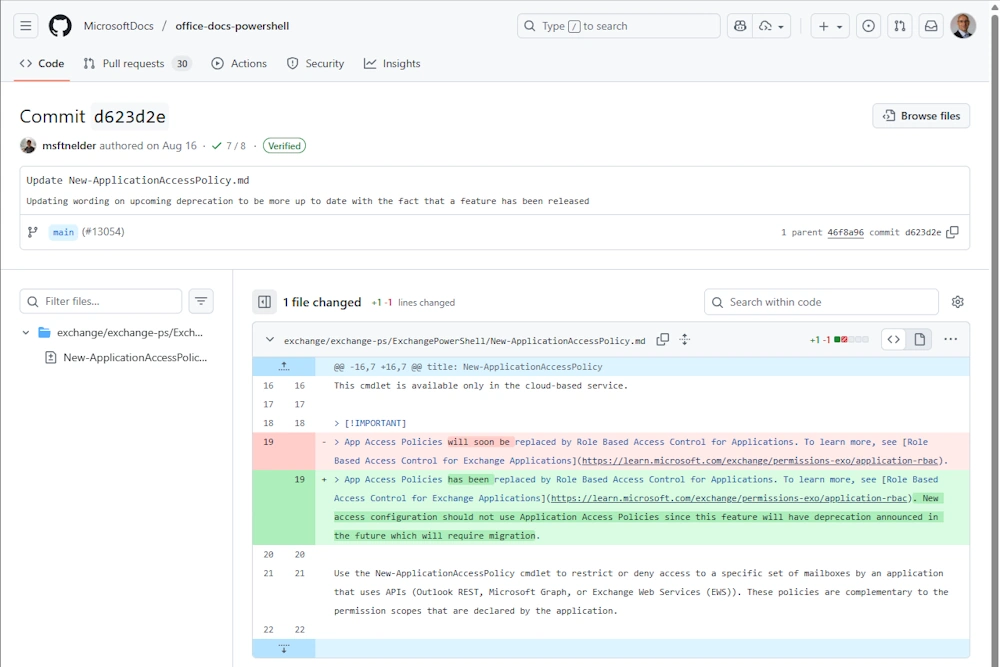
App Access Policies are replaced by Role Based Access Control for Applications. To learn more, see Role Based Access Control for Exchange Applications. Don’t create new App Access Policies as these policies will eventually require migration to Role Based Access Control for Applications.
In Github you can see that the Change has been Published in August
I’ve blogged about RBAC for Applications back in January 2023
Microsoft announced already back then:
This feature extends our current RBAC model and will replace the current Application Access Policy feature.
Seems that’s kind of happening right now, without pushing for the change. Anyway: Be prepared and make plans to update your documentation and procedures.
Entra App
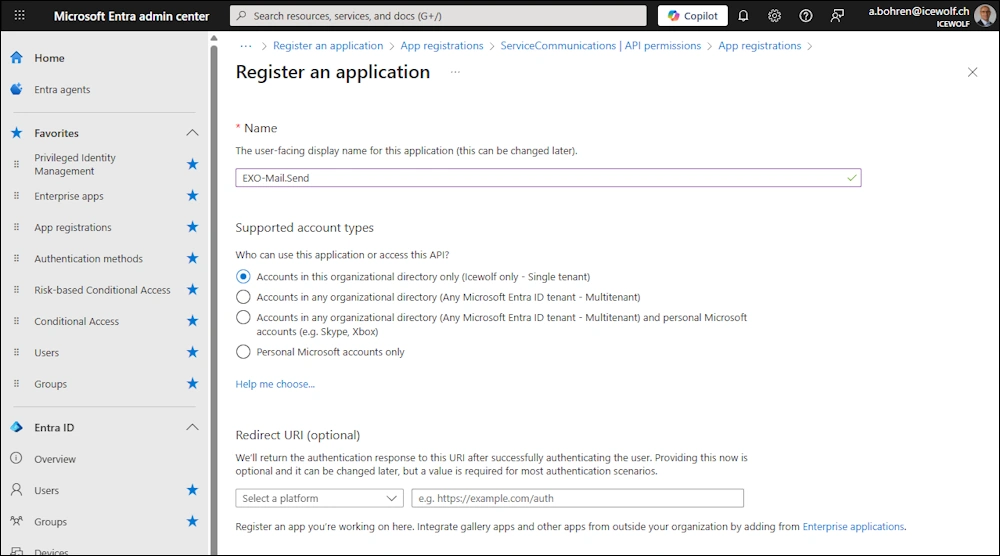
Create an Entra Application
Add Certificate for Authentication
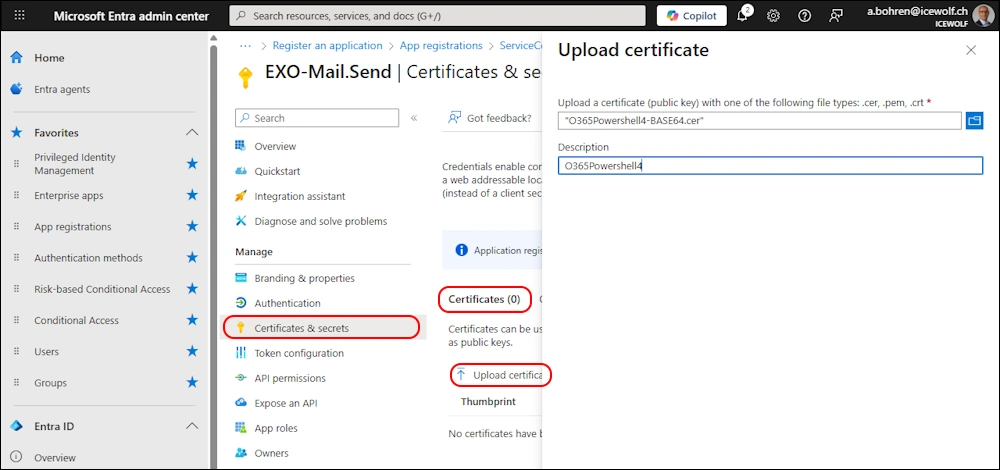
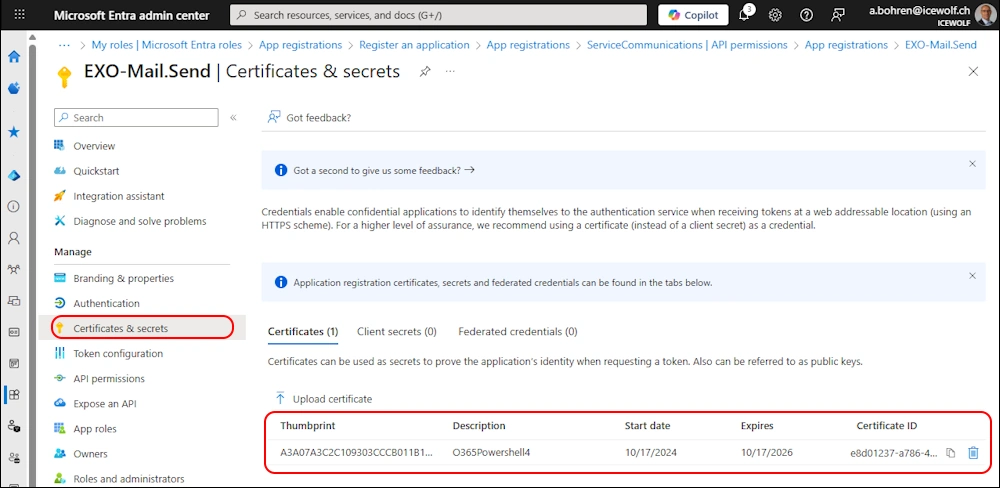
No API Permissions needed on the Entra App - you assign this directly in Exchange Online
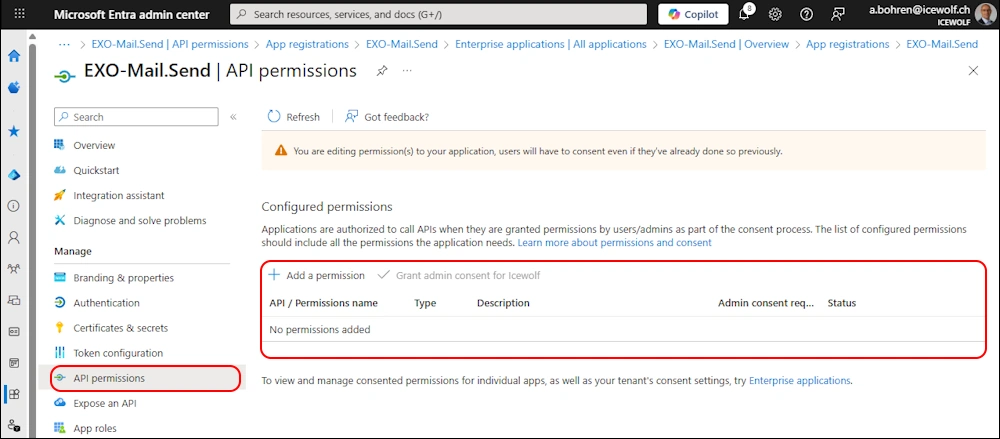
Exchange Service Principal
There exist two ways to create a Service Principal. In the End you need the Object Id from the Enterprise App.
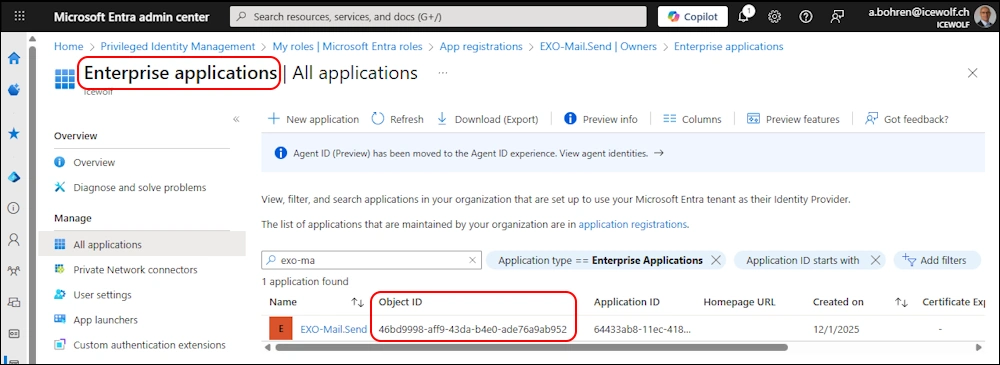
Combination of Microsoft.Graph and Exchange Online
You can get the ObjectID from the Enterprise App with Microsoft.Graph
###############################################################################
# Get AzureAD Application with Microsoft.Graph PowerShell
###############################################################################
Connect-MgGraph -Scopes 'Application.Read.All' -NoWelcome
$ServicePrincipalDetails = Get-MgServicePrincipal -Filter "DisplayName eq 'EXO-Mail.Send'"
$ServicePrincipalDetails
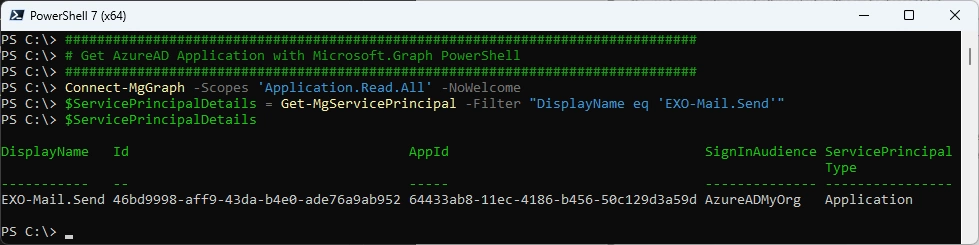
and then use that Information from Graph to create the ServicePrincipal in Exchange Online
###############################################################################
# Create Exchange Service Principal
###############################################################################
Connect-ExchangeOnline -ShowBanner:$false
New-ServicePrincipal -AppId $ServicePrincipalDetails.AppId -ObjectID $ServicePrincipalDetails.Id -DisplayName "EXO Serviceprincipal $($ServicePrincipalDetails.Displayname)"
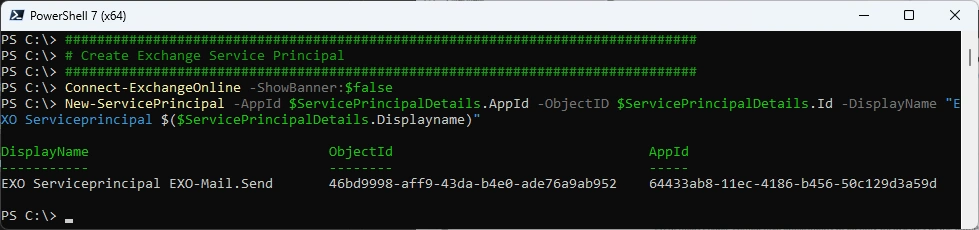
Exchange Online with Object ID from Enterprise App
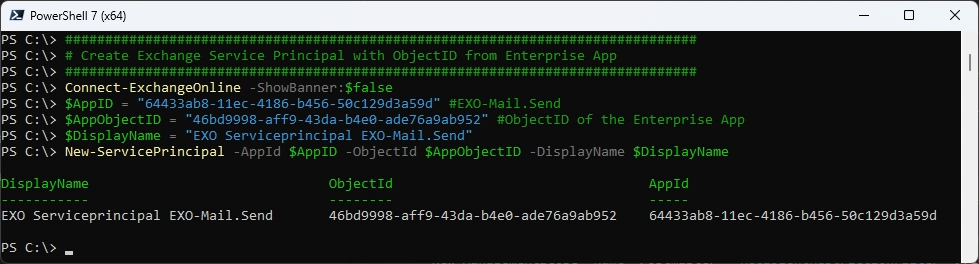
Or get the ObjectID of the Enterprise App in the Portal and create the Service Principal in Exchange Online like that
###############################################################################
# Create Exchange Service Principal with ObjectID from Enterprise App
###############################################################################
Connect-ExchangeOnline -ShowBanner:$false
$AppID = "64433ab8-11ec-4186-b456-50c129d3a59d" #EXO-Mail.Send
$AppObjectID = "46bd9998-aff9-43da-b4e0-ade76a9ab952" #ObjectID of the Enterprise App
$DisplayName = "EXO Serviceprincipal EXO-Mail.Send"
New-ServicePrincipal -AppId $AppID -ObjectId $AppObjectID -DisplayName $DisplayName
Get Service Principal
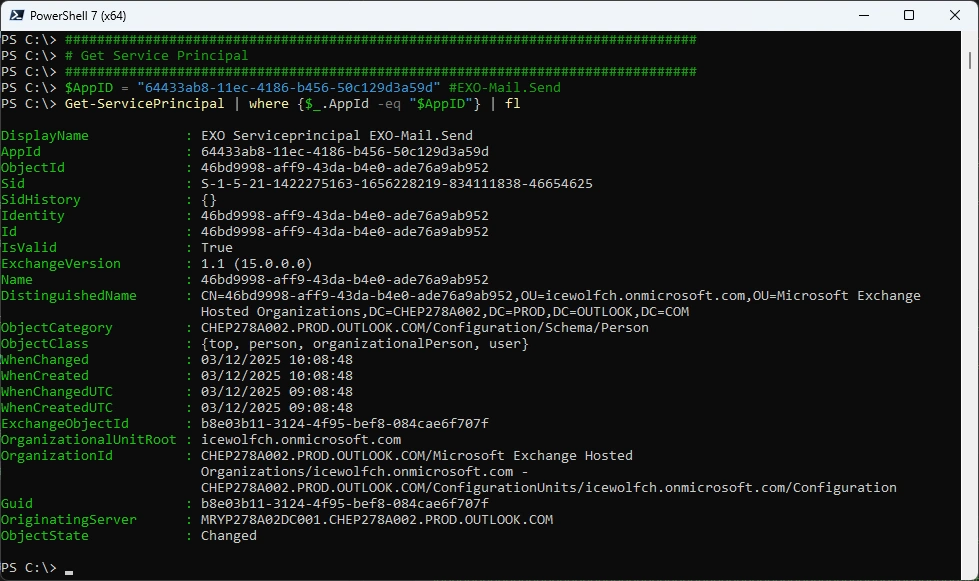
Get the Service Principal in Exchange Online
###############################################################################
# Get Service Principal
###############################################################################
$AppID = "64433ab8-11ec-4186-b456-50c129d3a59d" #EXO-Mail.Send
Get-ServicePrincipal | where {$_.AppId -eq "$AppID"} | fl
List Application RBAC Management Roles
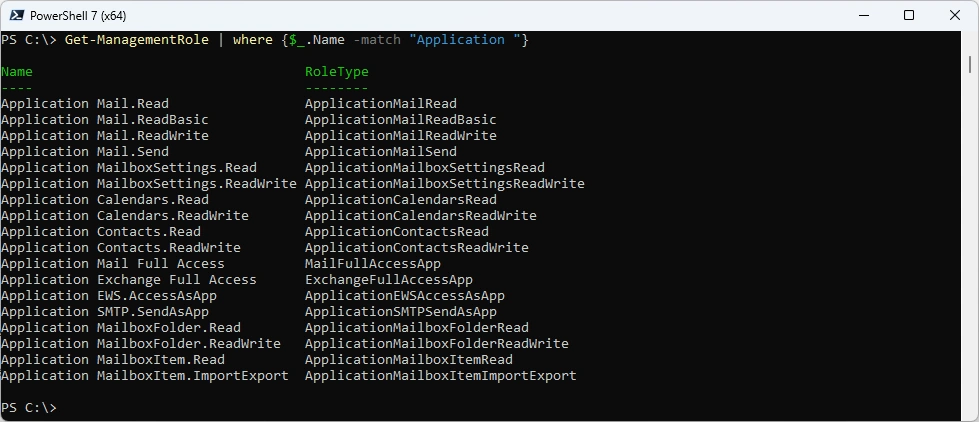
List Applicatation Management Roles
###############################################################################
# Get ManagementRole
###############################################################################
Get-ManagementRole | where {$_.Name -match "Application "}
Management Scope
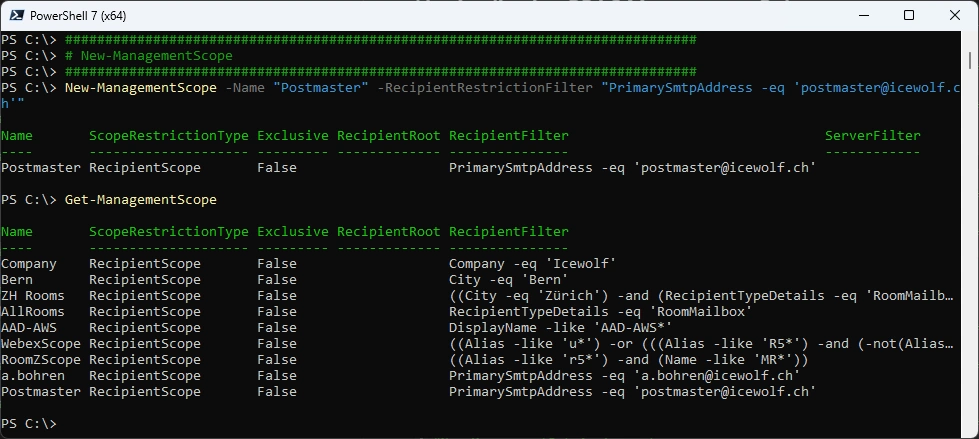
Create a new Management Scope for just one Mailbox
###############################################################################
# New-ManagementScope
###############################################################################
New-ManagementScope -Name "Postmaster" -RecipientRestrictionFilter "PrimarySmtpAddress -eq 'postmaster@icewolf.ch'"
Get-ManagementScope
ManagementRole Assignment
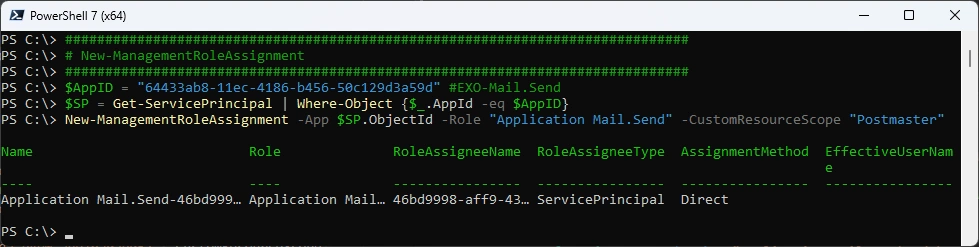
Assign the App an Application Role with a Management Scope
##############################################################################
# New-ManagementRoleAssignment
##############################################################################
$AppID = "64433ab8-11ec-4186-b456-50c129d3a59d" #EXO-Mail.Send
$SP = Get-ServicePrincipal | Where-Object {$_.AppId -eq $AppID}
New-ManagementRoleAssignment -App $SP.ObjectId -Role "Application Mail.Send" -CustomResourceScope "Postmaster"
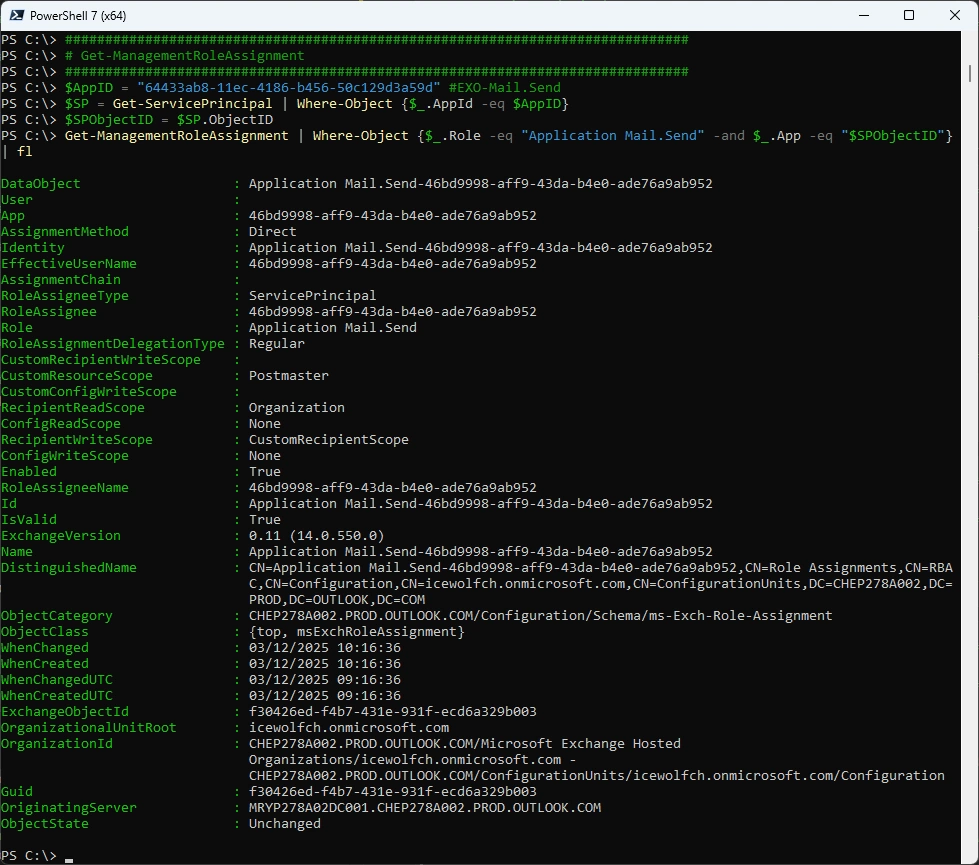
Get the Management Role Assighment from an App
##############################################################################
# Get-ManagementRoleAssignment
##############################################################################
$AppID = "64433ab8-11ec-4186-b456-50c129d3a59d" #EXO-Mail.Send
$SP = Get-ServicePrincipal | Where-Object {$_.AppId -eq $AppID}
$SPObjectID = $SP.ObjectID
Get-ManagementRoleAssignment | Where-Object {$_.Role -eq "Application Mail.Send" -and $_.App -eq "$SPObjectID"} | fl
You can change the Management Scope of the App at any time
Be aware it can take up to two hours until that’s really applied.
##############################################################################
# Change Management Scope
##############################################################################
Set-ManagementRoleAssignment -Identity "Application Mail.Send-46bd9998-aff9-43da-b4e0-ade76a9ab952" -CustomResourceScope "a.bohren"
Set-ManagementRoleAssignment -Identity "Application Mail.Send-46bd9998-aff9-43da-b4e0-ade76a9ab952" -CustomResourceScope "Postmaster"

Testing
Let’s do some testing
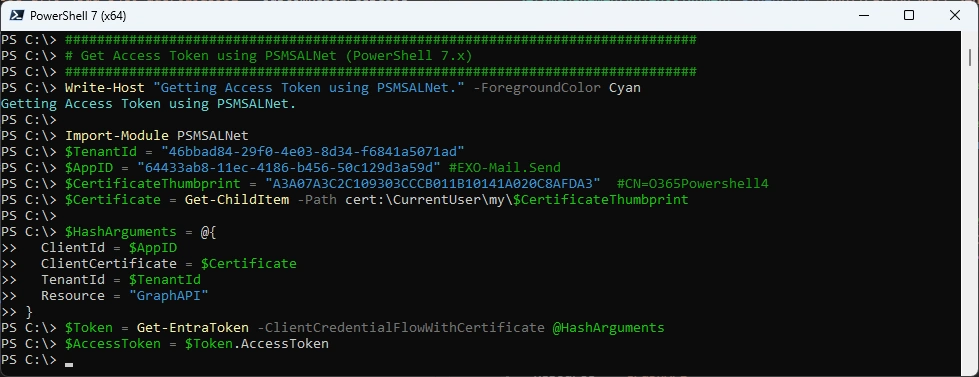
Get Access Token
I use the PSMSALNet PowerShell Module to get an Access Token
###############################################################################
# Get Access Token using PSMSALNet (PowerShell 7.x)
###############################################################################
Write-Host "Getting Access Token using PSMSALNet." -ForegroundColor Cyan

Import-Module PSMSALNet
$TenantId = "46bbad84-29f0-4e03-8d34-f6841a5071ad"
$AppID = "64433ab8-11ec-4186-b456-50c129d3a59d" #EXO-Mail.Send
$CertificateThumbprint = "A3A07A3C2C109303CCCB011B10141A020C8AFDA3"  #CN=O365Powershell4
$Certificate = Get-ChildItem -Path cert:\CurrentUser\my\$CertificateThumbprint

$HashArguments = @{
  ClientId = $AppID
  ClientCertificate = $Certificate
  TenantId = $TenantId
  Resource = "GraphAPI"
}
$Token = Get-EntraToken -ClientCredentialFlowWithCertificate @HashArguments
$AccessToken = $Token.AccessToken
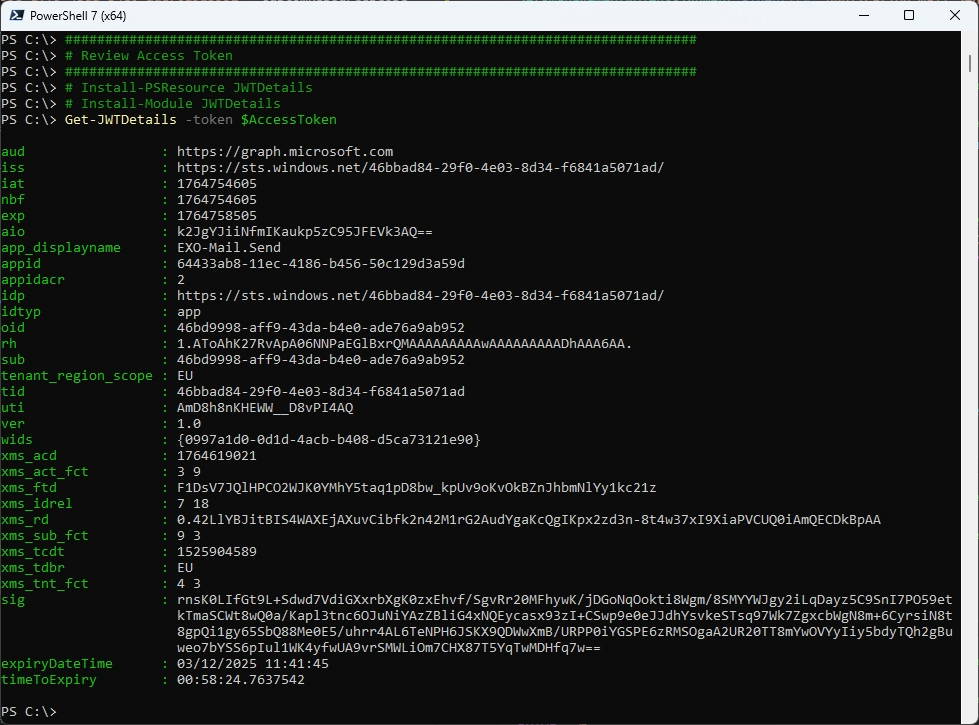
Let’s view the details of the Access Token - there is no Information what permissions where granted from EXO
###############################################################################
# Review Access Token
###############################################################################
# Install-PSResource JWTDetails
# Install-Module JWTDetails
Get-JWTDetails -token $AccessToken
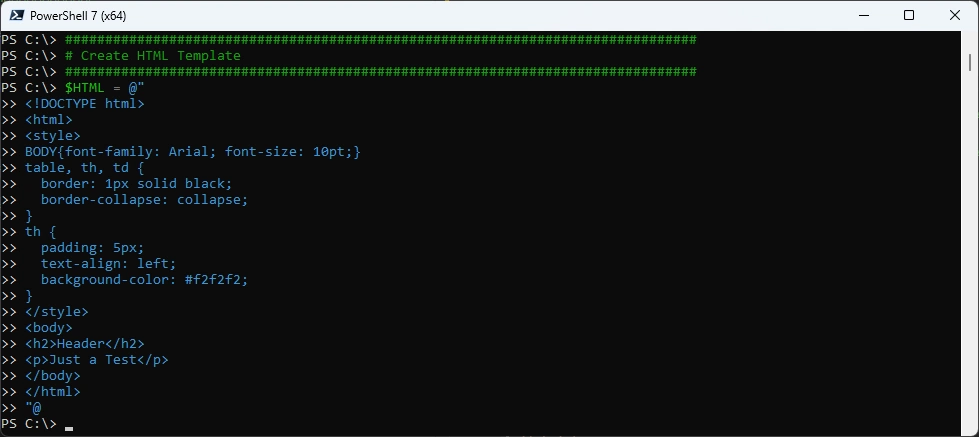
Create a simple HTML File
###############################################################################
# Create HTML Template
###############################################################################
$HTML = @"
<!DOCTYPE html>
<html>
<style>
BODY{font-family: Arial; font-size: 10pt;}
table, th, td {
  border: 1px solid black;
  border-collapse: collapse;
}
th {
  padding: 5px;
  text-align: left;
  background-color: #f2f2f2;
}
</style>
<body>
<h2>Header</h2>
<p>Just a Test</p>
</body>
</html>
"@
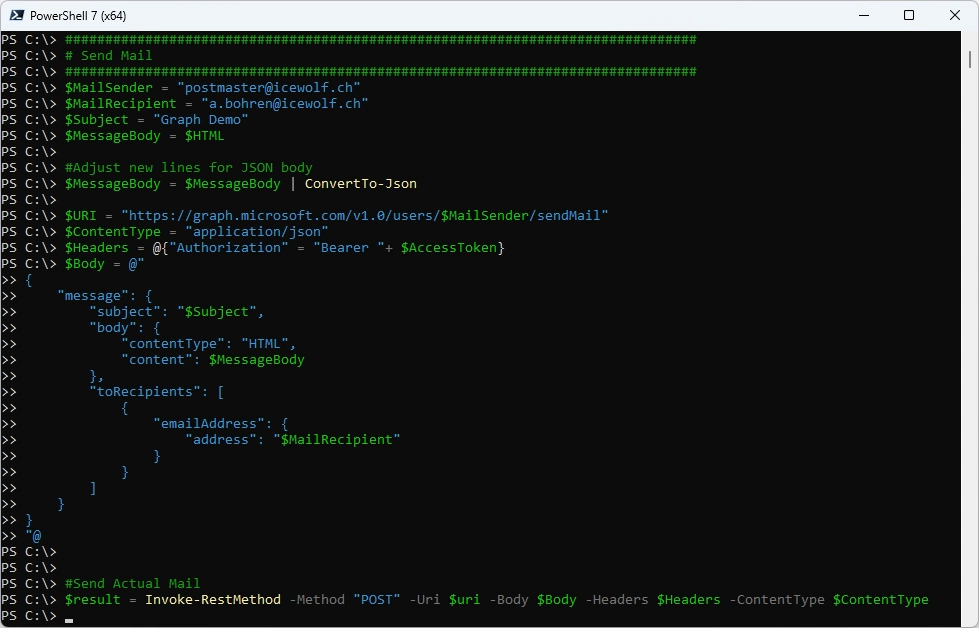
Send a Mail with Graph - i’ve used a Shared Mailbox in Exchange Online as a Sender
###############################################################################
# Send Mail
###############################################################################
$MailSender = "postmaster@icewolf.ch"
$MailRecipient = "a.bohren@icewolf.ch"
$Subject = "Graph Demo"
$MessageBody = $HTML

#Adjust new lines for JSON body
$MessageBody = $MessageBody | ConvertTo-Json

$URI = "https://graph.microsoft.com/v1.0/users/$MailSender/sendMail"
$ContentType = "application/json"
$Headers = @{"Authorization" = "Bearer "+ $AccessToken}
$Body = @"
{
    "message": {
        "subject": "$Subject",
        "body": {
            "contentType": "HTML",
            "content": $MessageBody
        },
        "toRecipients": [
            {
                "emailAddress": {
                    "address": "$MailRecipient"
                }
            }
        ]
    }
}
"@


#Send Actual Mail
$result = Invoke-RestMethod -Method "POST" -Uri $uri -Body $Body -Headers $Headers -ContentType $ContentType
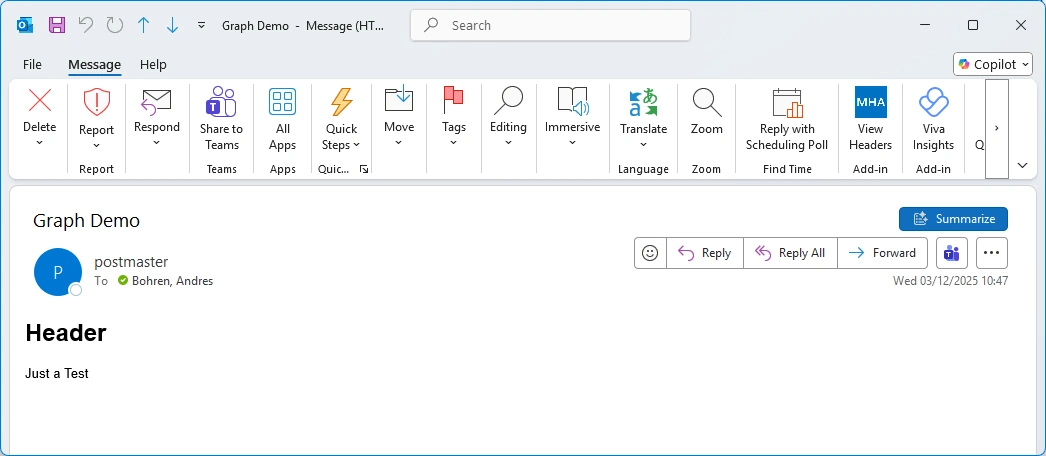
And that’s the Result
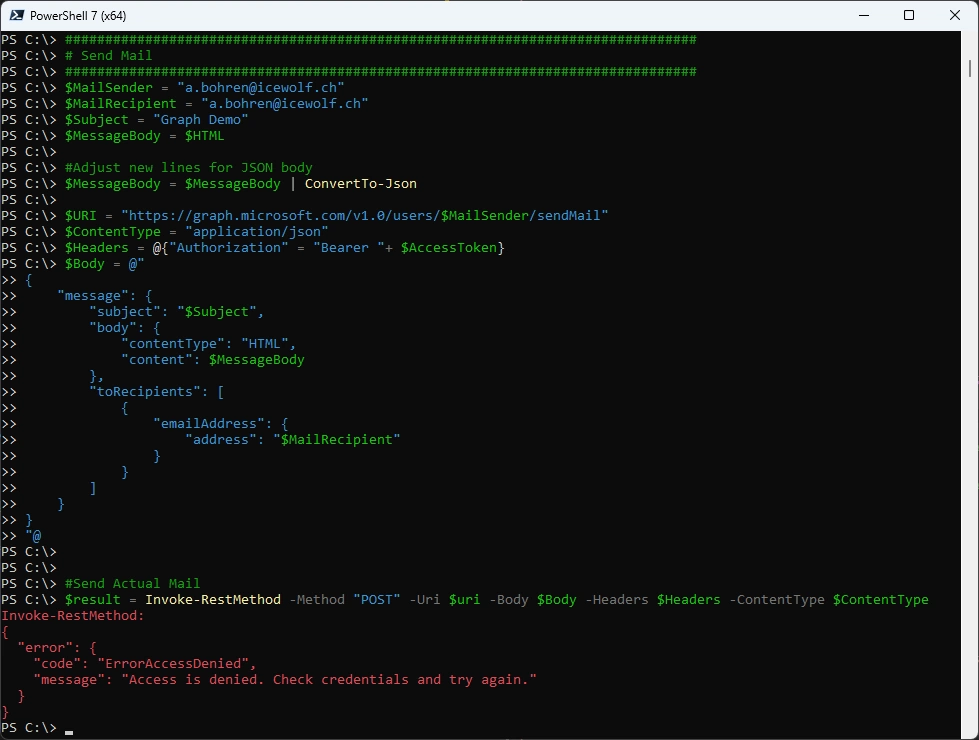
Now let’s try with a Sender that is outside of my Management Scope
###############################################################################
# Send Mail
###############################################################################
$MailSender = "a.bohren@icewolf.ch"
$MailRecipient = "a.bohren@icewolf.ch"
$Subject = "Graph Demo"
$MessageBody = $HTML

#Adjust new lines for JSON body
$MessageBody = $MessageBody | ConvertTo-Json

$URI = "https://graph.microsoft.com/v1.0/users/$MailSender/sendMail"
$ContentType = "application/json"
$Headers = @{"Authorization" = "Bearer "+ $AccessToken}
$Body = @"
{
    "message": {
        "subject": "$Subject",
        "body": {
            "contentType": "HTML",
            "content": $MessageBody
        },
        "toRecipients": [
            {
                "emailAddress": {
                    "address": "$MailRecipient"
                }
            }
        ]
    }
}
"@


#Send Actual Mail
$result = Invoke-RestMethod -Method "POST" -Uri $uri -Body $Body -Headers $Headers -ContentType $ContentType
Remove Management Role Assignment
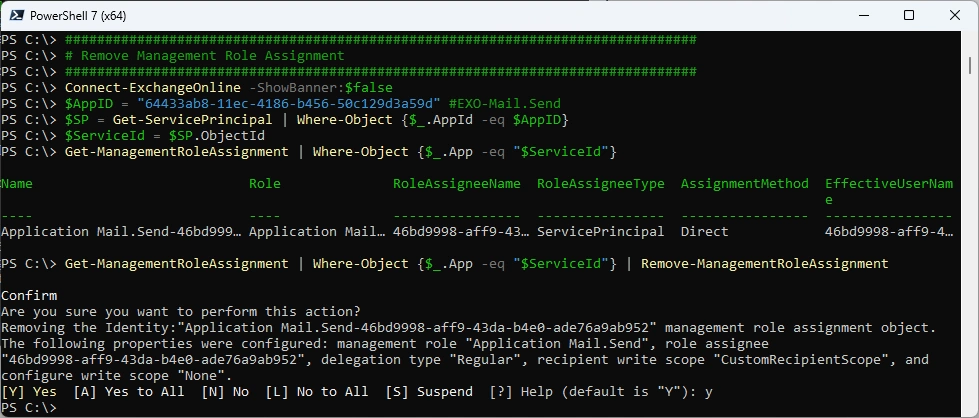
If an Application is removed or retired - you should also clean up the Management Role Assignment
###############################################################################
# Remove Management Role Assignment
###############################################################################
Connect-ExchangeOnline -ShowBanner:$false
$AppID = "64433ab8-11ec-4186-b456-50c129d3a59d" #EXO-Mail.Send
$SP = Get-ServicePrincipal | Where-Object {$_.AppId -eq $AppID}
$ServiceId = $SP.ObjectId
Get-ManagementRoleAssignment | Where-Object {$_.App -eq "$ServiceId"}
Get-ManagementRoleAssignment | Where-Object {$_.App -eq "$ServiceId"} | Remove-ManagementRoleAssignment
If needed remove the Management Scope
###############################################################################
# Remove Management Scope
###############################################################################
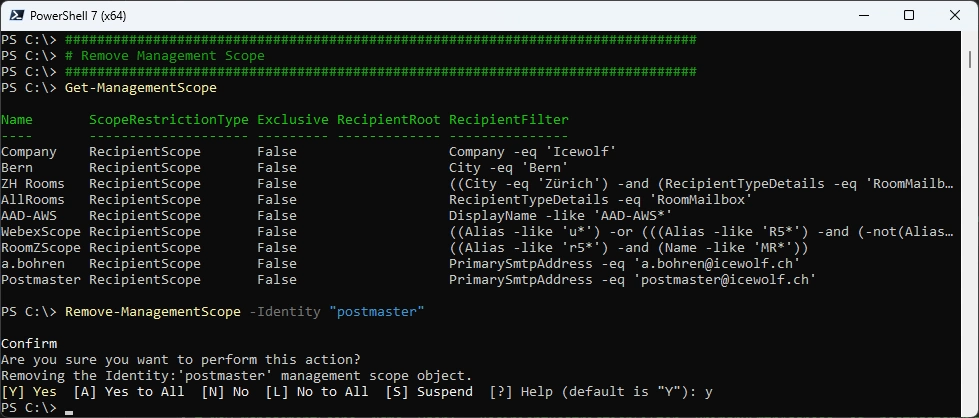
Get-ManagementScope
Remove-ManagementScope -Identity "postmaster"
Remove the Service Principal
###############################################################################
# Remove Exchange Service Principal
###############################################################################
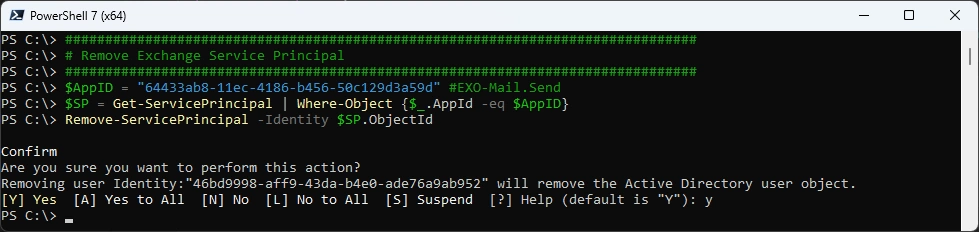
$AppID = "64433ab8-11ec-4186-b456-50c129d3a59d" #EXO-Mail.Send
$SP = Get-ServicePrincipal | Where-Object {$_.AppId -eq $AppID}
Remove-ServicePrincipal -Identity $SP.ObjectId
Summary
This Article advices to move to Exchange RBAC for Applications and not use ApplicationAccessPolicy anymore.
It shows how to create the Service Principals and assign the Management Role including a Management Scope.
In addition, it provides all the commands to add, view and remove RBAC for Applications in Exchange Online.
Regards
Andres Bohren
EntraID Logo Exchange Logo PowerShell Logo Security Logo


