
Azure Log Analytics KQL Query with PowerShell

Hi All,
You can run a Query in the Kusto Query Language (KQL) in Azure Log Analytics Workspace.
In my case i have configured Entra ID Diagnostic settings to store the SignInLogs to an Azure Log Analytics Workspace.
In this Article, i’ll explain how to Query a Log Analytics Workspace with PowerShell.
SigninLogs
| where TimeGenerated > ago(30d)
| where ResultType == 0
| summarize count() by UserId, UserPrincipalName
| order by count_ desc

Entra Application
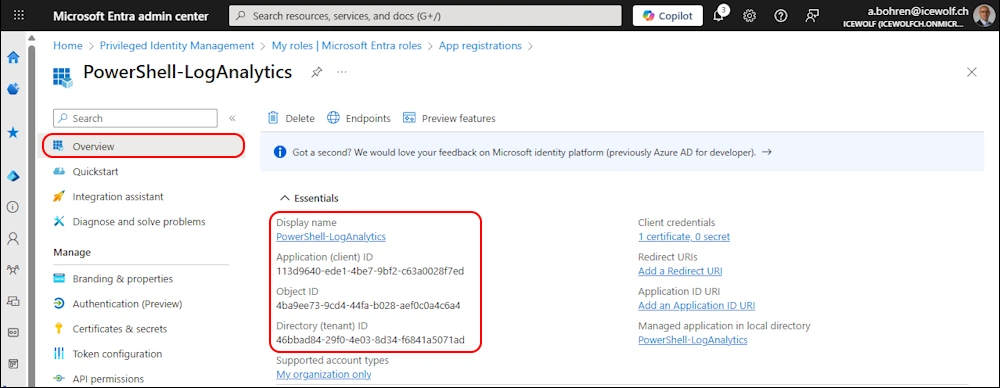
Fist we need to Create an Entra Application
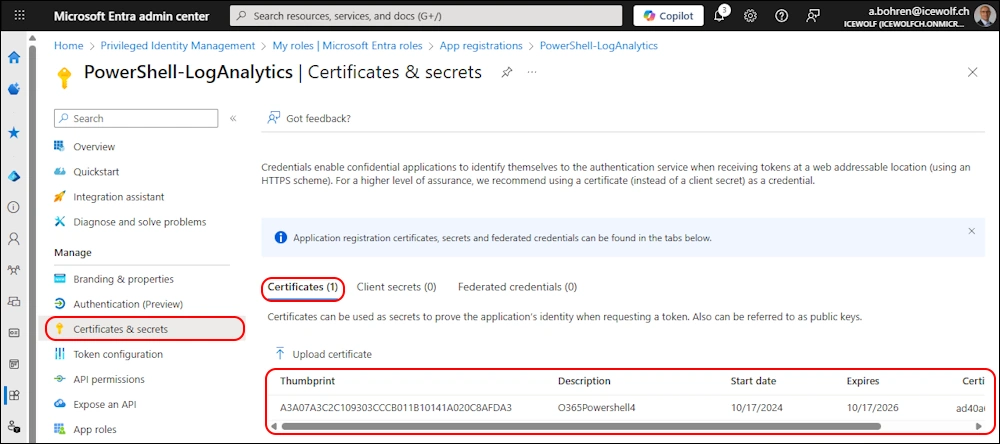
Add a Certificate for Authentication
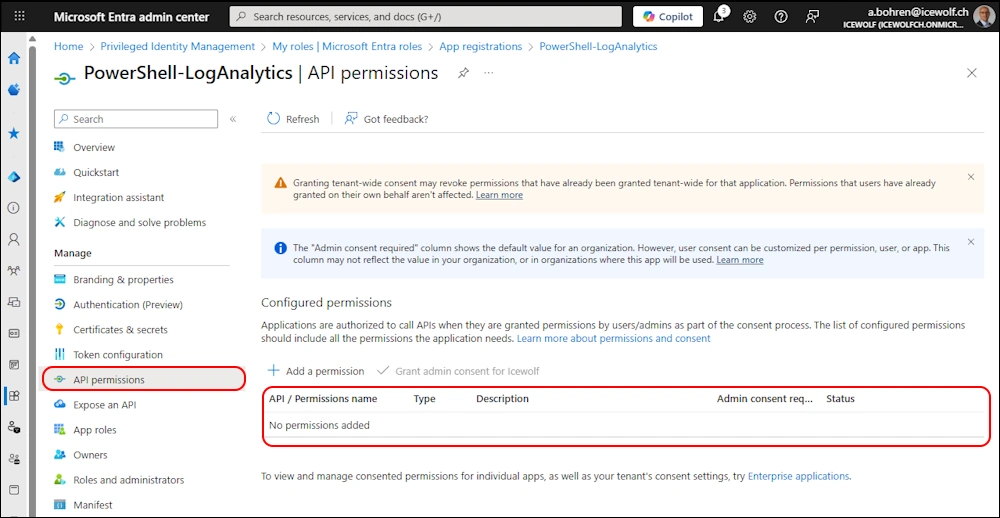
No API permissions needed
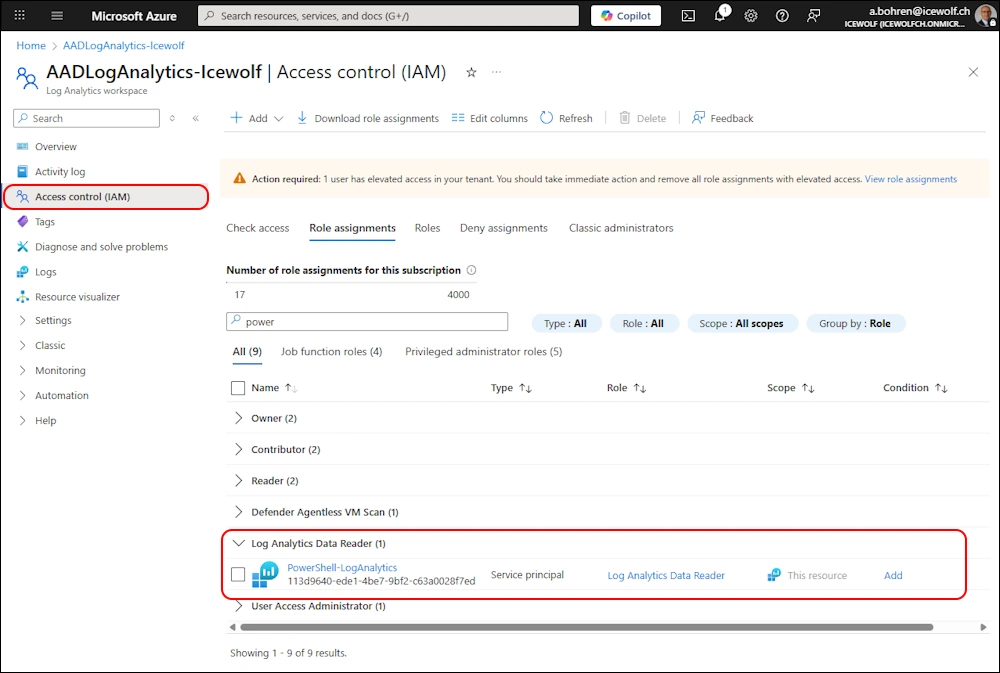
Azure Permission
Note down the WorkspaceID - you will need that later

Add the Entra Service Principal (Entra Application) and assign the “Log Analytics Data Reader” Role
PowerShell
Now let’s do the KQL Query with PowerShell.
In this Example we use the Entra Application with the Certificate with the Private Key from the CurrentUser Certificate Store
###############################################################################
# Connect to Azure
###############################################################################
# Modules: Az.Accounts
# Entra App with Certificate Authentication
# Azure Permissions: Log Analytics Data Reader
$ApplicationId = "113d9640-ede1-4be7-9bf2-c63a0028f7ed" #PowerShell-LogAnalytics
$TenantId = "icewolfch.onmicrosoft.com"
$Thumbprint = "A3A07A3C2C109303CCCB011B10141A020C8AFDA3" #O365Powershell4
Connect-AzAccount -CertificateThumbprint $Thumbprint -ApplicationId $ApplicationId -Tenant $TenantId -ServicePrincipal

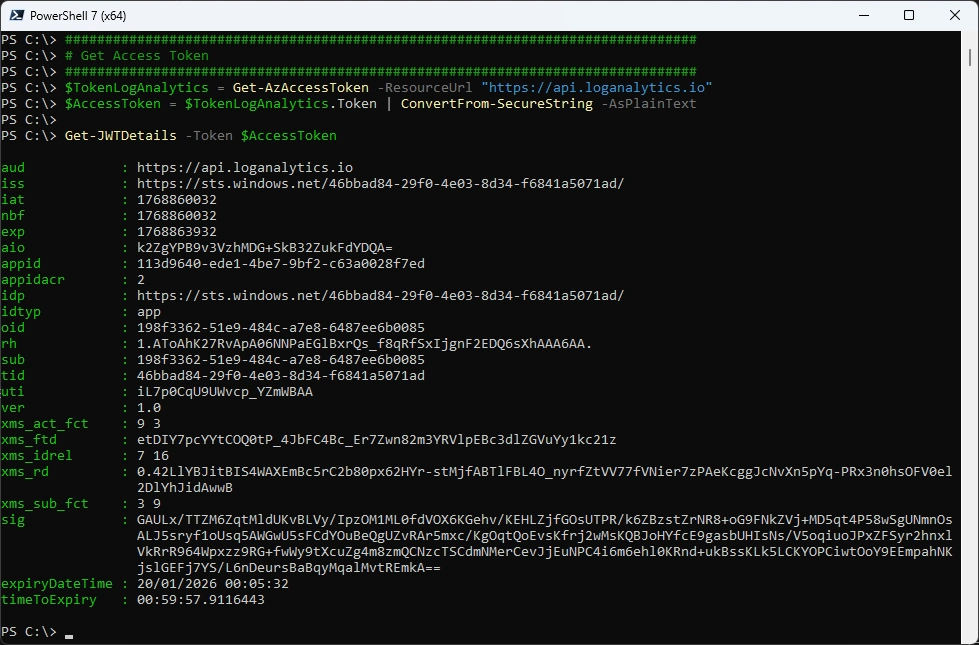
Now get the AccessToken and convert it from SecureString to PlainText
Note: You don’t need Get-JWTDetails - it’s just to show you the details from the AccessToken
###############################################################################
# Get Access Token
###############################################################################
$TokenLogAnalytics = Get-AzAccessToken -ResourceUrl "https://api.loganalytics.io"

If ($PSVersion -lt 6) {
    Write-Host "Running in PowerShell 5.1" -ForegroundColor Cyan
	$AccessToken = (New-Object System.Management.Automation.PSCredential("u",$TokenLogAnalytics.Token)).GetNetworkCredential().Password
} else {
    Write-Host "Running in PowerShell 5.1" -ForegroundColor Cyan
	$AccessToken = $TokenLogAnalytics.Token | ConvertFrom-SecureString -AsPlainText
}

Get-JWTDetails -Token $AccessToken
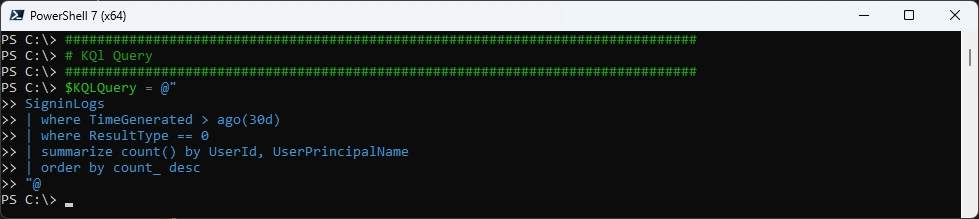
Store the KQL Query in a Multiline String
###############################################################################
# KQl Query
###############################################################################
$KQLQuery = @"
SigninLogs
| where TimeGenerated > ago(30d)
| where ResultType == 0
| summarize count() by UserId, UserPrincipalName
| order by count_ desc
"@
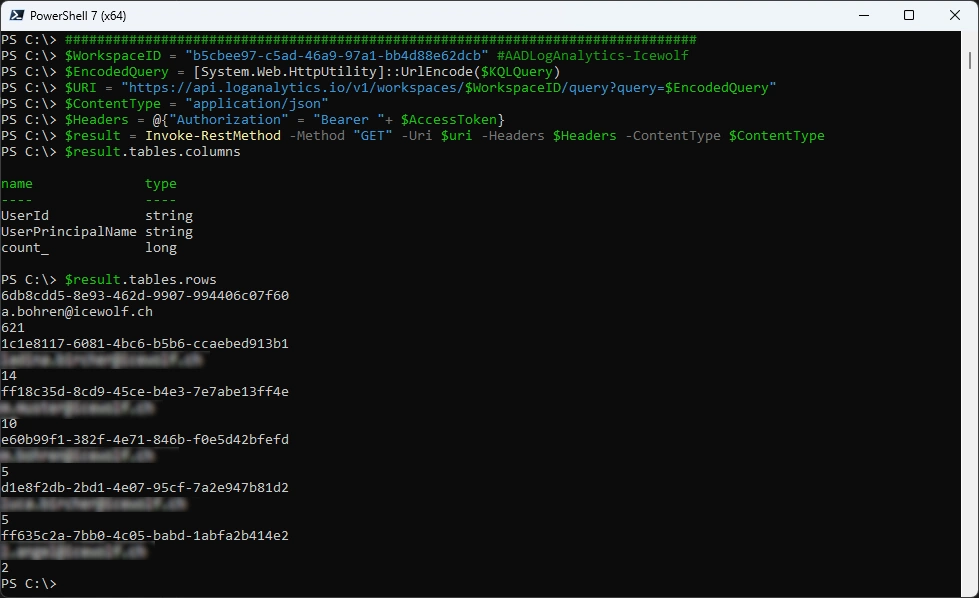
The KQLQuery needs to be URL Encoded. Then the Query can be sent with the AccessToken via a HTTP GET Request.
###############################################################################
# Compose REST Request for KQLQuery of LogAnalytics Workspace
###############################################################################
$WorkspaceID = "b5cbee97-c5ad-46a9-97a1-bb4d88e62dcb" #AADLogAnalytics-Icewolf
$EncodedQuery = [System.Web.HttpUtility]::UrlEncode($KQLQuery)
$URI = "https://api.loganalytics.io/v1/workspaces/$WorkspaceID/query?query=$EncodedQuery"
$ContentType = "application/json"
$Headers = @{"Authorization" = "Bearer "+ $AccessToken}
$result = Invoke-RestMethod -Method "GET" -Uri $uri -Headers $Headers -ContentType $ContentType
$result.tables.columns
$result.tables.rows
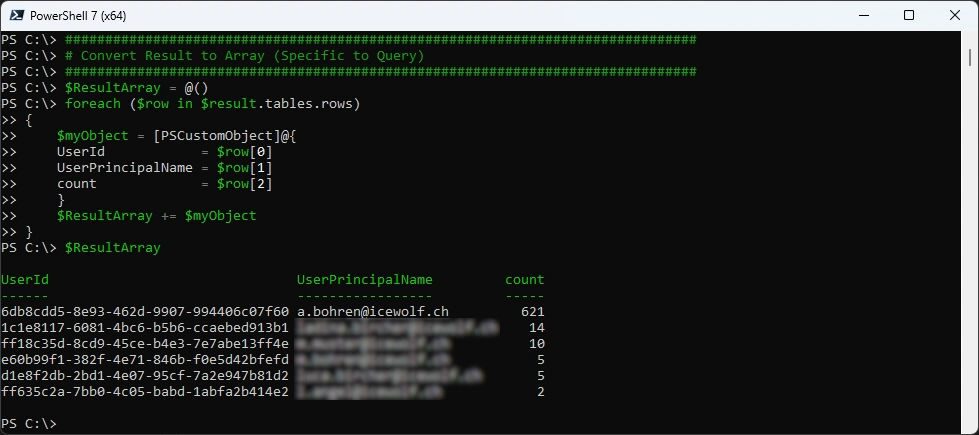
I came up with the following Code to convert the Result to an Array - but it’s specific to that KQL Query
###############################################################################
# Convert Result to Array (Specific to Query)
###############################################################################
$ResultArray = @()
foreach ($row in $result.tables.rows)
{
    $myObject = [PSCustomObject]@{
    UserId            = $row[0]
    UserPrincipalName = $row[1]
    count             = $row[2]
    }
    $ResultArray += $myObject
}
$ResultArray
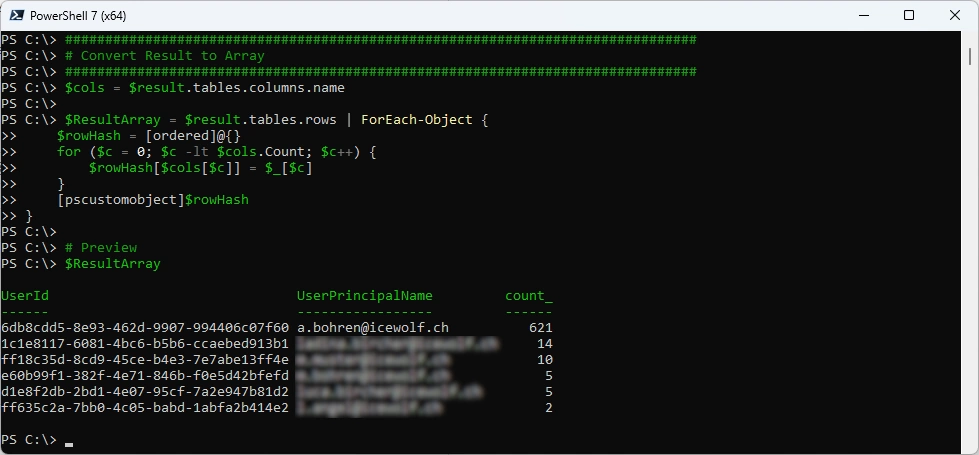
A more elegant Solution is the following Code that uses the Columns returned by the Query to create the Array. I have to admit that Copilot helped here 😎
###############################################################################
# Convert Result to Array
###############################################################################
$cols = $result.tables.columns.name

$ResultArray = $result.tables.rows | ForEach-Object {
    $rowHash = [ordered]@{}
    for ($c = 0; $c -lt $cols.Count; $c++) {
        $rowHash[$cols[$c]] = $_[$c]
    }
    [pscustomobject]$rowHash
}

# Preview
$ResultArray
Summary
Now you know how to Query your Log Analytics Workspace with PowerShell.
If you are interested in Advanced Hunting with PowerShell, there is also an Article
If you find this Blog Article helpful, feel free to leave a comment or donate via “Buy me a coffee”.
Regards
Andres Bohren
Azure Logo PowerShell Logo
