
Basic M365 Monitoring with PowerShell
Hi All,
I’ve written a simple Script for Monitoring the M365 Services via the Health und Communications API.
I think it’s a good start if you don’t have any other Monitoring Solution available. The cool thing is you can select the Services you’re interested in - usually not all Services are deployed at a customer. And you only get an Email for NEW or COSED Issues.
If you are familiar with PowerShell you will find it easy to adopt and maybe extend the Script to create a Incident in your Ticketing Plattform or create a Teams Message. Whatever fit’s your Company…
Capabilities
- Get’s the ServiceHealth and Issues for the selected Services
- Send New or Closed Alerts via Email
- SMTP or Graph
- Writes the Result in a HTML File
- Writes a Logfile
- Deletes old Logfiles after configured Days
- Runs in PowerShell 5.1 or 7.x
- Requires Entra Application
- ServiceHealth.Read.All
- ServiceMessage.Read.All
- Requires additional Modules for Authentication
- MSAL.PS for Powershell 5.1
- PSMSALNet for PowerShell 7.x
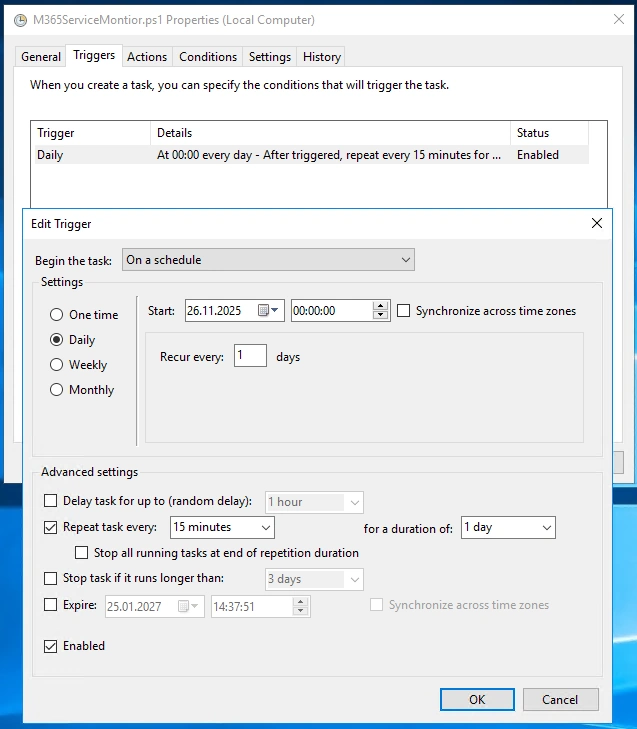
- Script can be Sheduled to run every 15 Minutes for Example
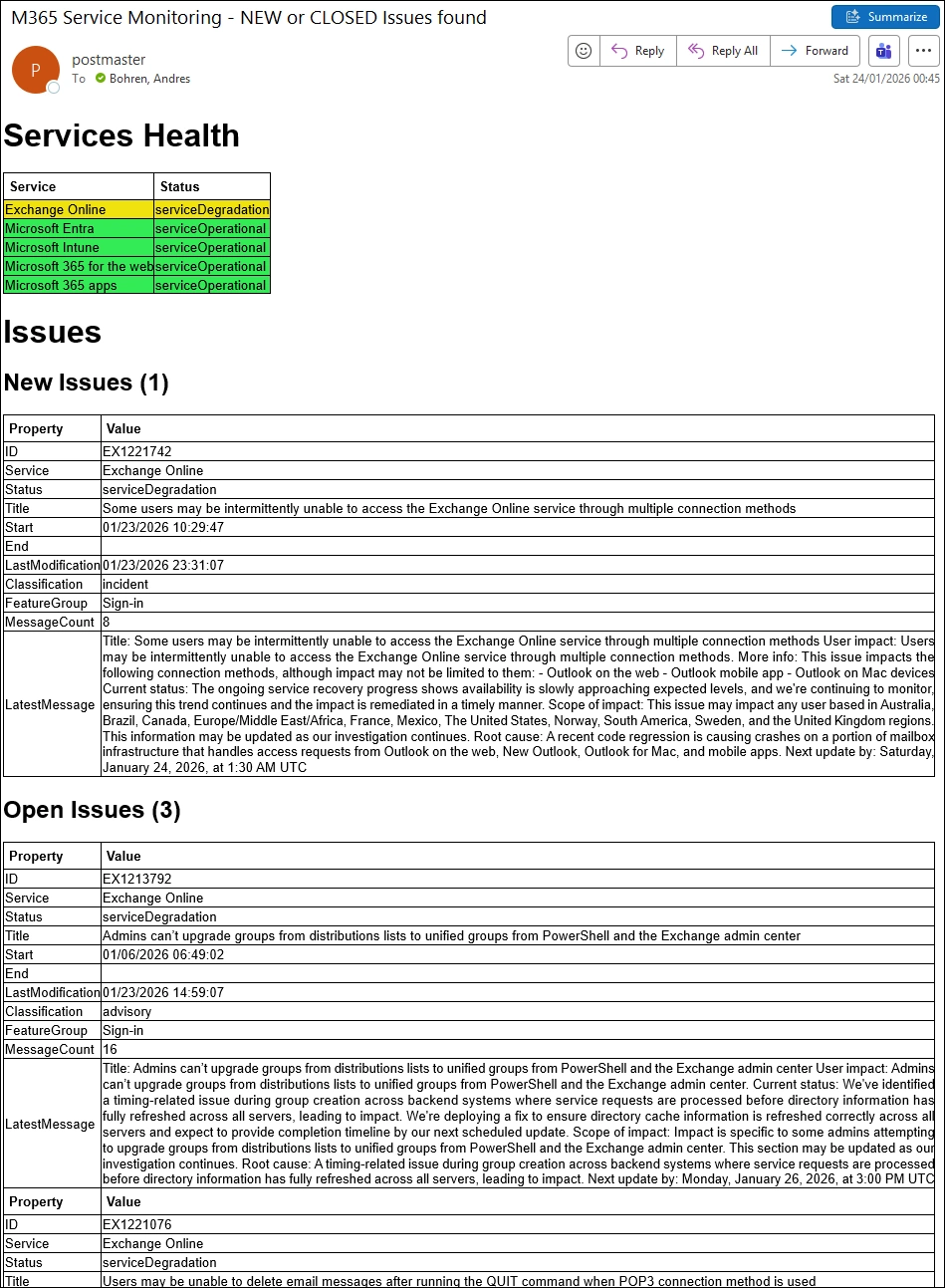
The Mail Result looks like this
Entra Application
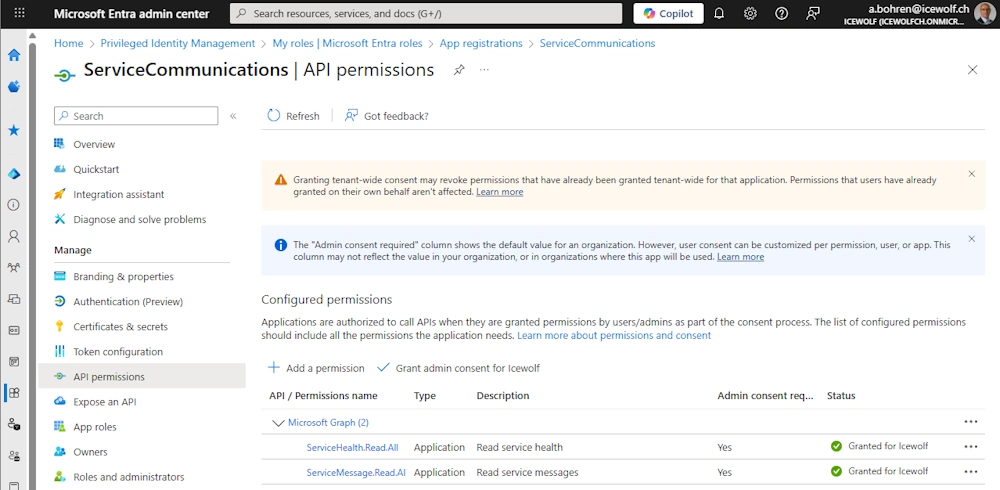
You will need an Entra Application Registration
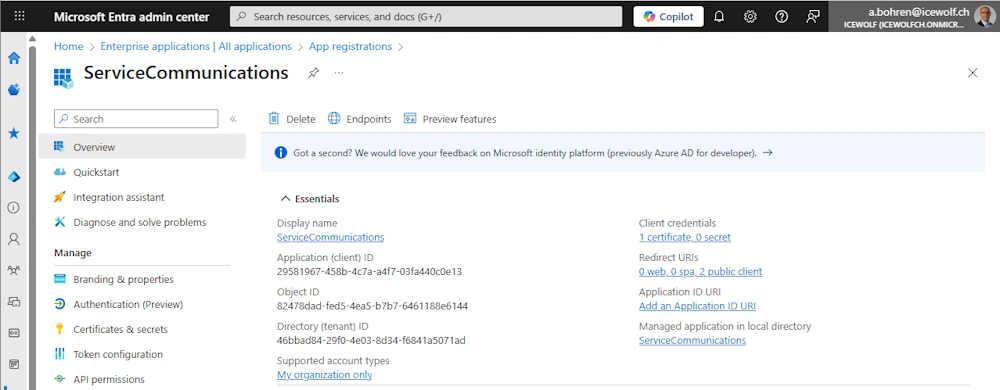
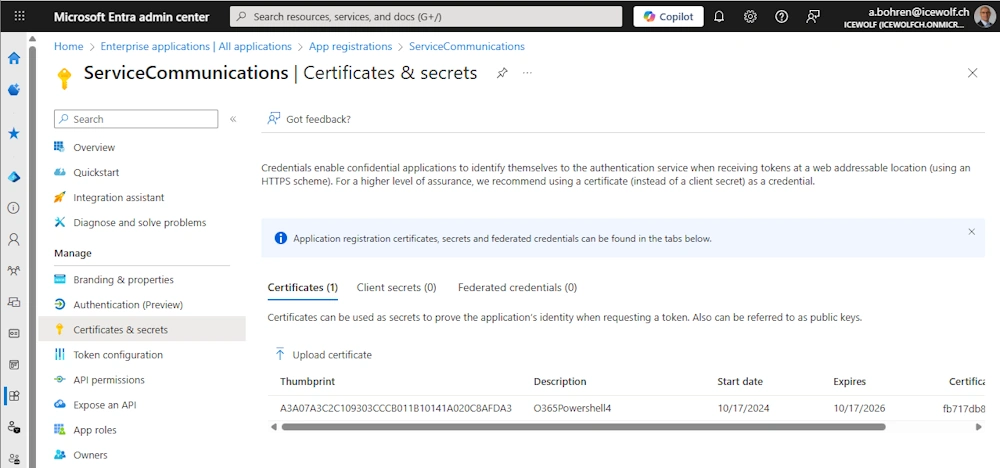
Certificate Authentication (Certificate with Private Key stored in the Current User CertStore)
API Permissisons
- Application: ServiceHealth.Read.All
- Application: ServiceMessage.Read.All
Powershell
Let’s set the Variables from the Entra Application
###############################################################################
# Entra App  Details
###############################################################################
$TenantId = "46bbad84-29f0-4e03-8d34-f6841a5071ad"
$AppID = "29581967-458b-4c7a-a4f7-03fa440c0e13" #ServiceCommunications
$CertificateThumbprint = "A3A07A3C2C109303CCCB011B10141A020C8AFDA3"  #CN=O365Powershell4

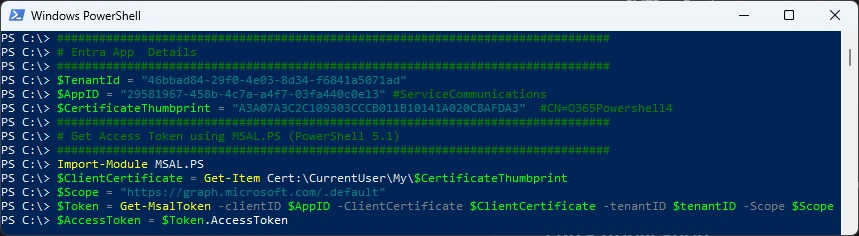
Authenticate with PowerShell 5.1 - requires MSAL.PS PowerShell Module
###############################################################################
# Get Access Token using MSAL.PS (PowerShell 5.1)
###############################################################################
Import-Module MSAL.PS
$ClientCertificate = Get-Item Cert:\CurrentUser\My\$CertificateThumbprint
$Scope = "https://graph.microsoft.com/.default"
$Token = Get-MsalToken -clientID $AppID -ClientCertificate $ClientCertificate -tenantID $tenantID -Scope $Scope
$AccessToken = $Token.AccessToken
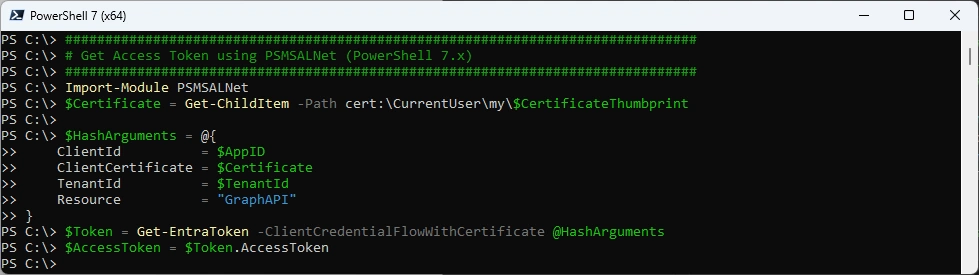
Authenticate with PowerShell 7.x - requires PSMSALNet PowerShell Module
###############################################################################
# Get Access Token using PSMSALNet (PowerShell 7.x)
###############################################################################
Import-Module PSMSALNet
$Certificate = Get-ChildItem -Path cert:\CurrentUser\my\$CertificateThumbprint

$HashArguments = @{
    ClientId          = $AppID
    ClientCertificate = $Certificate
    TenantId          = $TenantId
    Resource          = "GraphAPI"
}
$Token = Get-EntraToken -ClientCredentialFlowWithCertificate @HashArguments
$AccessToken = $Token.AccessToken
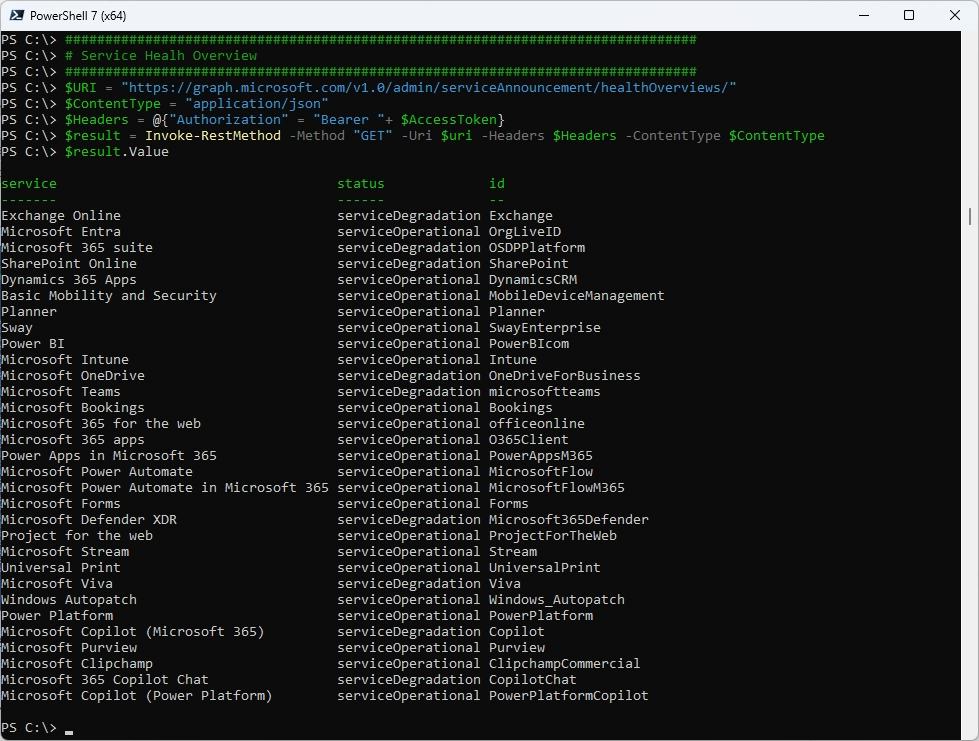
List all the M365 Services and the Service Health
###############################################################################
# Service Healh Overview
###############################################################################
$URI = "https://graph.microsoft.com/v1.0/admin/serviceAnnouncement/healthOverviews/"
$ContentType = "application/json"
$Headers = @{"Authorization" = "Bearer "+ $AccessToken}
$result = Invoke-RestMethod -Method "GET" -Uri $uri -Headers $Headers -ContentType $ContentType
$result.Value
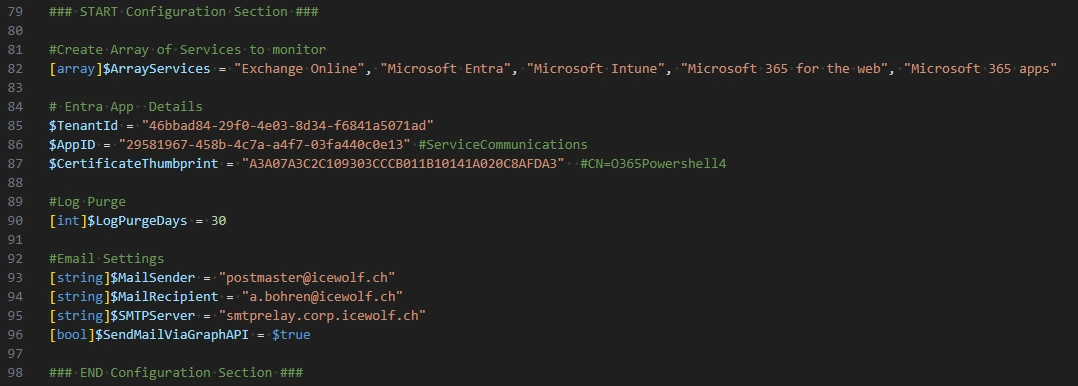
You need to configure a few things in the Script
- Array of Services
- TenantId
- AppID
- CertificateThumbprint
- LogPurgeDays
- Mail Sender
- Mail Recipient
- SMTPServer (if using SMTP)
- SendMailViaGraphAPI (true/false)
Send Mails per Graph API
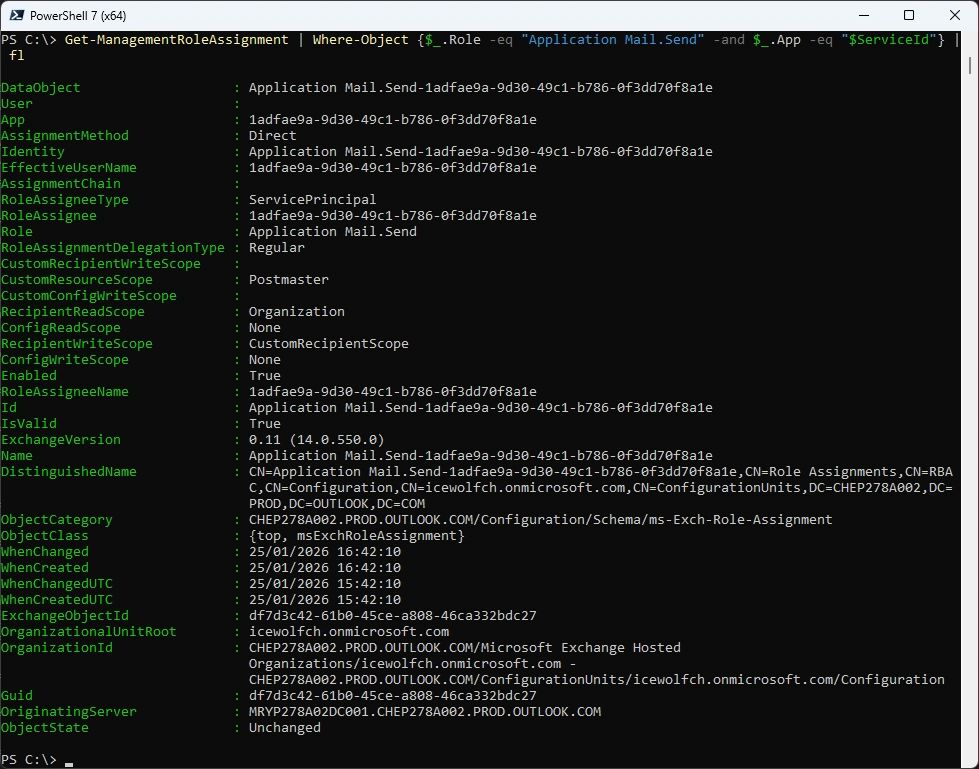
If you want to send Mails with Graph please read the following Setup Notes
###############################################################################
# Setup Notes
###############################################################################
# Setup Exchange Online RBAC for Applications to send Mail without Graph API
# https://blog.icewolf.ch/archive/2025/12/03/exchange-online-app-access-policies-are-replaced-by-RBAC-for-applications/
# Create Exchange Service Principal
# $AppID = "29581967-458b-4c7a-a4f7-03fa440c0e13" #ServiceCommunications
# $AppObjectID = "1adfae9a-9d30-49c1-b786-0f3dd70f8a1e" #ObjectID of the Enterprise App
# $DisplayName = "EXO Serviceprincipal ServiceCommunications"
# New-ServicePrincipal -AppId $AppID -ObjectId $AppObjectID -DisplayName $DisplayName
#
###############################################################################
# New-ManagementScope
###############################################################################
# New-ManagementScope -Name "User1" -RecipientRestrictionFilter "PrimarySmtpAddress -eq 'User1@domain.tld'"
# Get-ManagementScope
#
##############################################################################
#New-ManagementRoleAssignment
###############################################################################
# $SP = Get-ServicePrincipal | Where-Object {$_.AppId -eq $AppID}
# $ServiceId = $SP.ObjectId
# New-ManagementRoleAssignment -App $ServiceId -Role "Application Mail.Send" -CustomResourceScope "Postmaster"
# Get-ManagementRoleAssignment | Where-Object {$_.Role -eq "Application Mail.Send" -and $_.App -eq "$ServiceId"}
###############################################################################
# END Setup Notes
###############################################################################
It should look like this
Directory
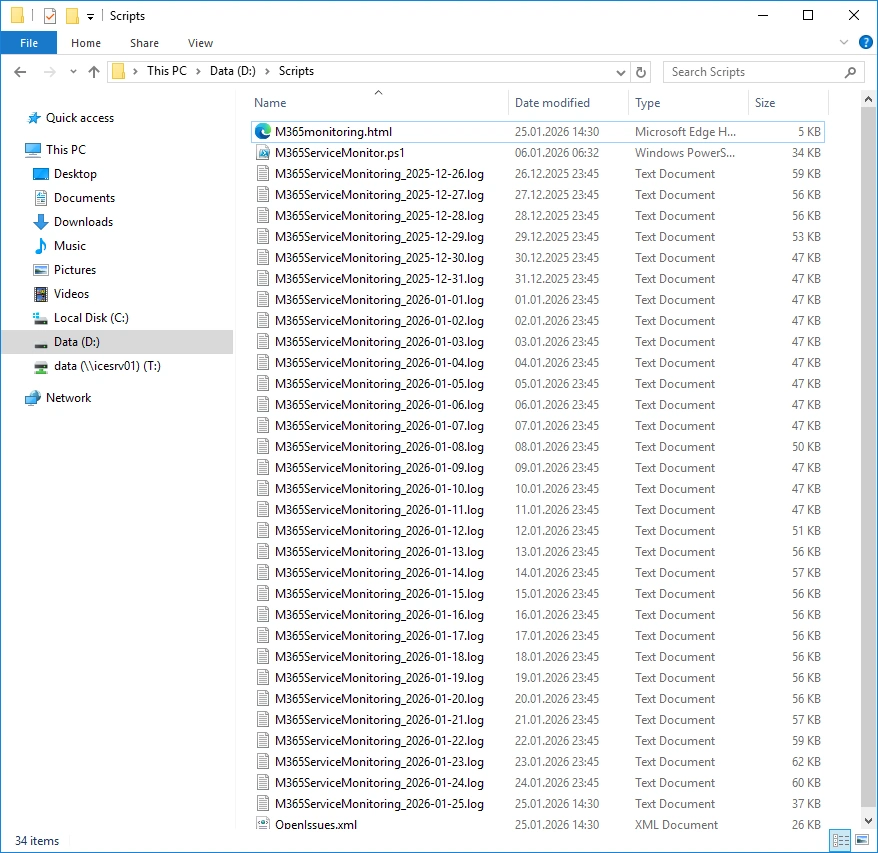
All Files are created in the Script Directory
HTML Output
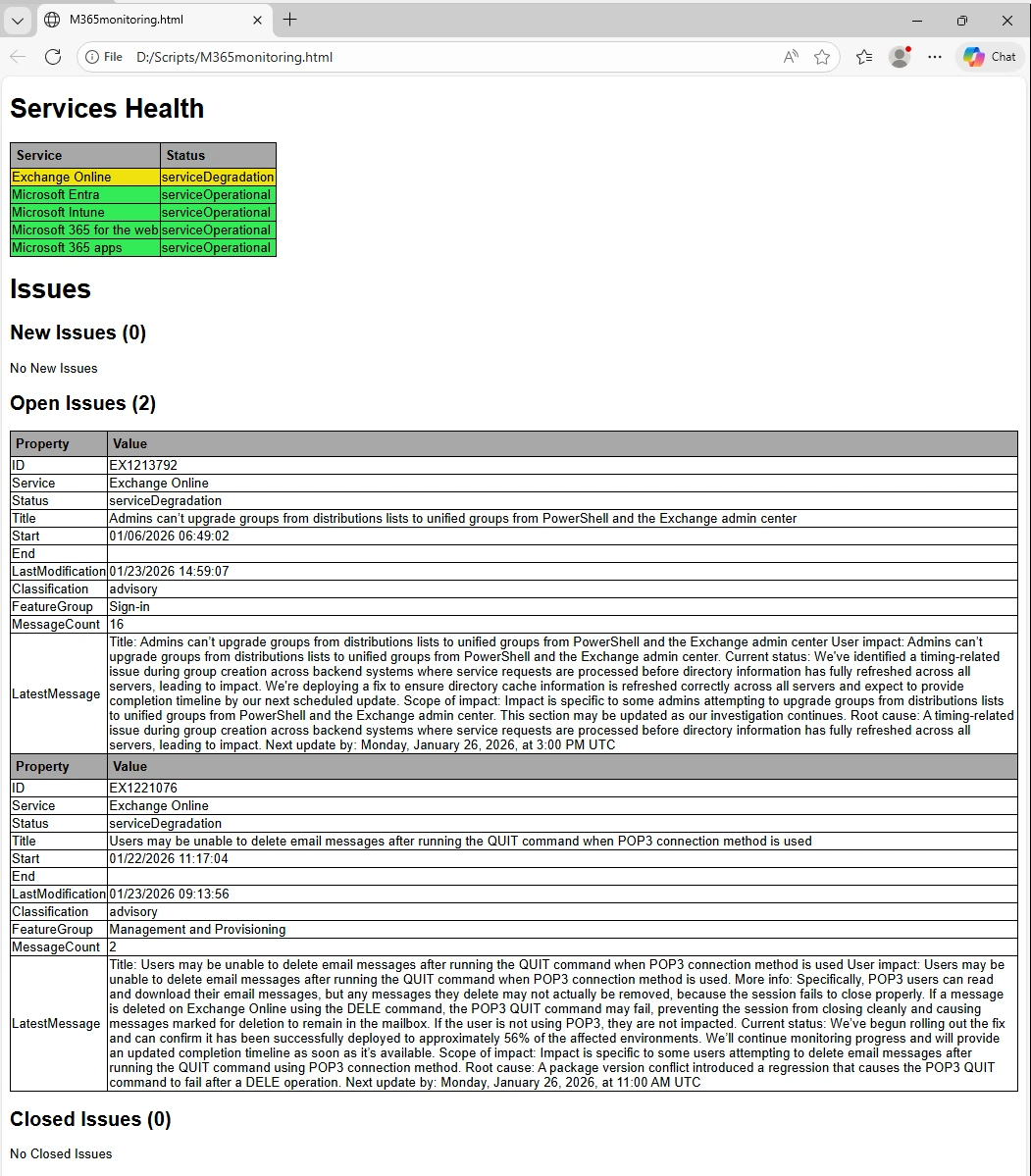
The Script creates a HTML Website - can also be used on a Monitor Screen
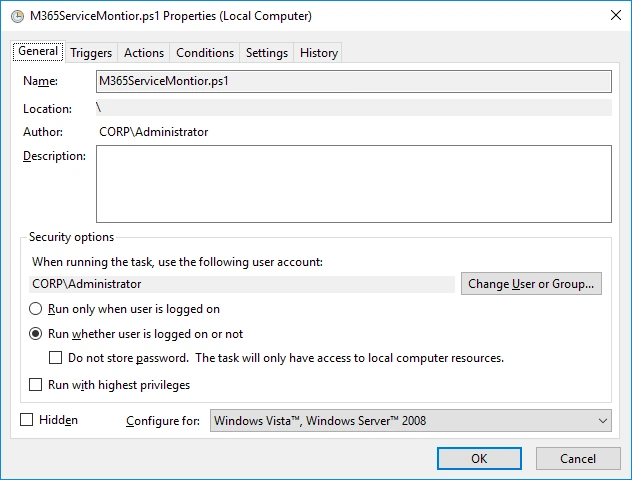
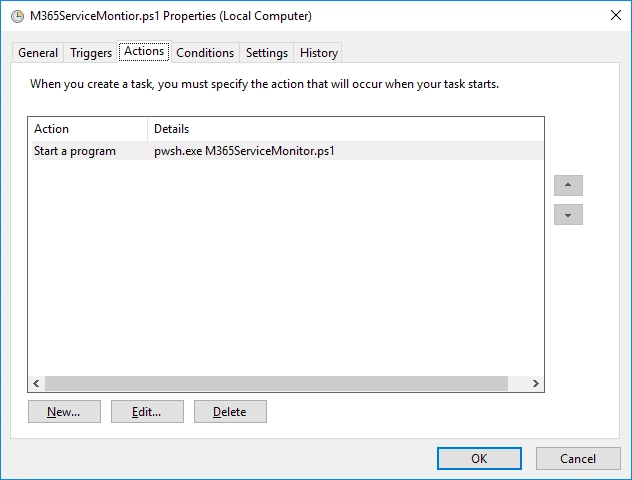
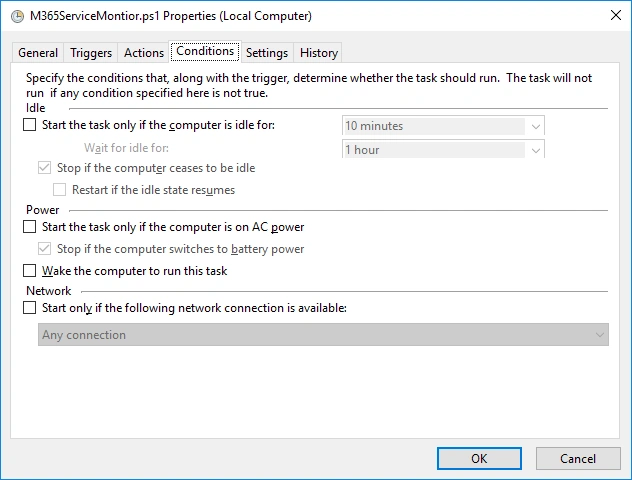
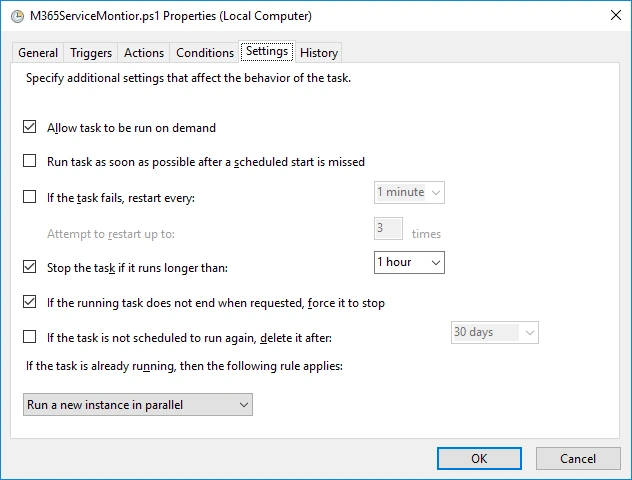
Scheduled Task
You will need to create a Scheduled Task on the Computer
GitHub
The whole Script can be found on my Github Repo M365ServiceMonitor.ps1
Regards
Andres Bohren
EntraID Logo M365 Logo PowerShell Logo

