
Entra Connect Sync 2.6.3 released
Hi All,
Almost a month ago, Microsoft has released a new Version of Entra Connect Sync.
It should have updated via AutoUpdate in the mean time.
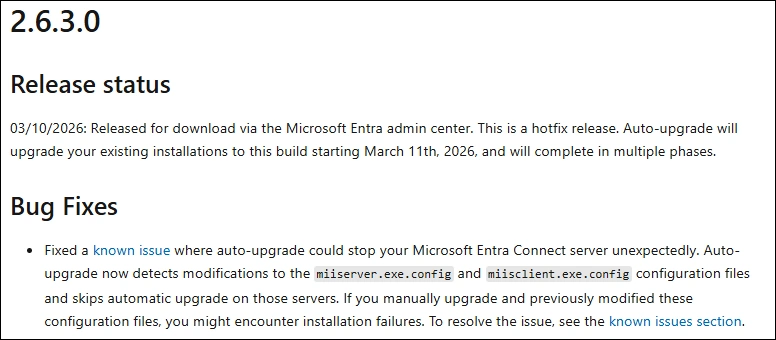
Release status 03/10/2026: Released for download via the Microsoft Entra admin center. This is a hotfix release. Auto-upgrade will upgrade your existing installations to this build starting March 11th, 2026, and will complete in multiple phases.
Bug Fixes Fixed a known issue where auto-upgrade could stop your Microsoft Entra Connect server unexpectedly. Auto-upgrade now detects modifications to the miiserver.exe.config and miisclient.exe.config configuration files and skips automatic upgrade on those servers. If you manually upgrade and previously modified these configuration files, you might encounter installation failures. To resolve the issue, see the known issues section.
Check current version
You can check the current Version of Entra Connect Sync with the following PowerShell command
#Version
(Get-Item "C:\Program Files\Microsoft Azure AD Sync\Bin\miiserver.exe").VersionInfo

Let’s check the AutoUpgrade Settings
Get-ADSyncAutoUpgrade
Get-ADSyncAutoUpgrade -Detail

Enable AutoUpgrade. But there is no way to say when AutoUpgrade kicks in, so i install the new Version Manually
Set-ADSyncAutoUpgrade -AutoUpgradeState Enabled
Get-ADSyncAutoUpgrade

Download
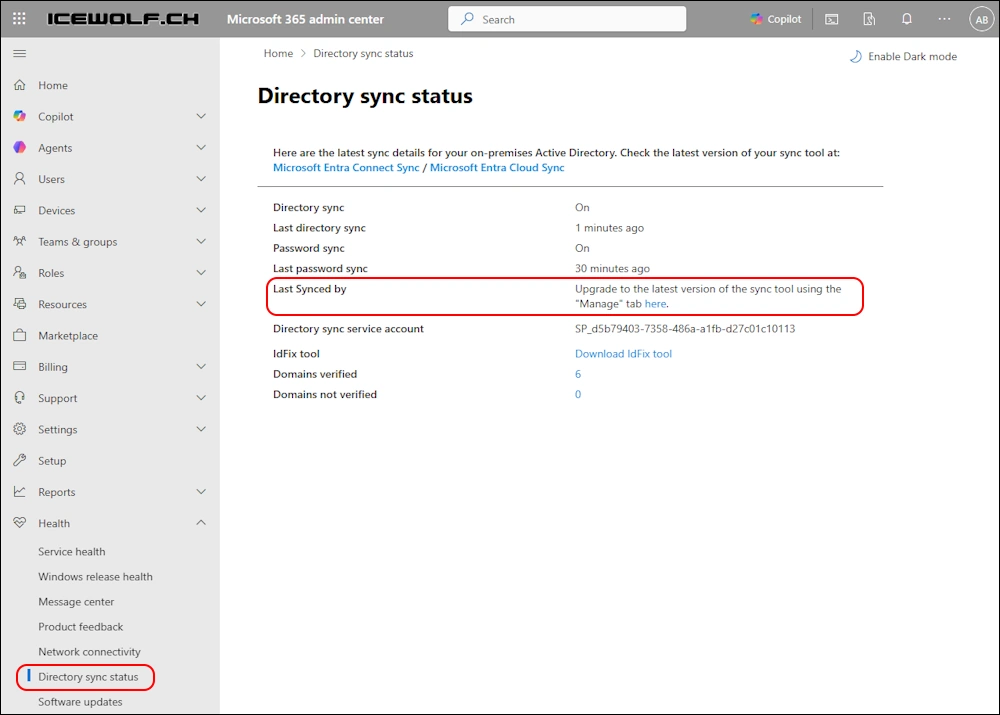
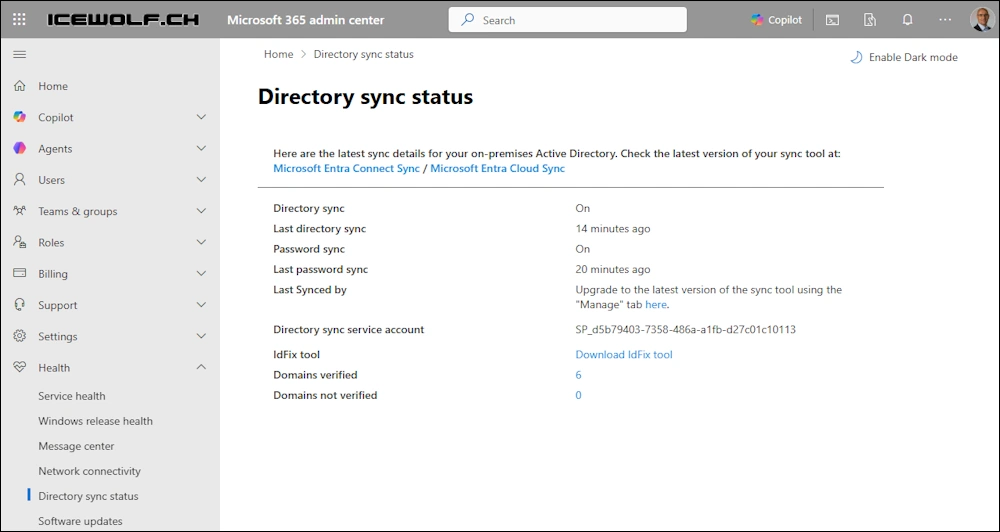
The easiest way is to check Entra Connect Sync in M365 Admin Center Directory sync status and use the Link there
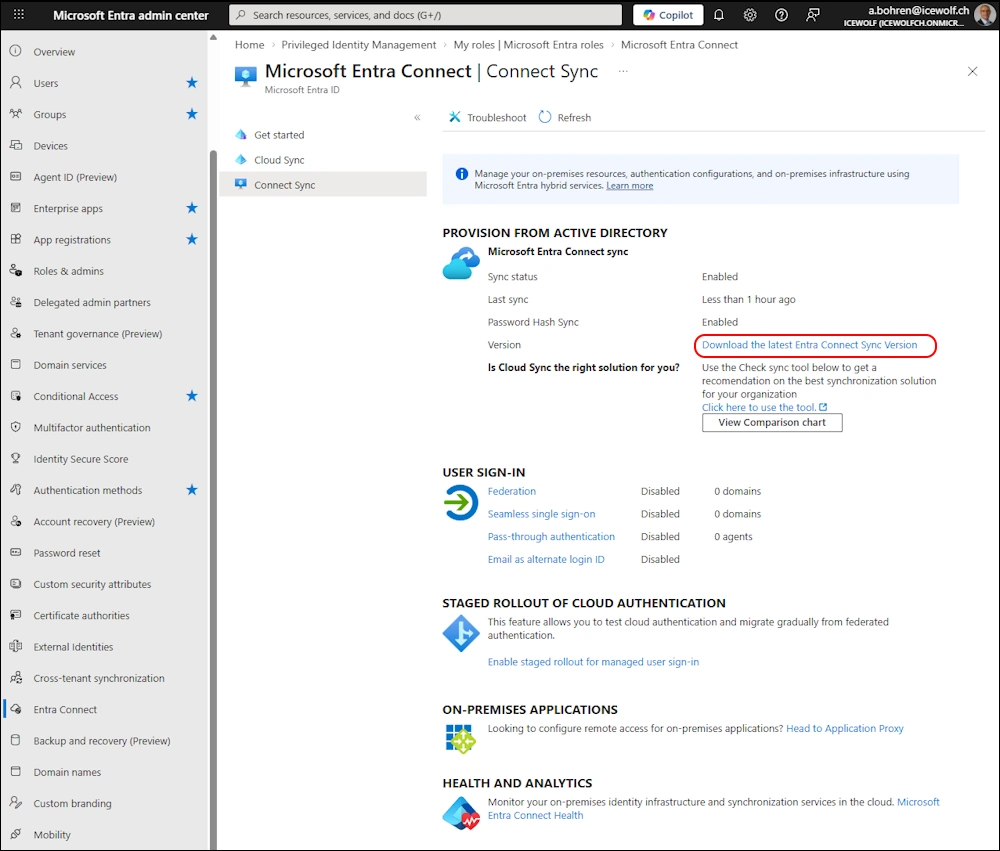
Or go to the Entra Admin Portal and find it there Entra Admin Center > Identity > Entra Connect > Entra Connect Sync Download the latest Entra Connect Sync Version
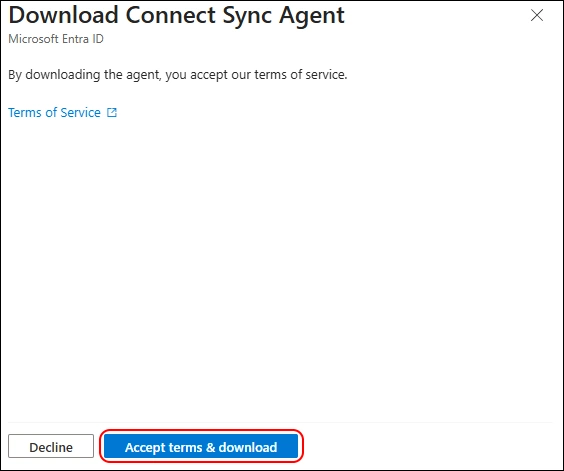
If you click on the Download Link you have to click on the “Accept terms & download” Button. It will download AzureAdConnect.msi 😂
Another missed chance to rename the Downloaded File 😉
Upgrade
After downloading the AzureAdConnect.msi you need to run it
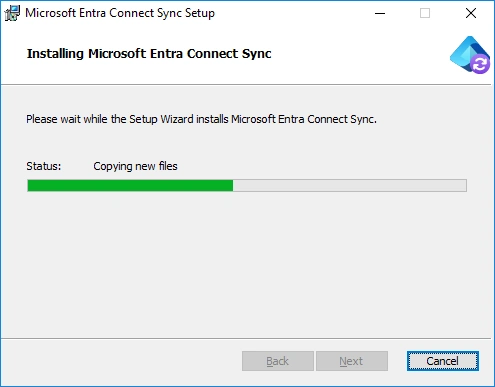
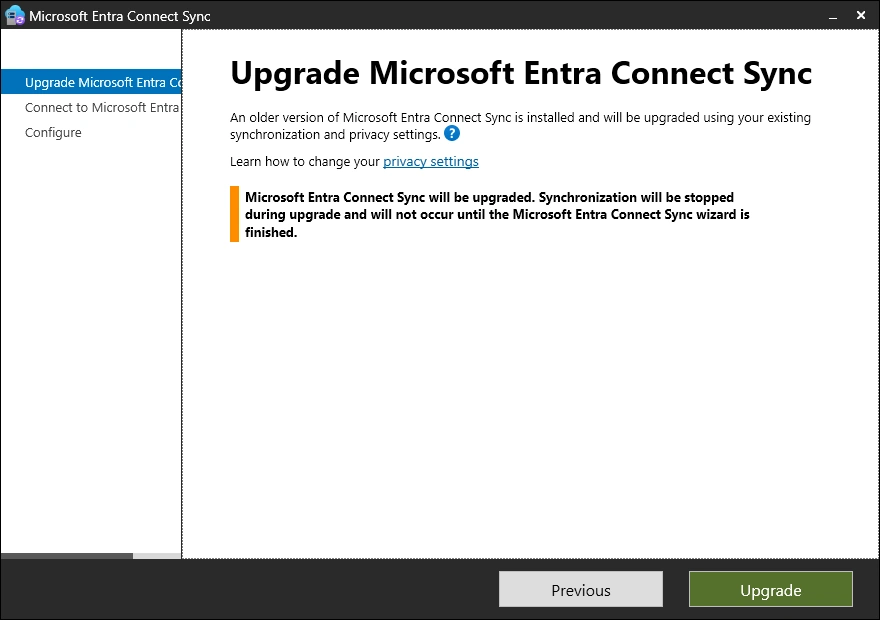
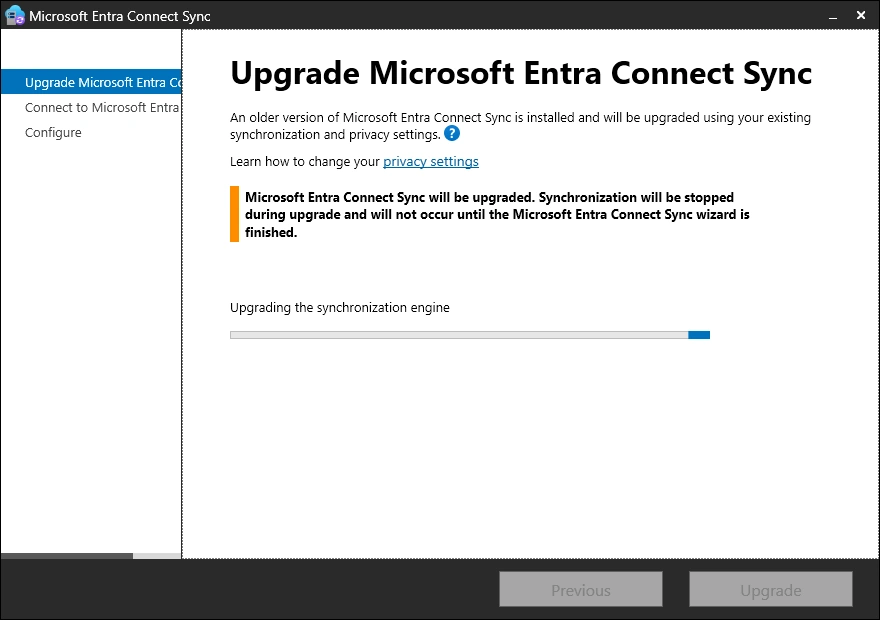
Now you need to Sign-In with the “Hybrid Identity Administrator” or “Global Administrator” Role
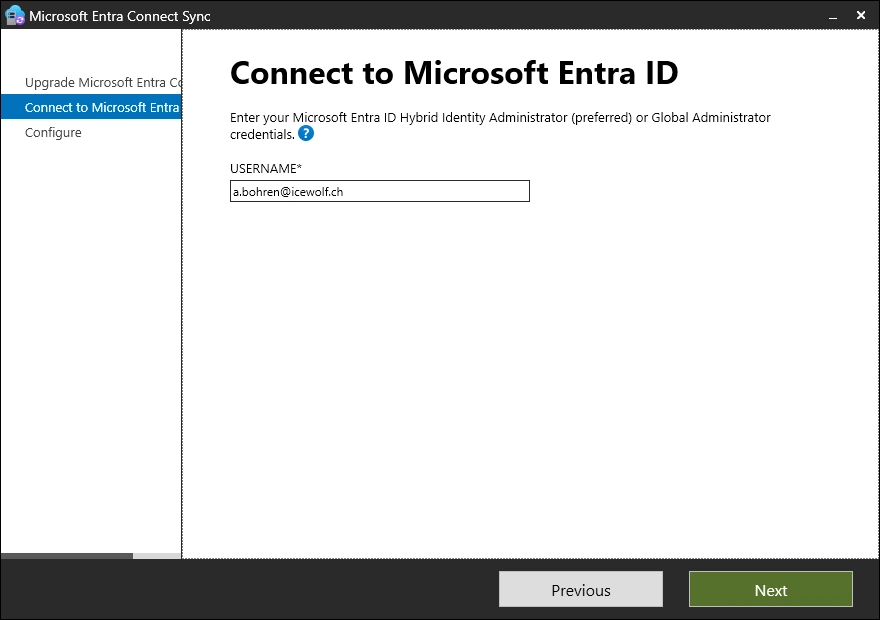
Sign-In and response to the MFA Challenge
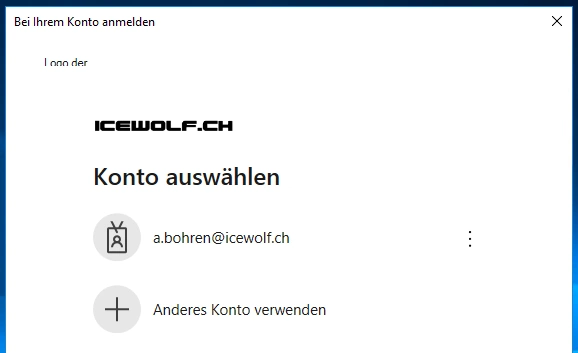
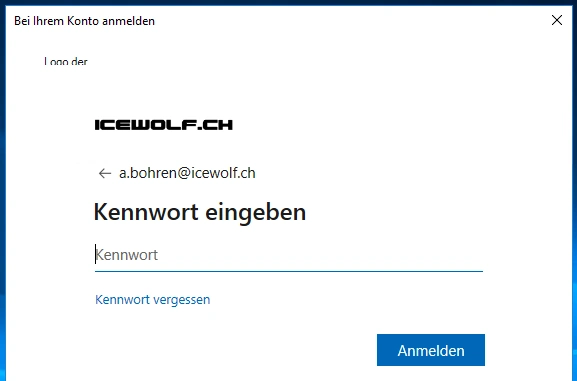
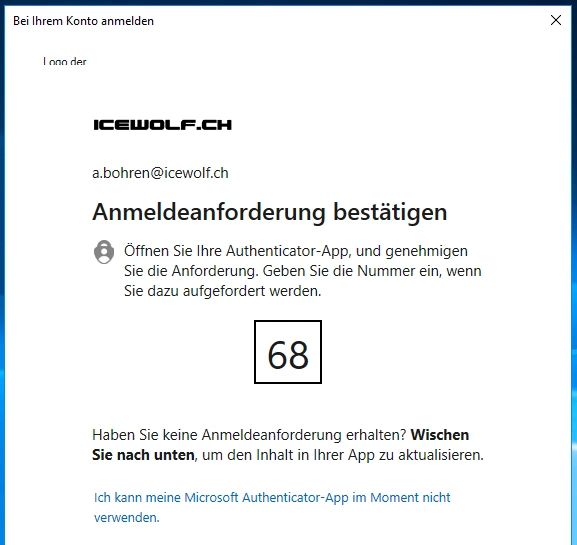
Now you are ready to upgrade
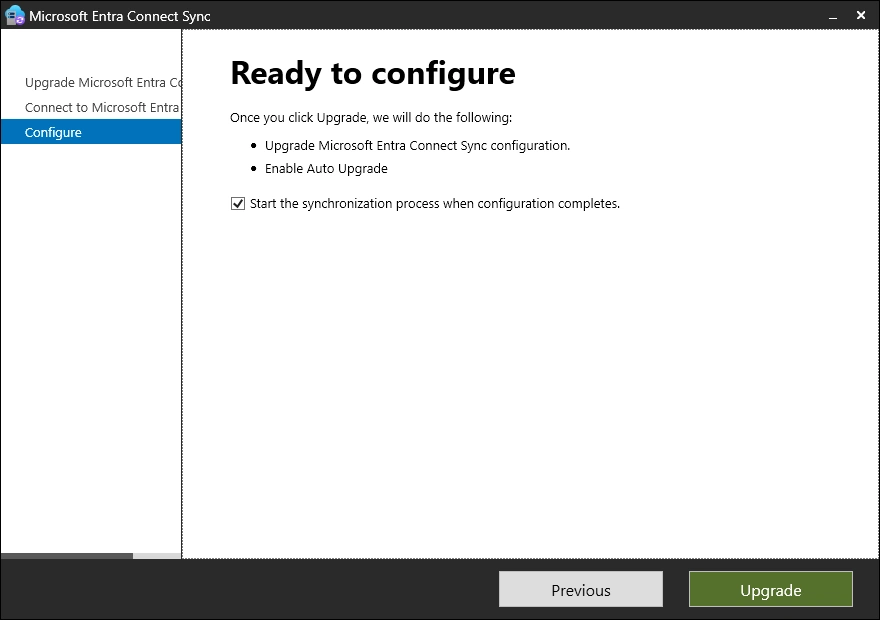
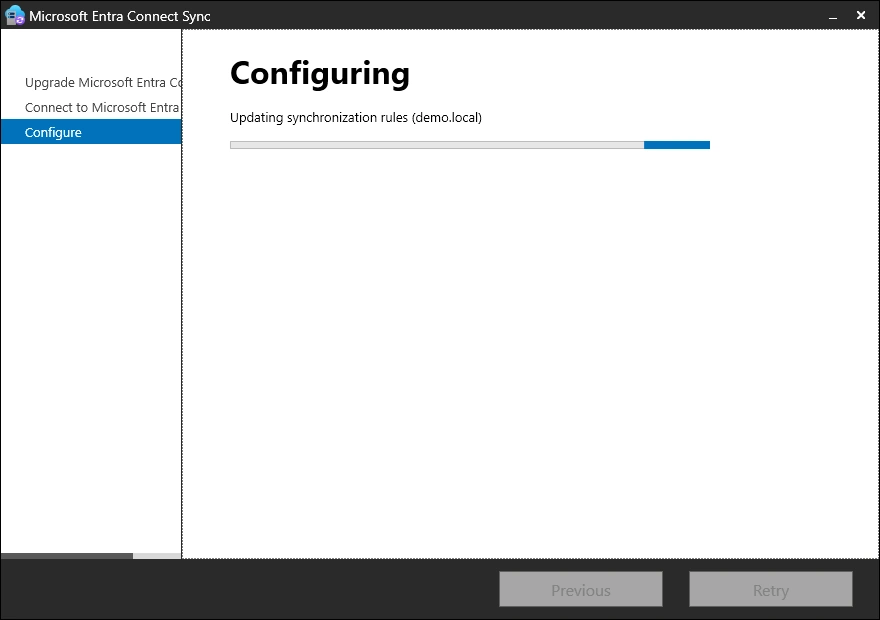
Successfully updated
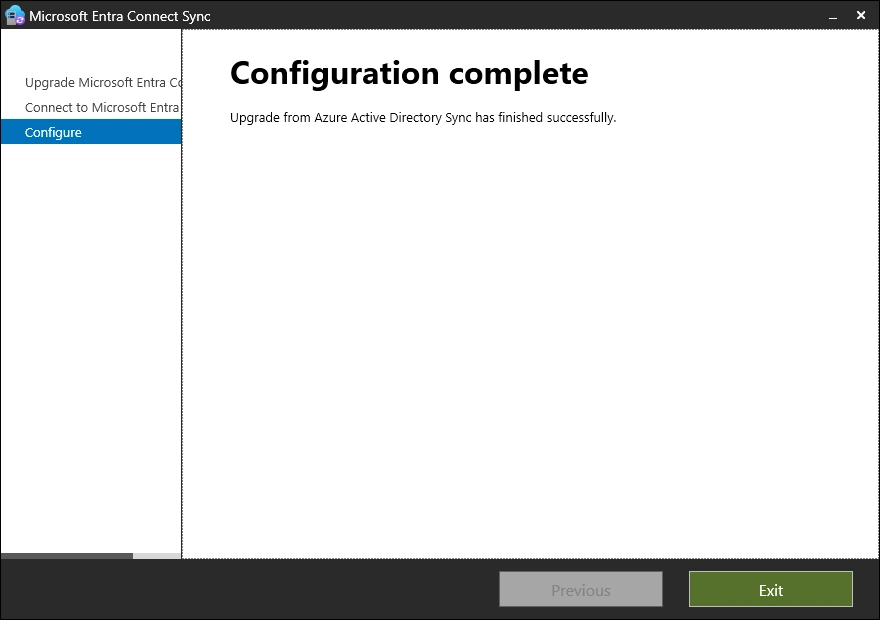
Checks
Let’s check the Version after the Installation
(Get-Item "C:\Program Files\Microsoft Azure AD Sync\Bin\miiserver.exe").VersionInfo

Check the AutoUpgrade Setting that will be set to Enabled
Get-ADSyncAutoUpgrade

Check Entra
It takes a while to update the Version Number in Entra
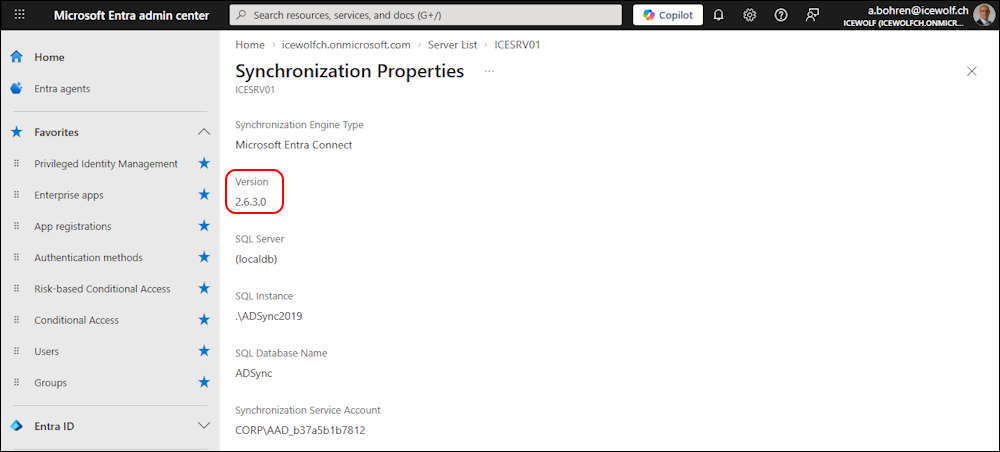
Check Entra Connect Sync in M365 Admin Center Directory sync status
Regards
Andres Bohren
EntraID Logo Security Logo
