
Entra security hardening - Hard matching disabled

Hi All,
We have all be warned, that Hard Matching would be disabled starting July, due to the risk of account takeover of synced Accounts.
Account Takeover via Hard Matching is an attack where an attacker abuses Entra Connect hard matching (ImmutableID/sourceAnchor matching) to link a controlled on-premises AD account to an existing Microsoft Entra ID account. Once synchronized, the attacker can effectively take over the cloud account, potentially even a privileged account. This Attack is also called “SyncJacking”.
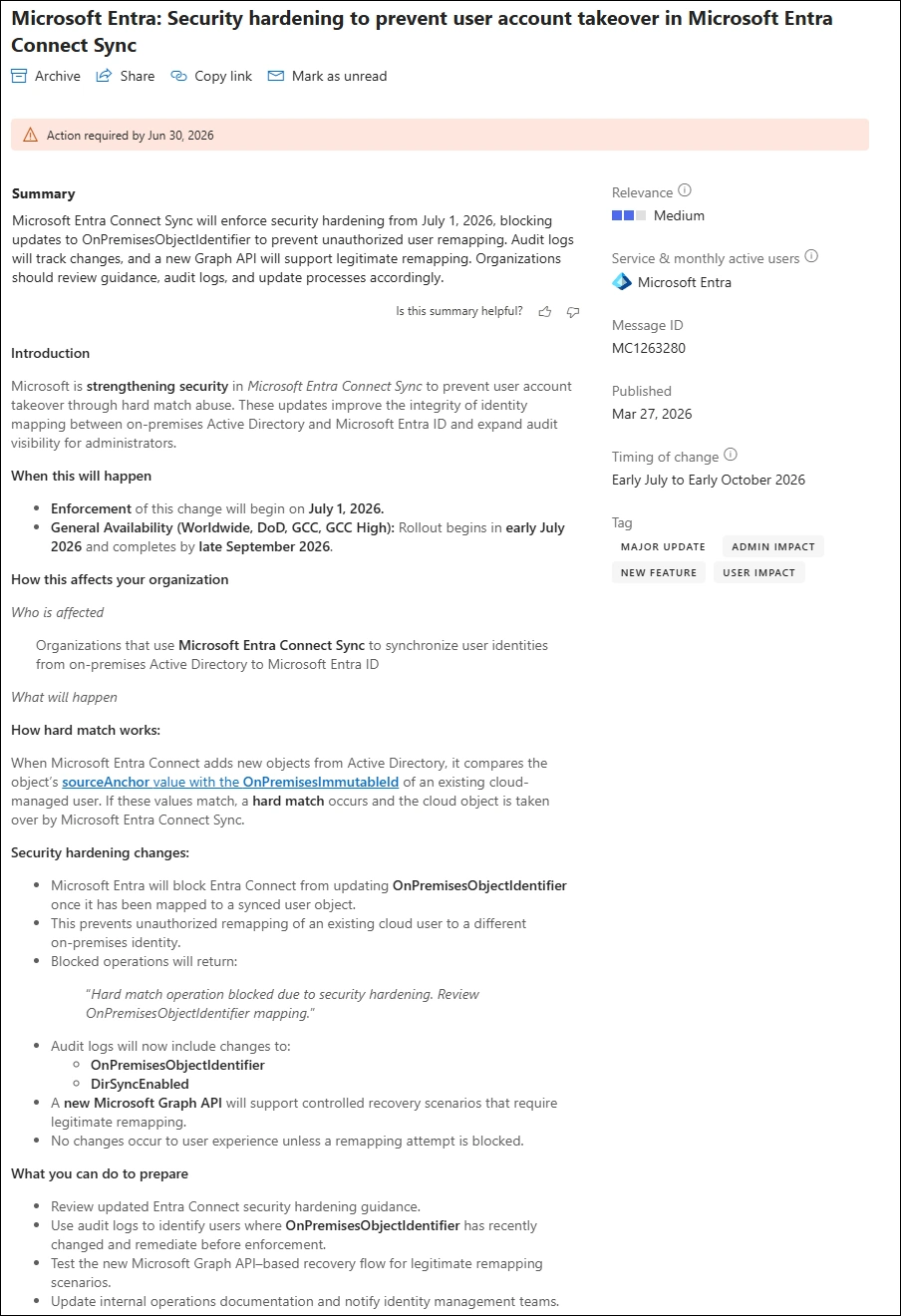
Beginning June 1, 2026, Microsoft Entra ID will block any attempt by Entra Connect Sync or Cloud Sync from hard-matching a new user object from Active Directory to an existing cloud-managed Entra ID user object that holds Microsoft Entra roles.
This means:
- If a cloud managed user already has onPremisesImmutableId (sourceAnchor) set and is assigned a Microsoft Entra role, Microsoft Entra Connect Sync or Cloud Sync will no longer be able to take over the Source of Authority of that user by hard-matching with an incoming user object from Active Directory.
- This safeguard prevents attackers from taking over privileged cloud managed users in Entra by manipulating attributes of user objects in Active Directory.
What’s not changing
- Hard match operations for cloud users without Microsoft Entra roles are not affected.
- Soft match behavior isn’t affected.
- Ongoing sync from Active Directory to Entra ID for previously hard-matched objects will not be affected.
As far as i can tell the Information above is not totally accurate.
- Hard Matching is also disabled for Accounts that do not have any kind of Entra Role
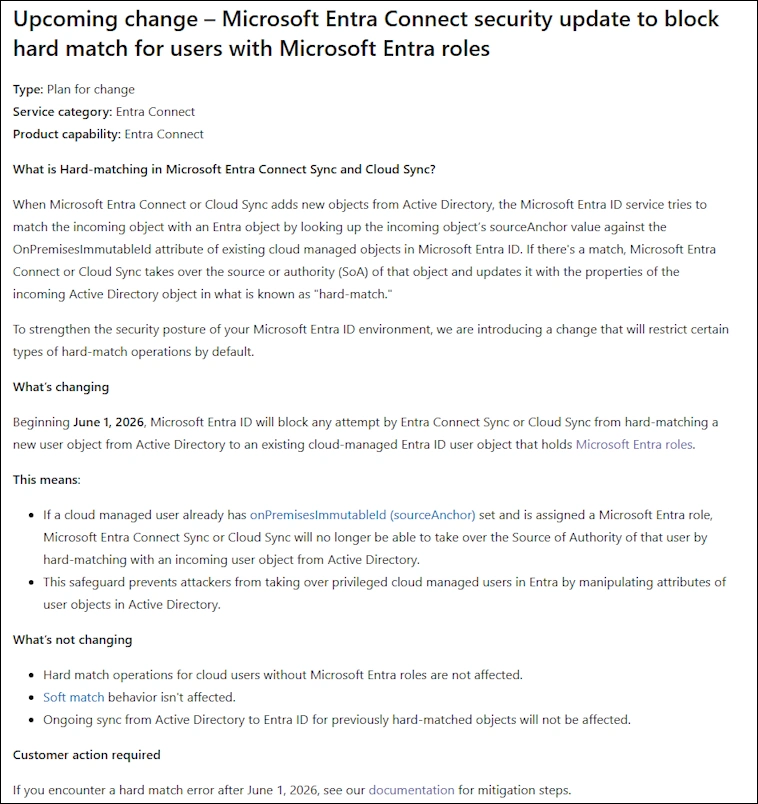
Beginning July 1, 2026, Microsoft Entra ID adds extra protections for hard match operations. These protections help prevent an on-premises Active Directory object from taking over the wrong cloud account when the target account is risky to reassociate.
A hard match can be blocked when the target cloud account meets one or more of these conditions:
- The cloud account already has onPremisesObjectIdentifier set.
- The cloud account is assigned a privileged Microsoft Entra role.
- The cloud account is eligible for a privileged Microsoft Entra role.
Hard match and soft match
So what’s exactly Hard match and soft match
Hard match
By default, the SourceAnchor value of an object is the Base64 string representation of the mS-Ds-ConsistencyGUID attribute (or ObjectGUID depending on the configuration) from the on-premises Active Directory object. This Value in Entra is called ImmutableId.
When Microsoft Entra Connect or Cloud Sync adds new objects, the Microsoft Entra ID service tries to match the incoming object by using the sourceAnchor value corresponding to the ImmutableId attribute of existent objects in Microsoft Entra ID. If there’s a match, Microsoft Entra Connect takes over the source of authority (SoA) of that object and updates it with the properties of the incoming on-premises Active Directory object in what’s known as a hard match
Soft match
When Microsoft Entra ID can’t find any object with an ImmutableId that matches the SourceAnchor value, it tries to use the incoming object’s userPrincipalName or primary SMTP address to find a match in what’s known as a soft match.
Test Lab
Let’s do some testing in my Lab.
- I am using Entra Connect Sync 2.6.84
I have an User Max Muster that is synced from OnPrem
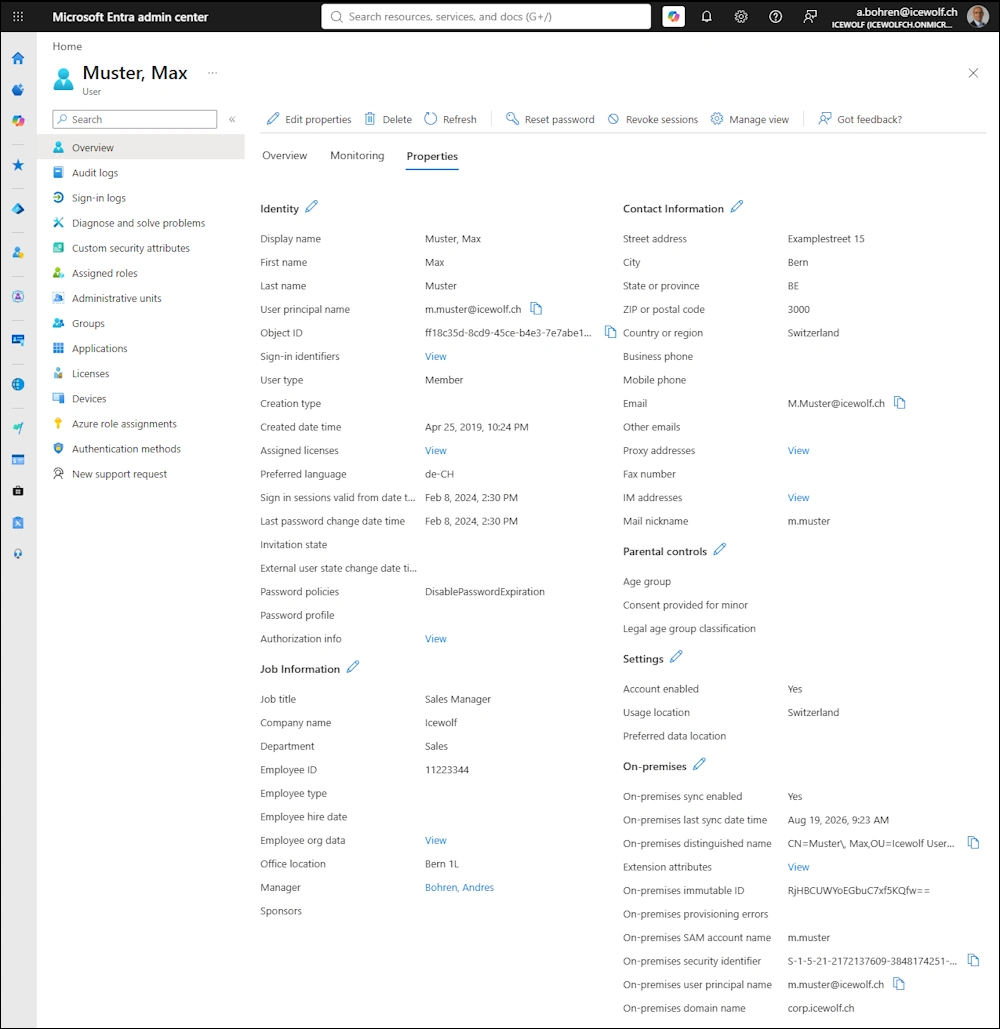
Let’s get the Immutable id of the user Max Muster / m.muster
Connect-MgGraph -NoWelcome
Get-MgUser -UserId m.muster@icewolf.ch -Property OnPremisesImmutableId | fl OnPremisesImmutableId

Now i’ve created another User Moriz Muster / mo.muster. In Addition ive removed the m.muster from syncing
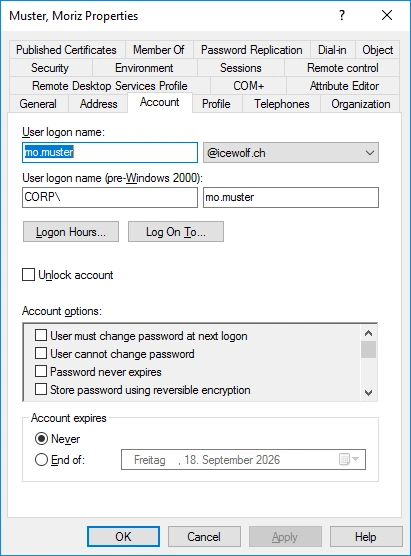
Let’s add the ImmutableID of the Entra User to the newly created mo.muster
$ImmutableID = ""
[guid]Sguid = ([CGUID][System. Convert]::FromBase64String(SImmutable£ID)).Guid
$ConsistencyGuid = Sguid.ToByteArray()
Set-ADUser -Identity mo.muster -Replace @{"ms-DS-consistencyGuid" = $ConsistencyGuid}

Now let’s start a DeltaSync on Entra Connect Sync Server.
Import-Module ADSync
Start-ADSyncSyncCycle -PolicyType Delta

On the Export Task to Entra i get a “DataValidationFailed” error
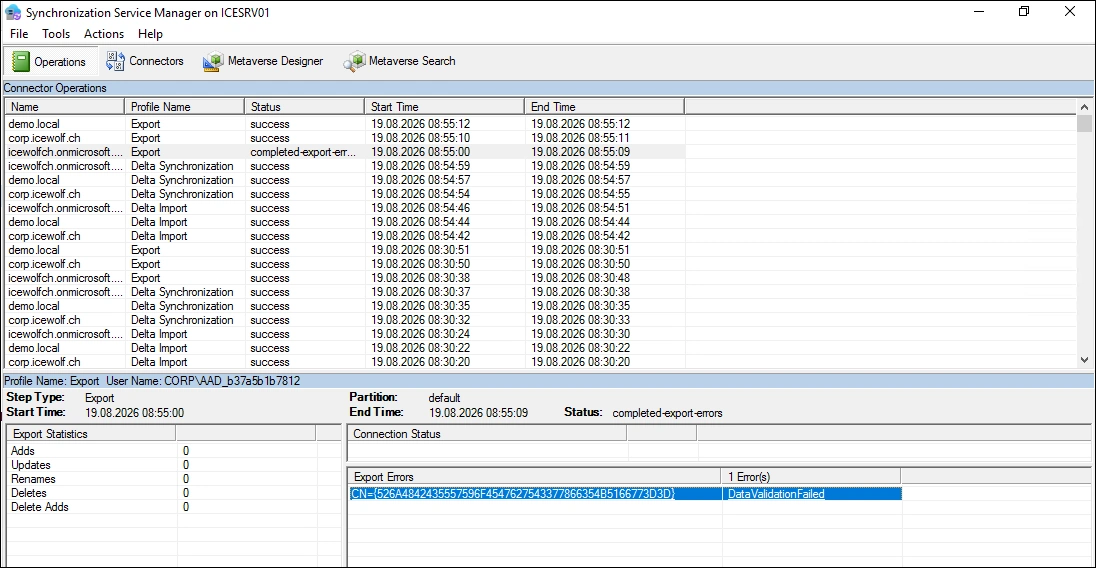
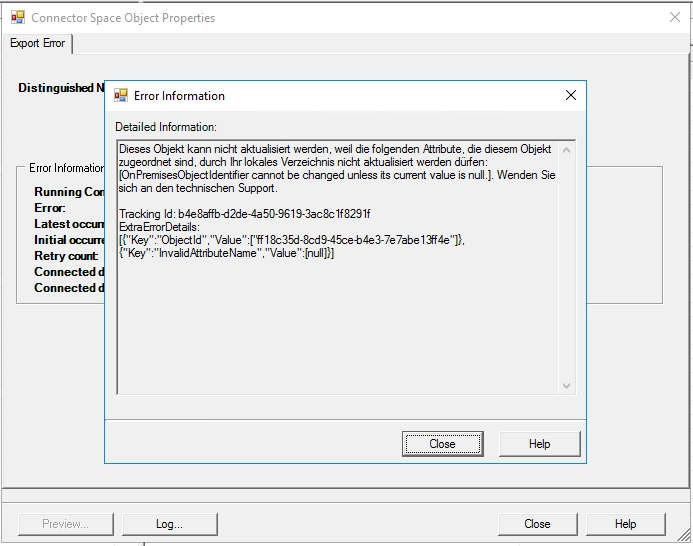
Error Details: OnPremisesObjectIdentiier cannot be changed unless its current value is null
Remove ImmutableID in Entra
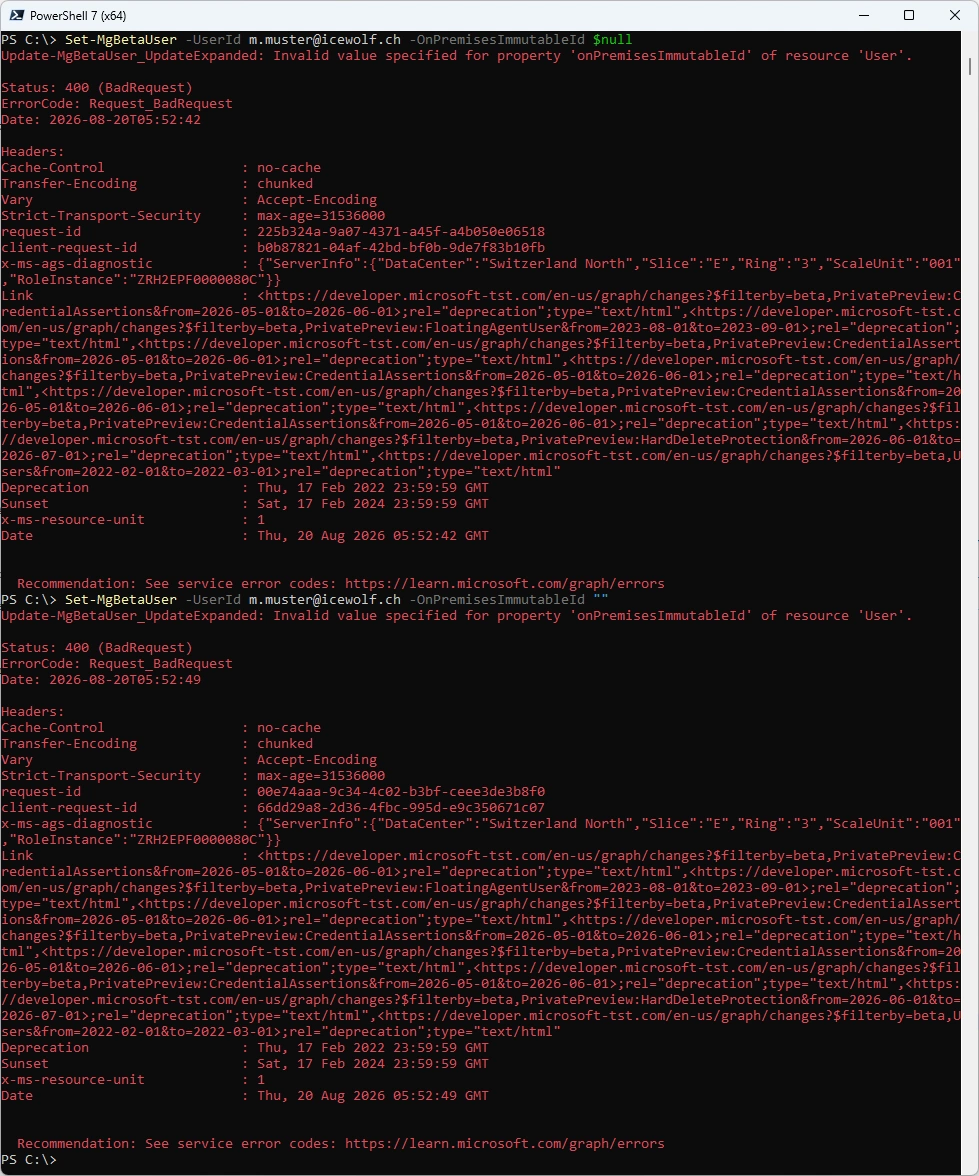
You would think this is an easy task. Just fire up PowerShell and set the ImmutableID to $NULL
Connect-MgGraph -NoWelcome
Set-MgUser -UserId m.muster@icewolf.ch -OnPremisesImmutableId $null
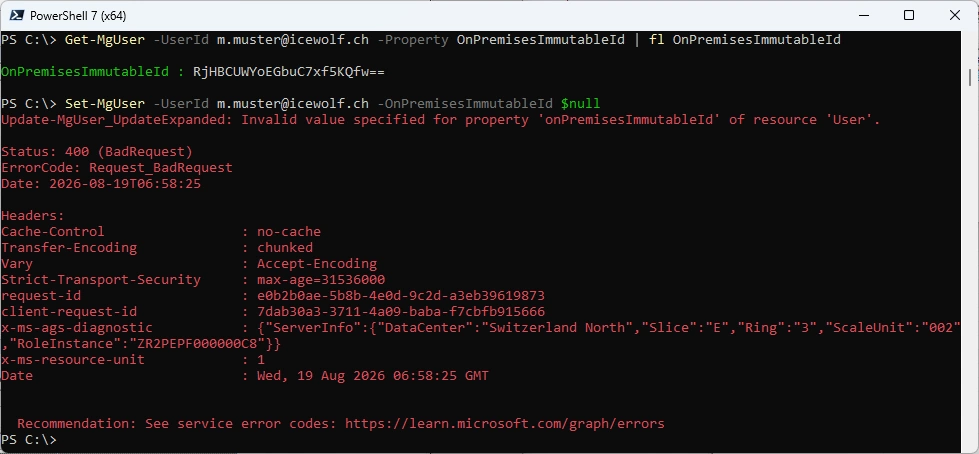
Maybe it’s not $NULL but an empty String
Set-MgUser -UserId m.muster@icewolf.ch -OnPremisesImmutableId ""
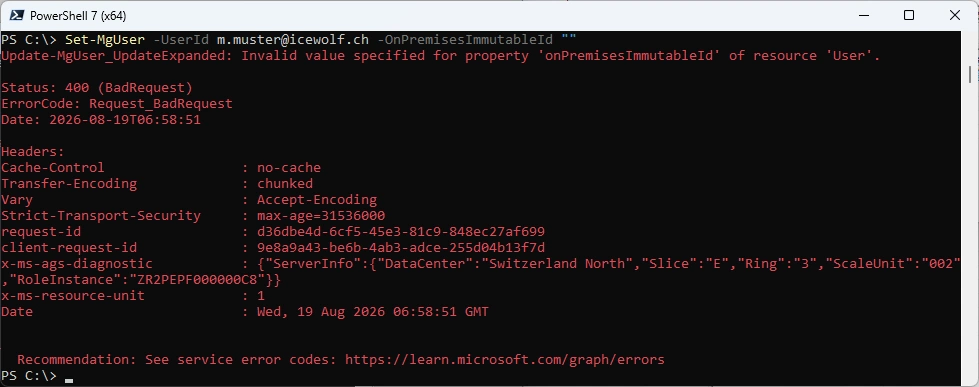
Let’s try with the Beta Commandlets
Set-MgBetaUser -UserId m.muster@icewolf.ch -OnPremisesImmutableId $Null
Set-MgBetaUser -UserId m.muster@icewolf.ch -OnPremisesImmutableId ""
Okay, then we can use the Microsoft Graph API
$URI = "https://graph.microsoft.com/v1.0/users/m.muster@icewolf.ch"
$ContentType = "application/json"

$Body = @"
{
  "onPremisesObjectIdentifier": null
}
"@
Invoke-GraphRequest -Uri $URI -Method "PATCH" -ContentType $ContentType -Body $Body
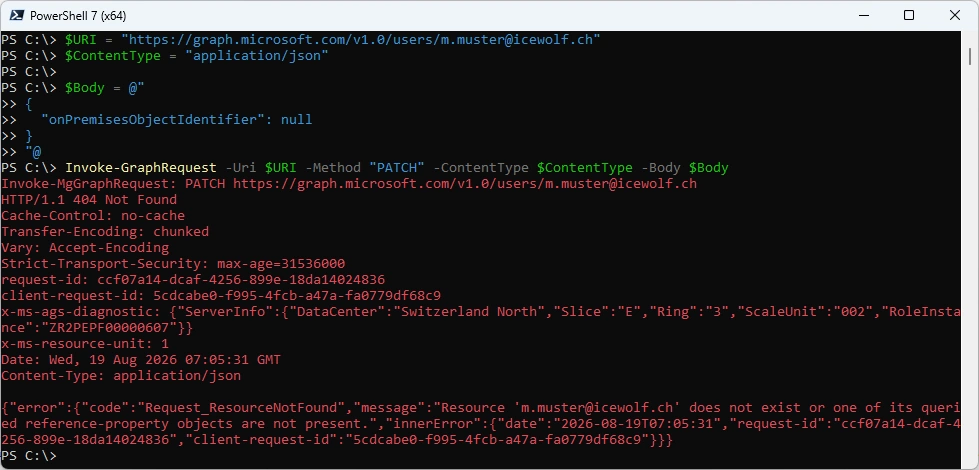
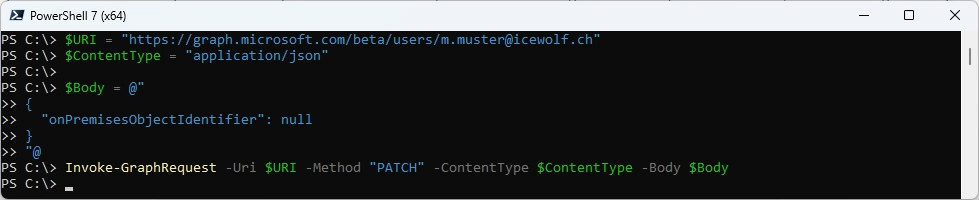
It only works with the BETA Endpoint of the Graph API 🤔 Something i didn’t expect.
$URI = "https://graph.microsoft.com/beta/users/m.muster@icewolf.ch"
$ContentType = "application/json"

$Body = @"
{
  "onPremisesObjectIdentifier": null
}
"@
Invoke-GraphRequest -Uri $URI -Method "PATCH" -ContentType $ContentType -Body $Body
Sync again - the error is gone and the Accounts are matched using hard match.
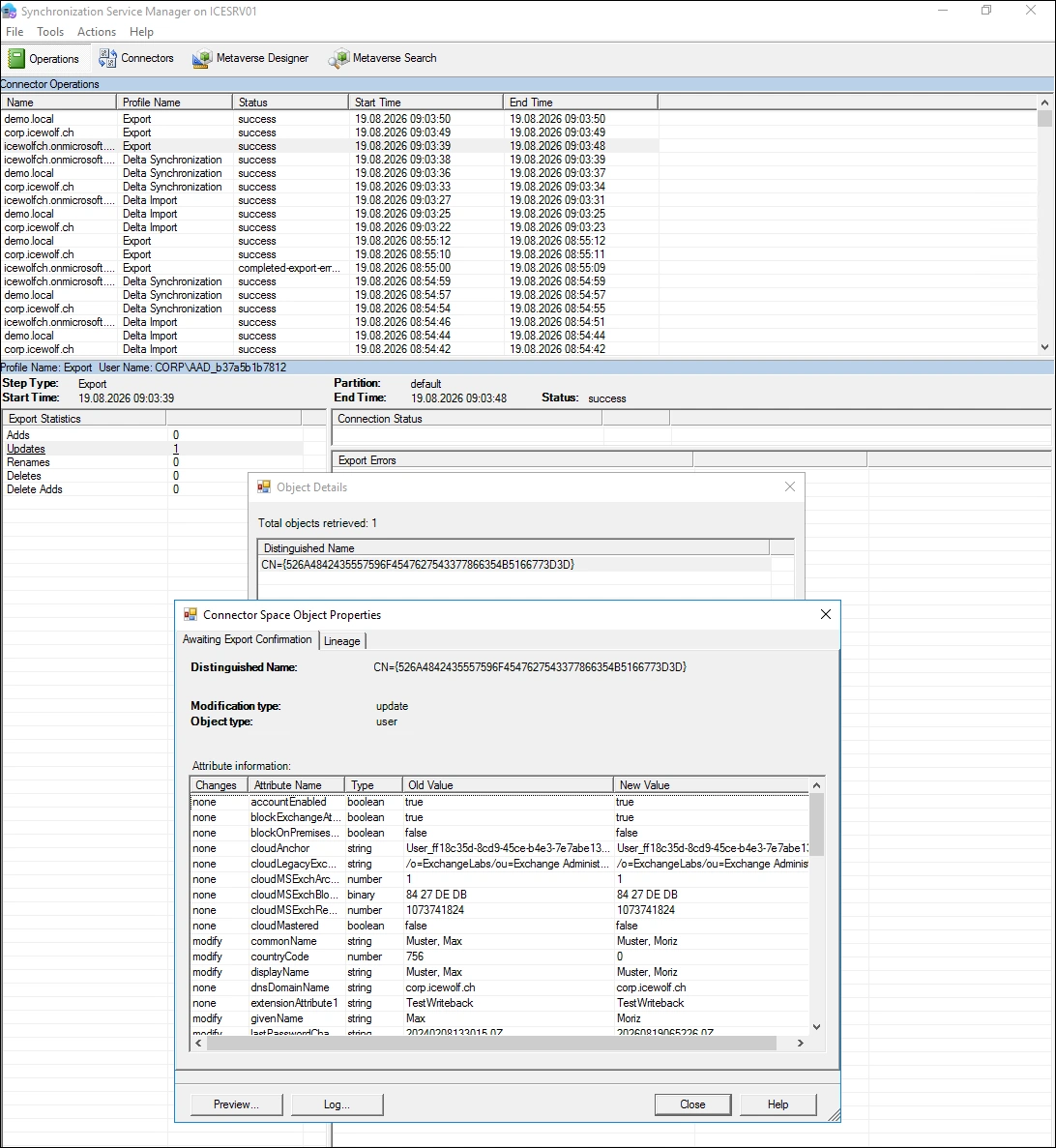
Entra Admin Center
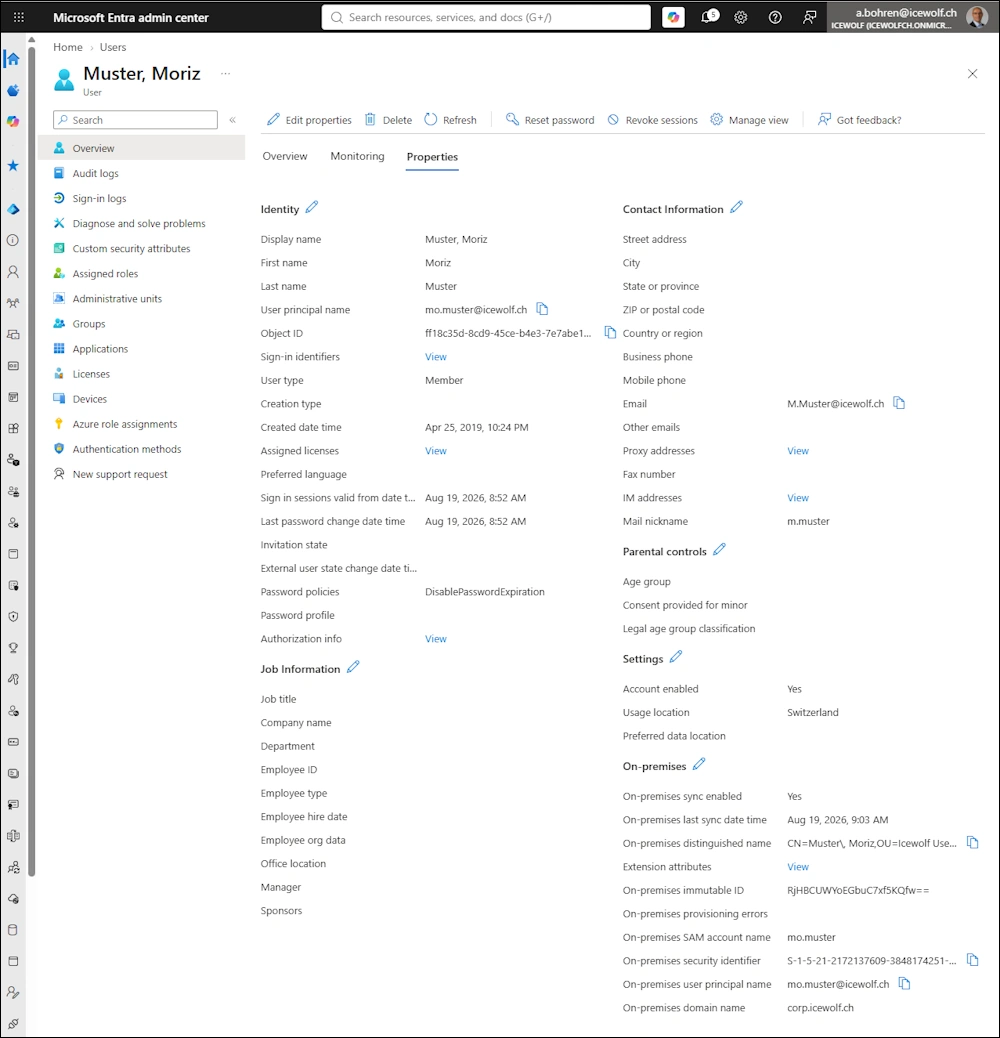
Entra Sync Settings
You can check the Sync Settings with the following commands
Permissions:
- OnPremDirectorySynchronization.Read.All
- OnPremDirectorySynchronization.ReadWrite.All
Connect-MgGraph -Scopes "OnPremDirectorySynchronization.ReadWrite.All" -NoWelcome
$OnPremSync = Get-MgDirectoryOnPremiseSynchronization
$OnPremSync.Features | fl
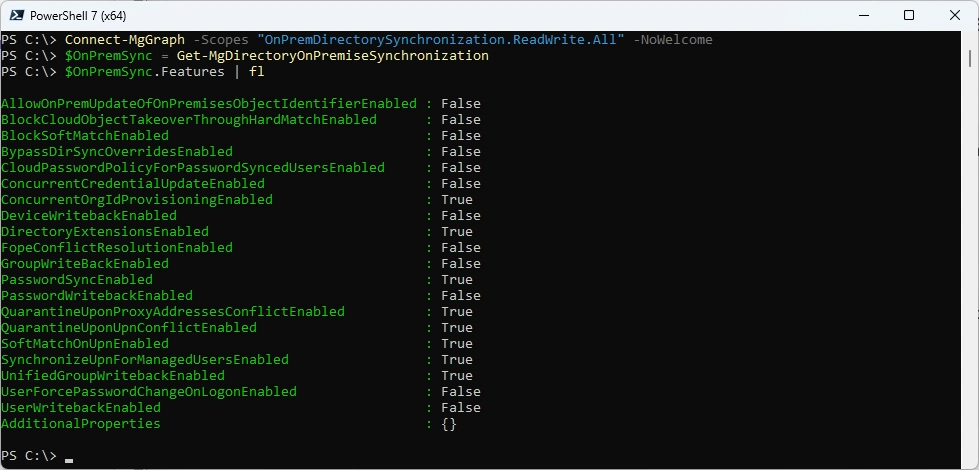
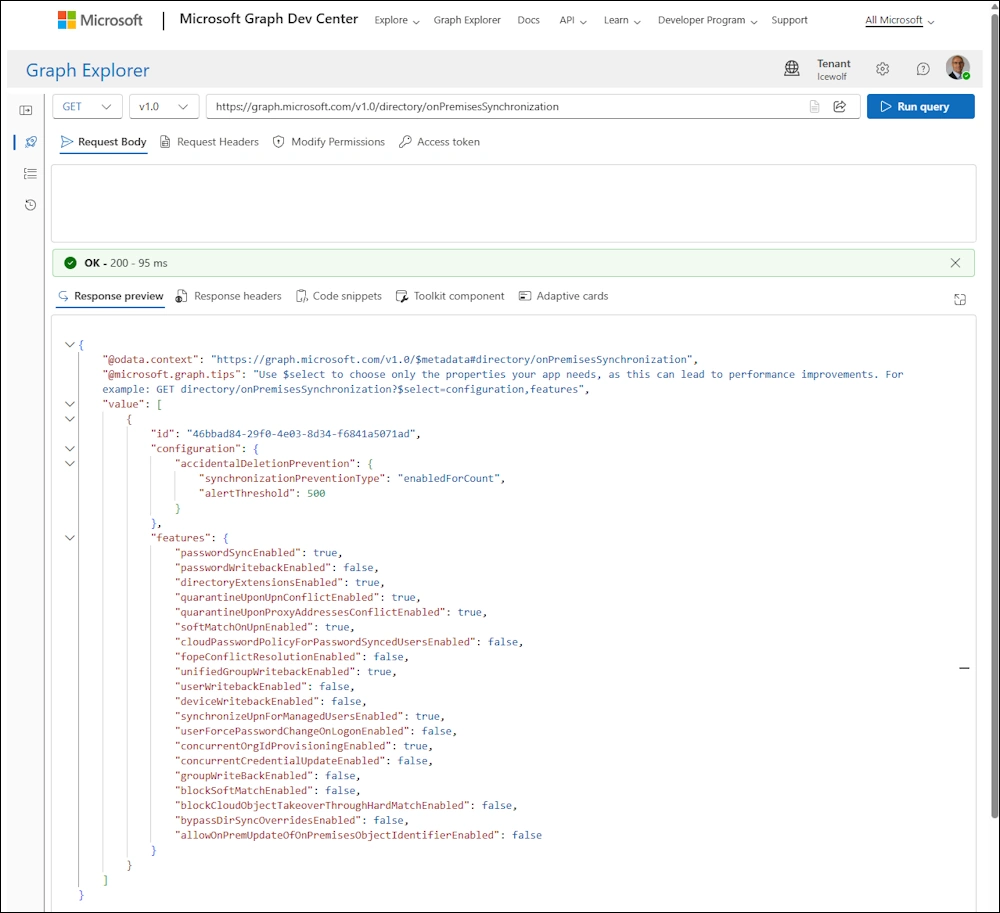
It’s also possible with Graph Explorer
https://graph.microsoft.com/v1.0/directory/onPremisesSynchronization
Let’s change AllowOnPremUpdateOfOnPremisesObjectIdentifierEnabled to True
$OnPremSync.Features.AllowOnPremUpdateOfOnPremisesObjectIdentifierEnabled = $true
Update-MgDirectoryOnPremiseSynchronization -OnPremisesDirectorySynchronizationId $OnPremSync.Id -Features $OnPremSync.Features

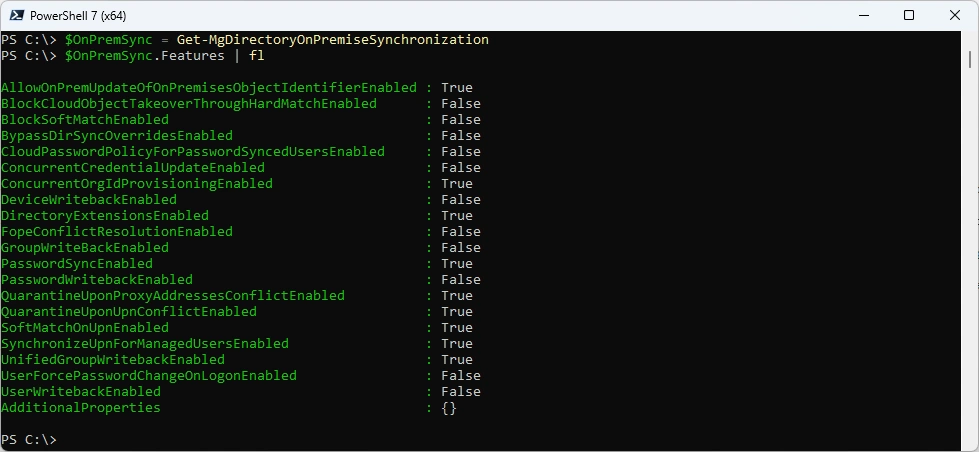
Get the Entra Sync Settings
The Value for “AllowOnPremUpateOfOnPremisesObjectIdentifierEnabled” is now set to True
$OnPremSync = Get-MgDirectoryOnPremiseSynchronization
$OnPremSync.Features | fl
Switch Accounts back.
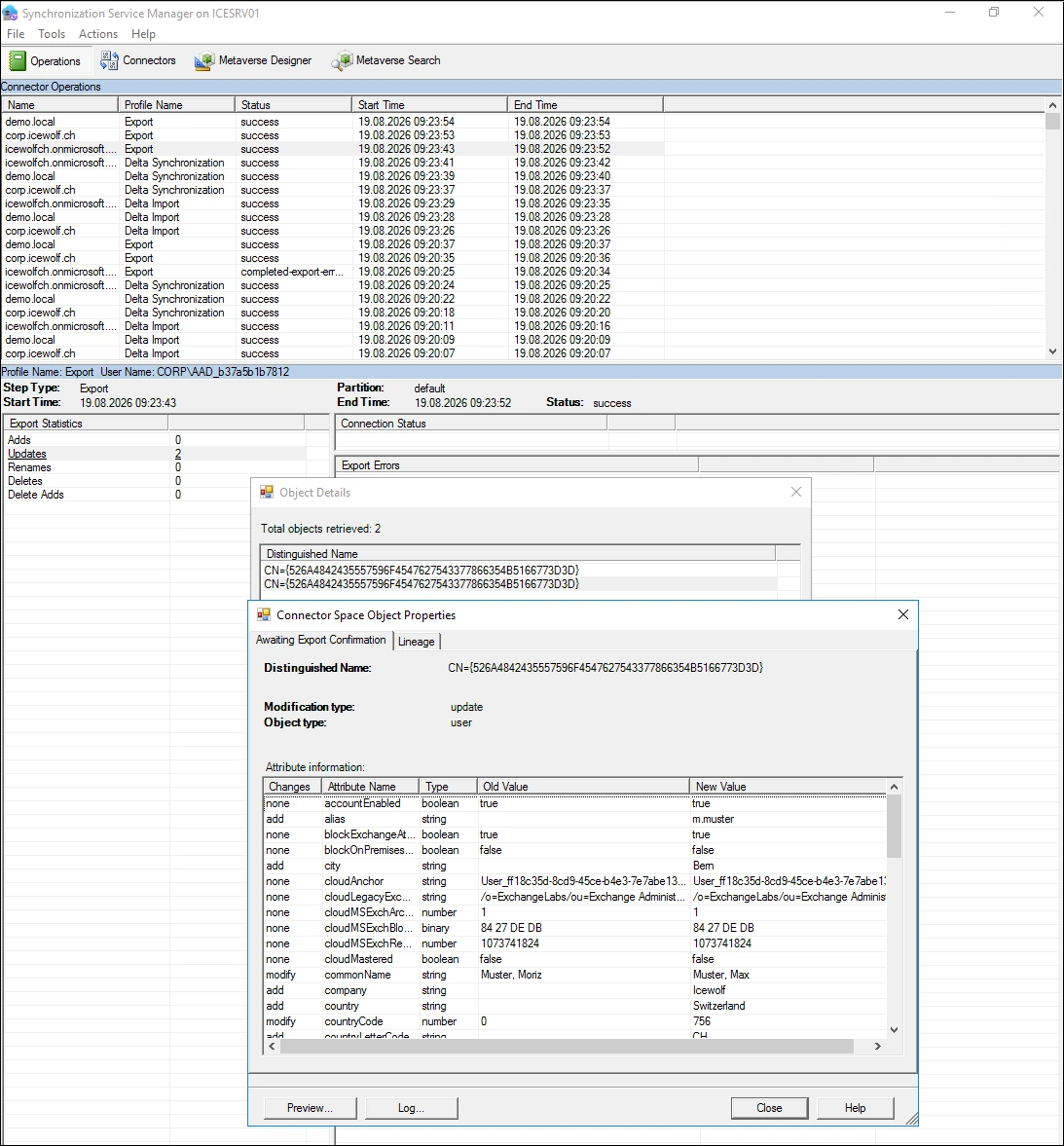
I’ve removed the new Account Moriz Muster / mo.muster from the Sync Scope and moved the old Account Max Muster / m.muster back in the Sync Scope.
Export Task to Entra shows no Error, because i’ve allowed Hard matching with the Configuration Change above.
Summary
I’ve used hard matching for several Migrations in the last few Years.
So be aware of this change and plan with one of the two variants.
- Keep Hard matching and accept some risks for Account Takeover aka “SyncJacking”
- Move to Soft Matching via UserPrincipalName (UPN) and Primary SMTP Address.
Regards
Andres Bohren
EntraID Logo PowerShell Logo Security Logo

