
Set up High Volume Email (HVE)

Hi All,
I’ve waited far to long to write an Article about High Volume Email (HVE) in Exchange Online.
- HVE was introduced in Public Preview in 2024 and remained in preview for an extended period while Microsoft refined the service.
- In March 2026 Microsoft announced that GA was imminent
You can find the Documentation on MS Learn below
Requirements
- HVE Account
- M365 Billing Profile
- Azure Subscription / Resource Group
Limitations
- Recipient Scope: Internal Recipients only (Tenant)
- Recipient Rate Limit: None
- Message Rate Limit: None
- HVE Accounts per Tenant: 100 HVE Accounts
- Recipients per Message: Up to 50 Recipients
- Max Message Size: 10 MB
- Connection limits: Up to 100 concurrent connections per IP address, or up to 250 authenticated connections per tenant
Unsupported scenarios
- Adding HVE accounts to distribution lists or mail‑enabled security groups is not supported.
- HVE accounts cannot be used for external email delivery.
- HVE account does not have a mailbox and cannot receive email. If recipients need to reply to messages sent by an HVE account, configure a Reply-To address for the account. Replies are then delivered to the specified mailbox instead of the HVE account. You can configure the Reply‑To address in the HVE account settings
Create HVE Account
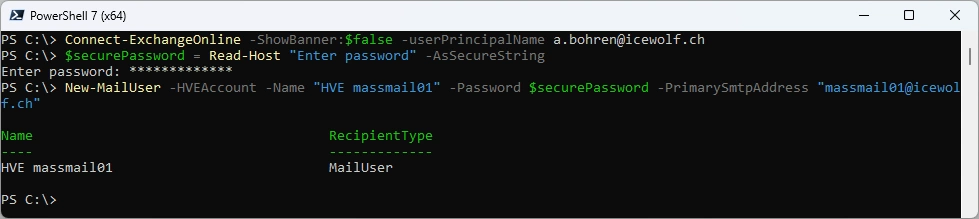
Create HVE Account with a Password
Connect-ExchangeOnline -ShowBanner:$false -userPrincipalName a.bohren@icewolf.ch
$securePassword = Read-Host "Enter password" -AsSecureString
New-MailUser -HVEAccount -Name "HVE massmail01" -Password $securePassword -PrimarySmtpAddress "massmail01@icewolf.ch"
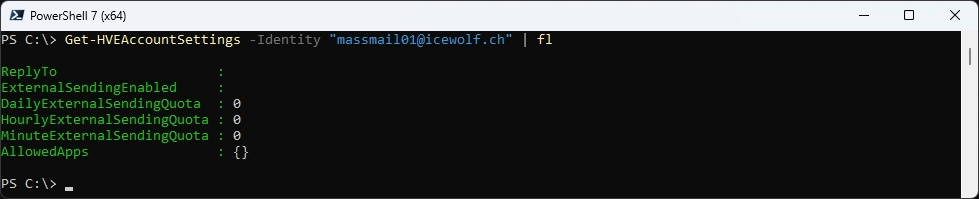
Check HVEAccountSettings
Get-HVEAccountSettings -Identity "massmail01@icewolf.ch"
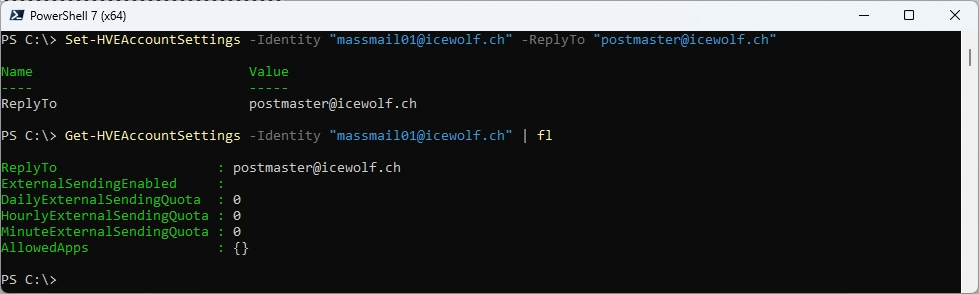
Settng the ReplyTo Address (can also be set when creating the HVE Account)
Set-HVEAccountSettings -Identity "massmail01@icewolf.ch" -ReplyTo "postmaster@icewolf.ch"
Get-HVEAccountSettings -Identity "massmail01@icewolf.ch" | fl
The BillingPolicy is empty
Get-BillingPolicy -ResourceType HVE

Billing Policy in M365 Admin Center
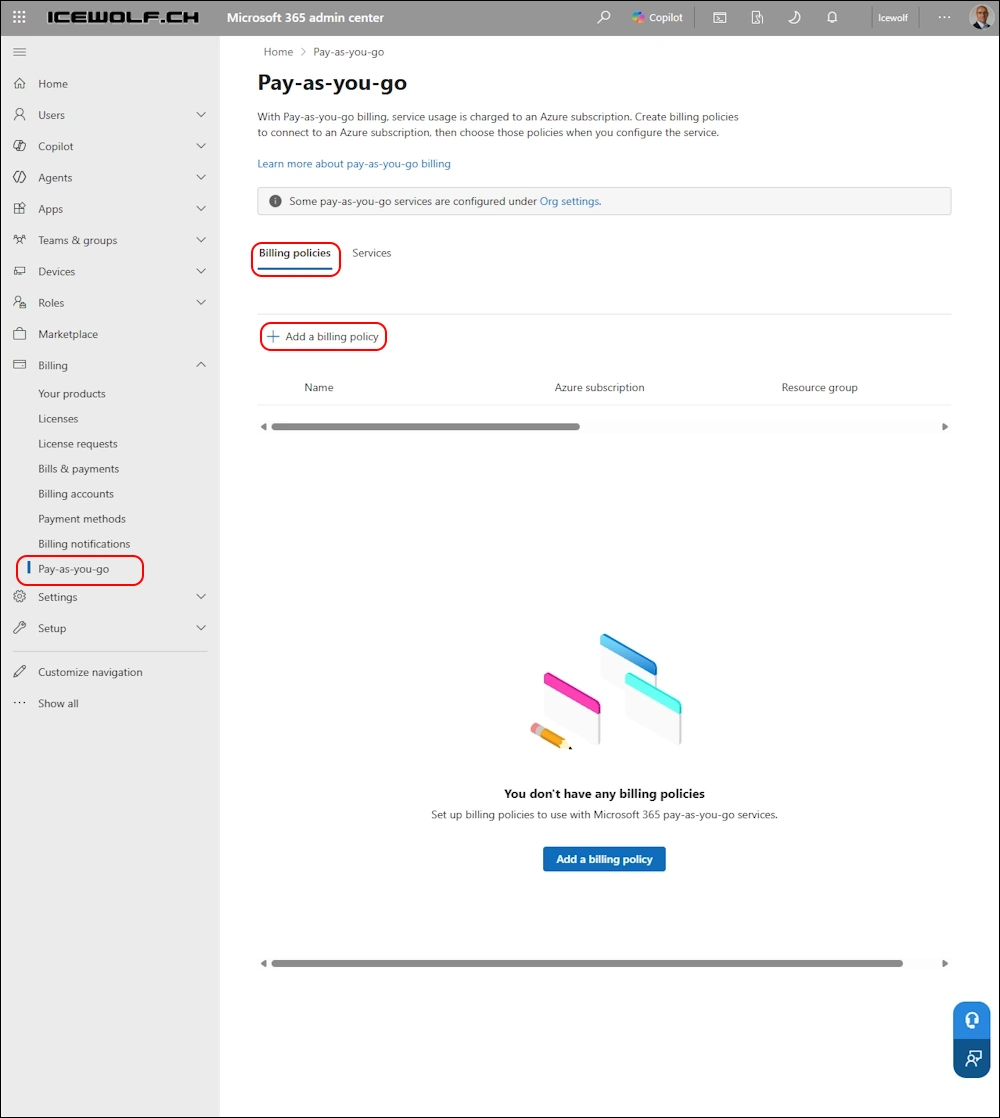
In the M365 Admin Center you have to create a billing policy. I haven’t found a way to Script this part. If you know a way - please let me know.
M365 Admin Center > Billing > Pay-as-you-go > Add a billing policy
Add the Name of the Billing Policy, the Subscription, the Resource Group and the Region
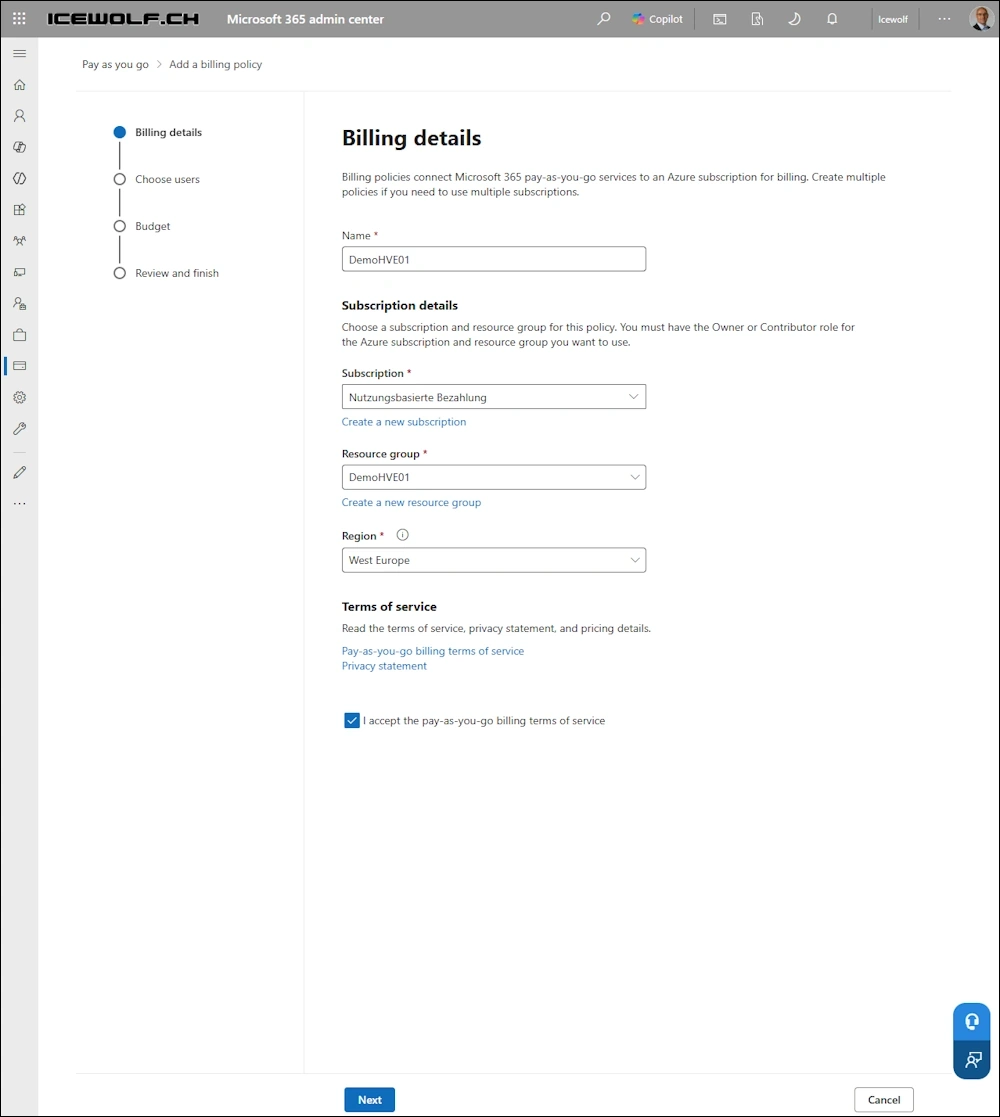
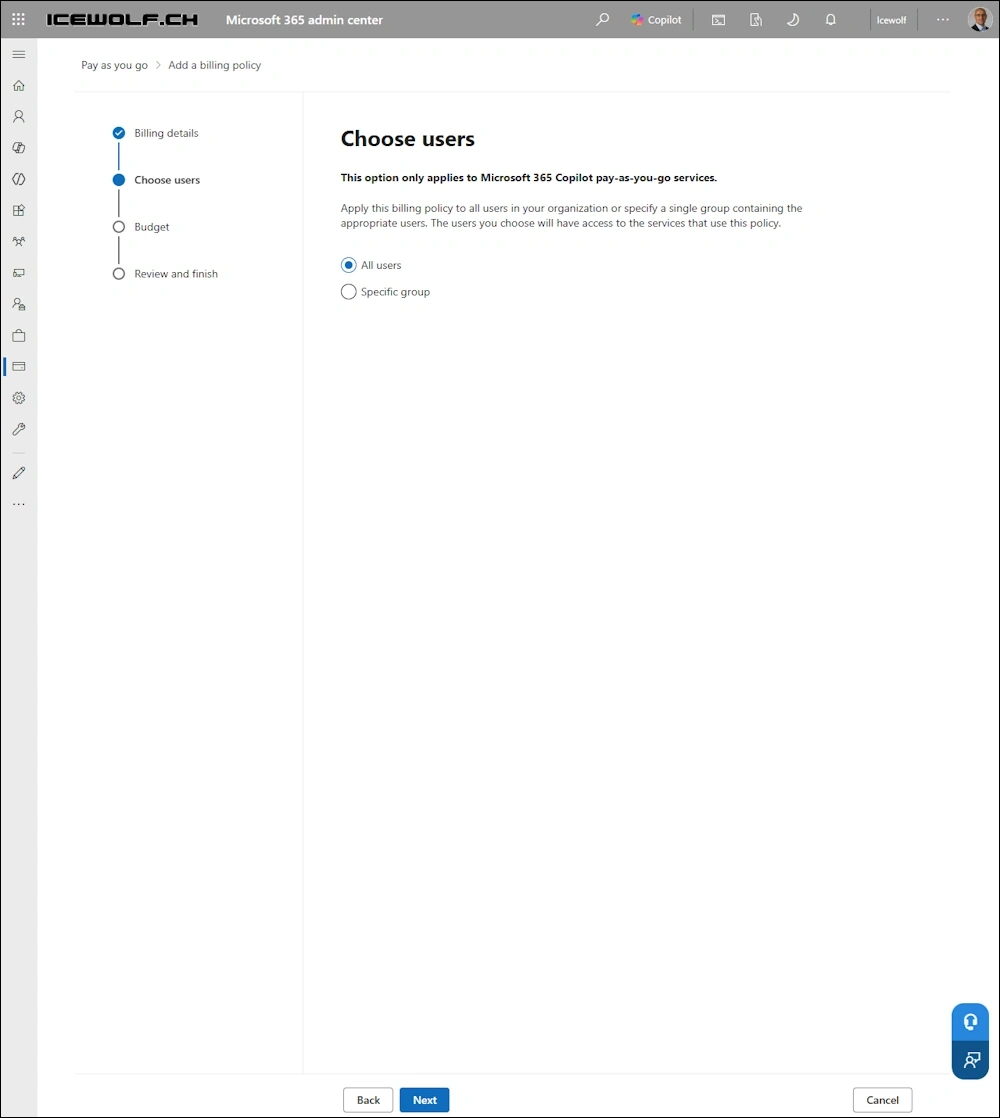
This section is only important for M365 Copilot, so we can let that be on “All users”
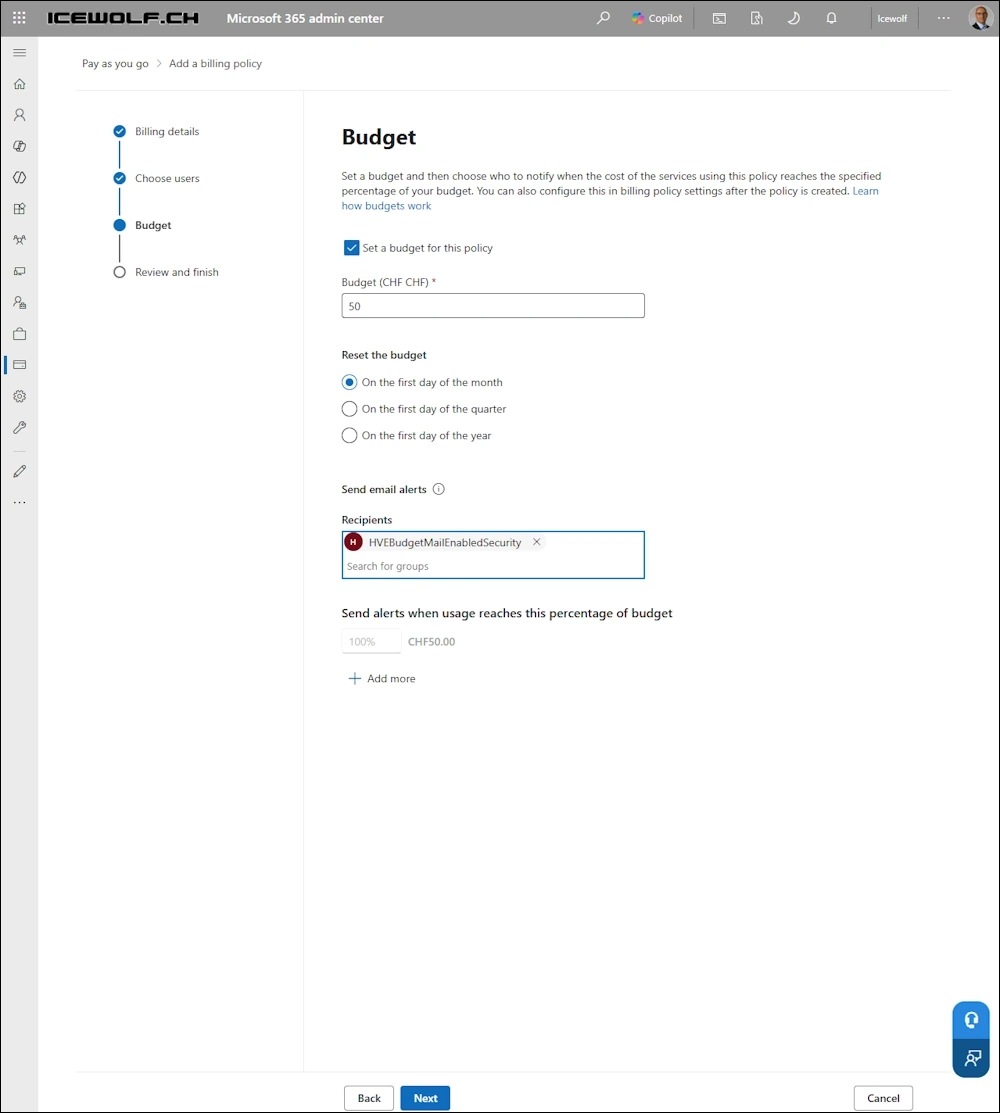
We can add a Budget and select a Mail Enabled Security Group for the Notification
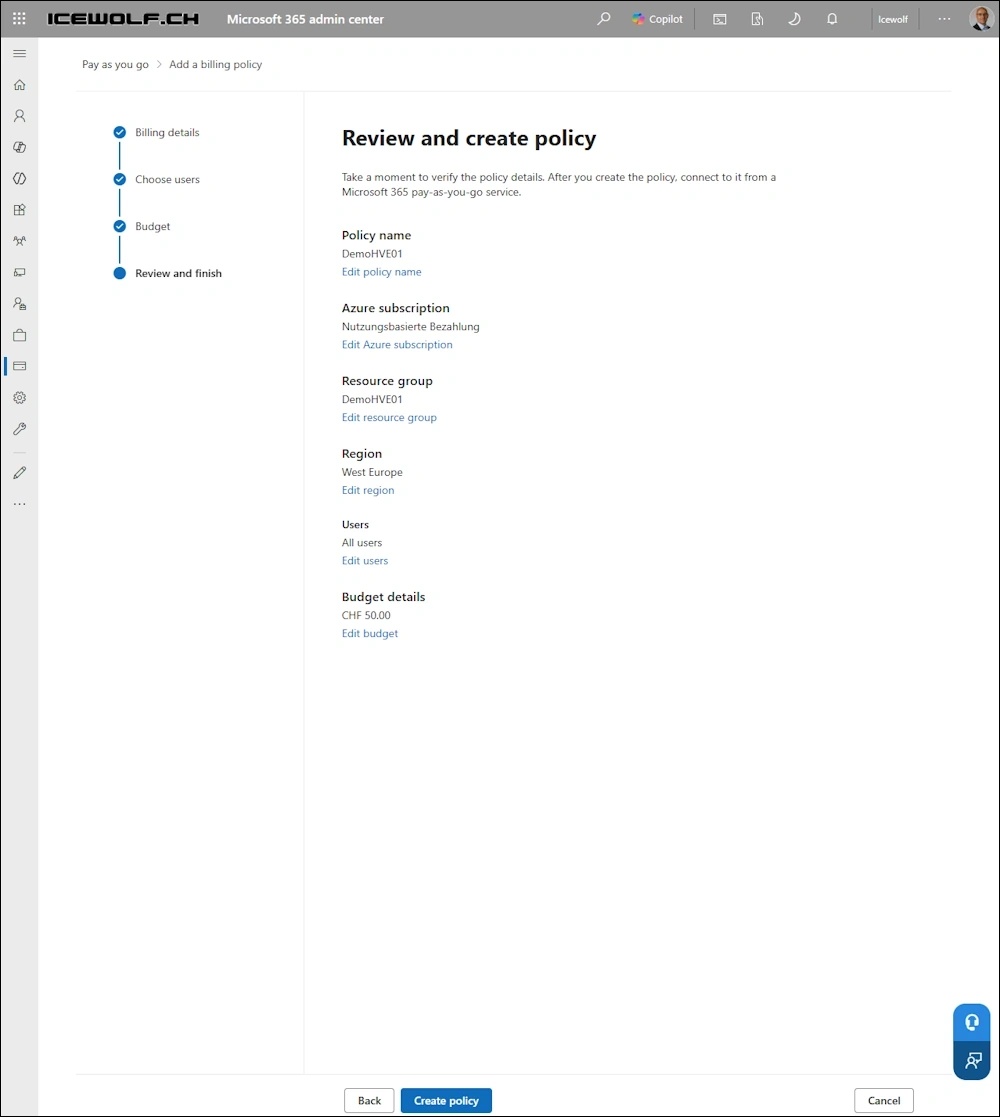
Review
Finish
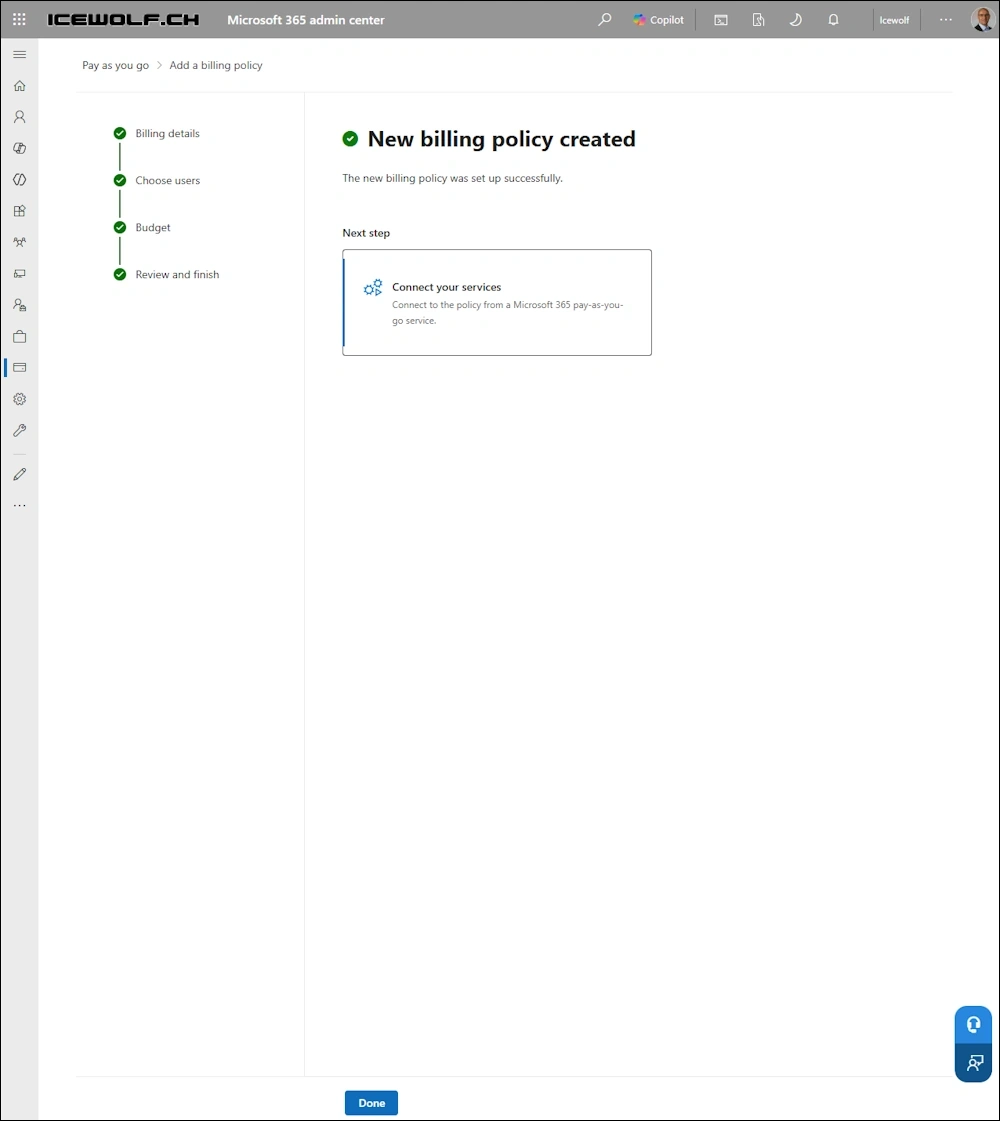
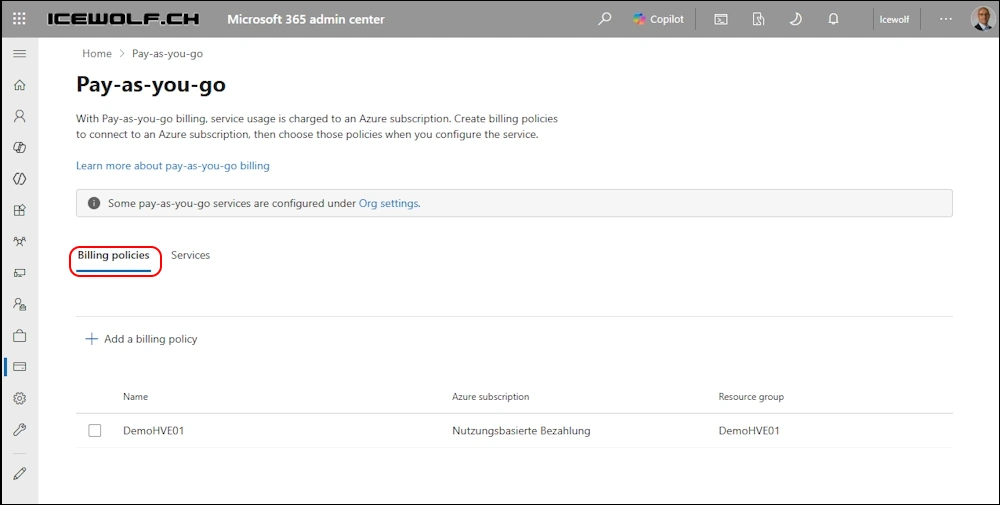
Now there is a Billing Policy
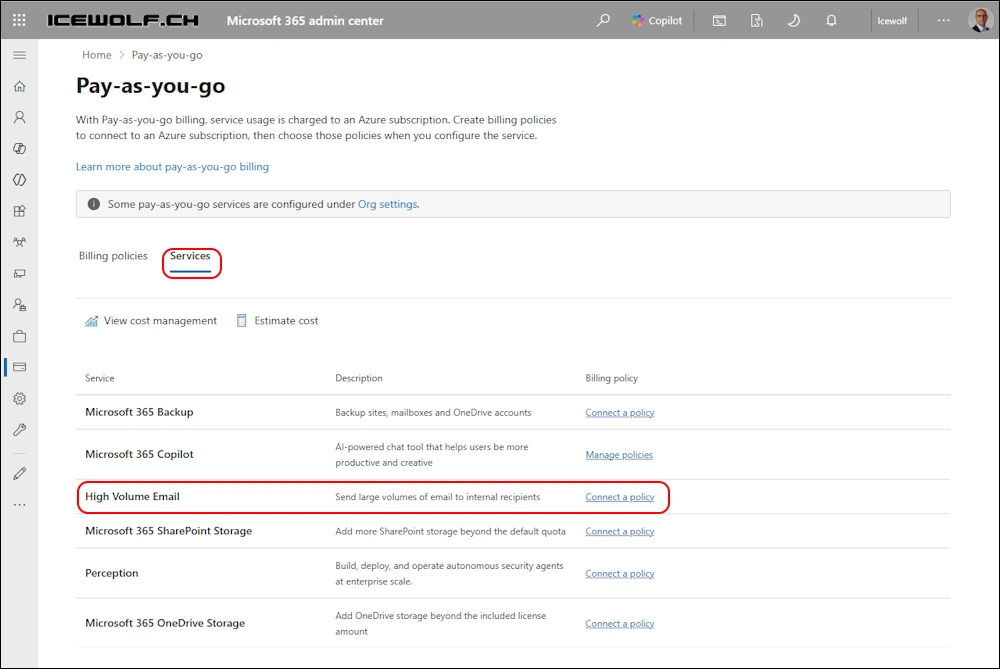
Under Services we can connect it to HVE
Change from “Disconnected” to “Connected
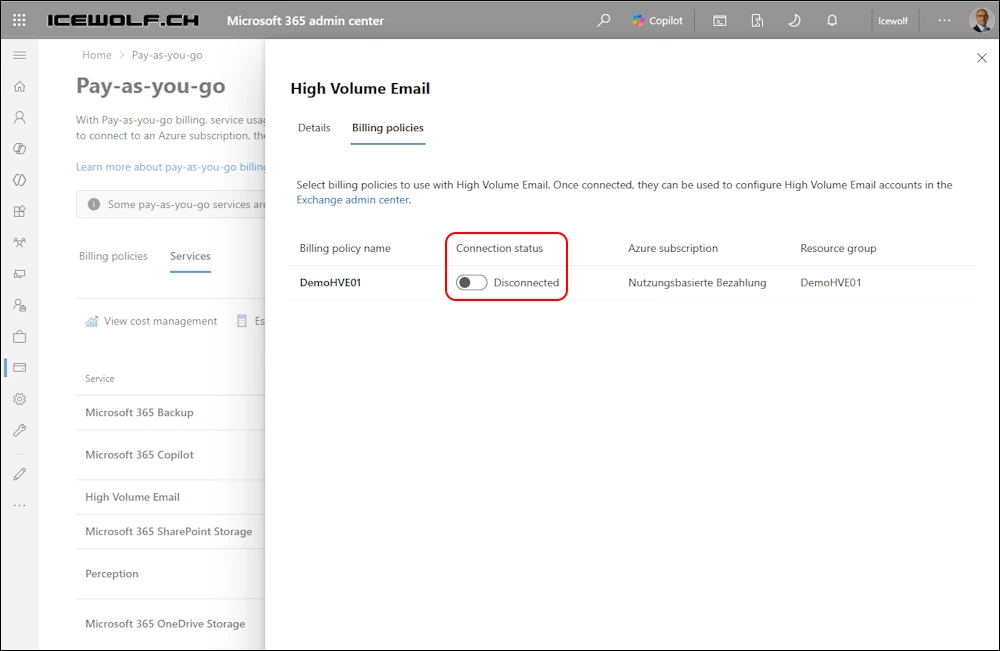
Connected
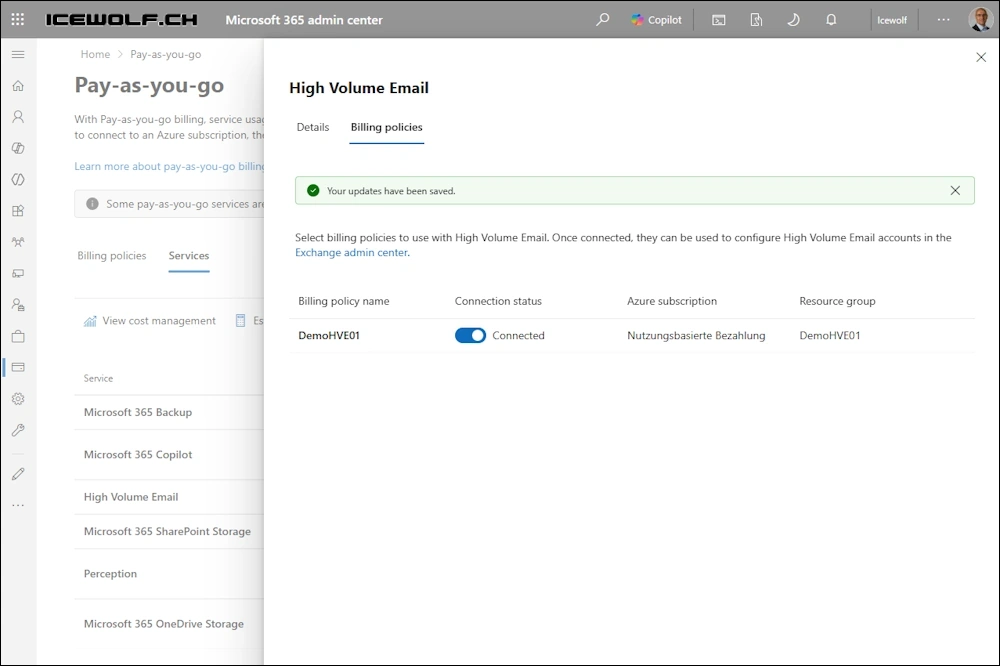
Now we can check the Billing Policy in Exchange Online PowerShell
Get-BillingPolicy -ResourceType HVE
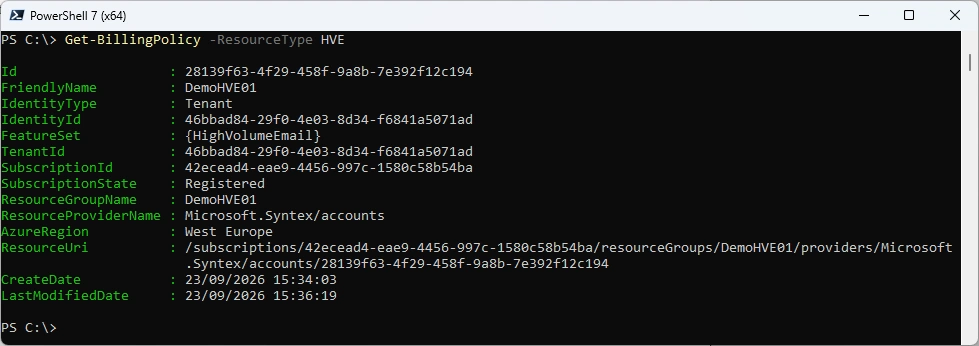
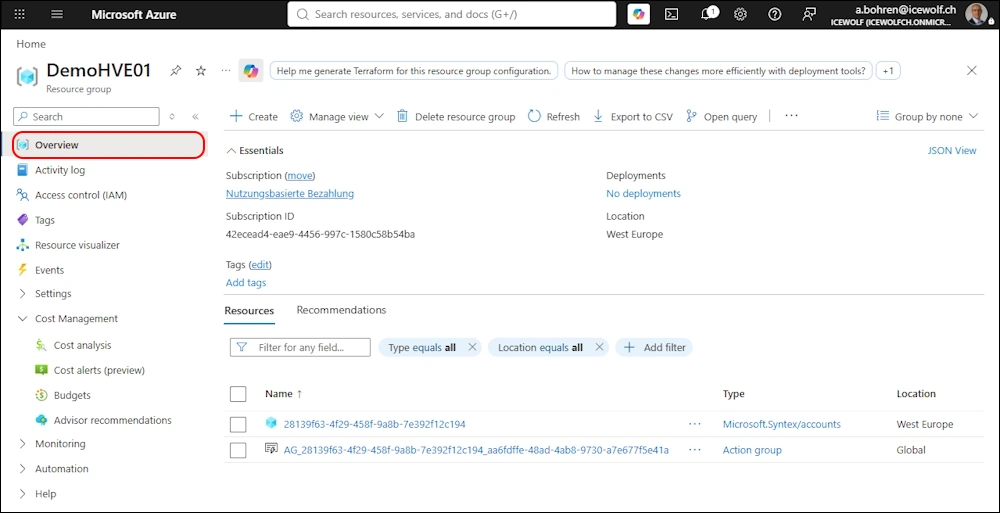
Azure
I’ve checked the Azure Resource Group and selected “Show hidden types” from the “Manage view” Menu.
There exists:
- A Microsoft Syntex Account
- An Action Group
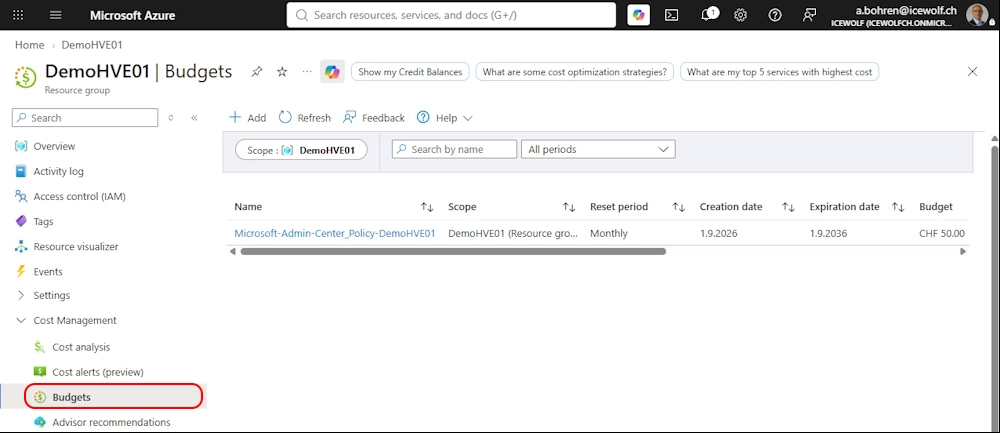
If we go to “Budgets” we can see the Budget
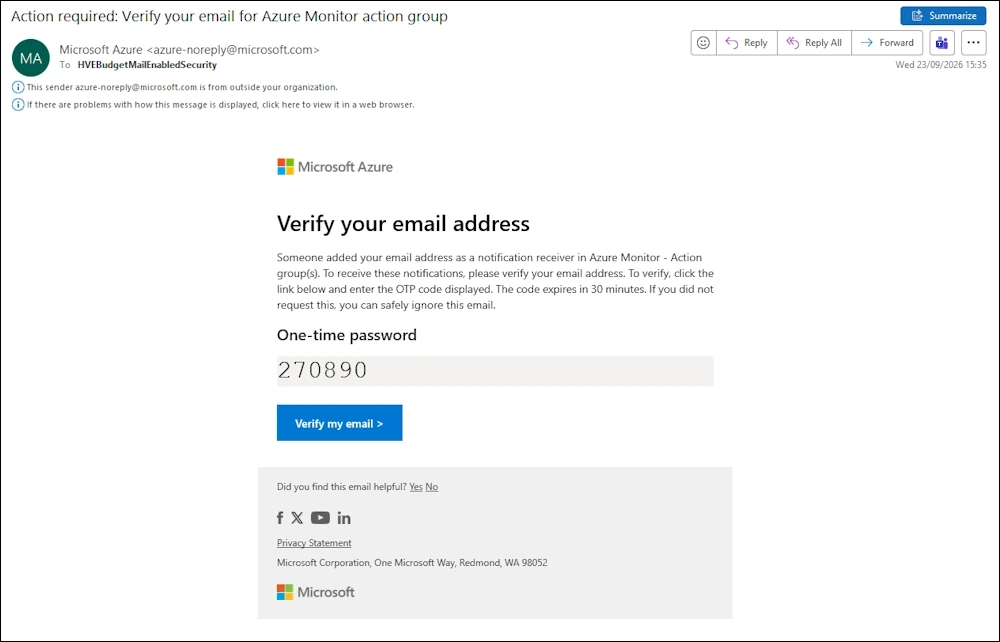
I’ve received a Mail to verify the Action Group Recipient with a code for the Budget Emails
Exchange Online Admin Center - High Volume Email
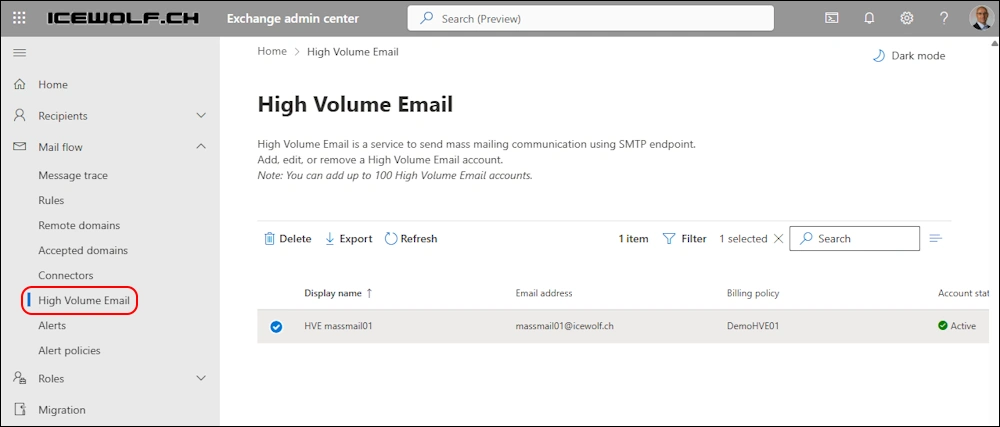
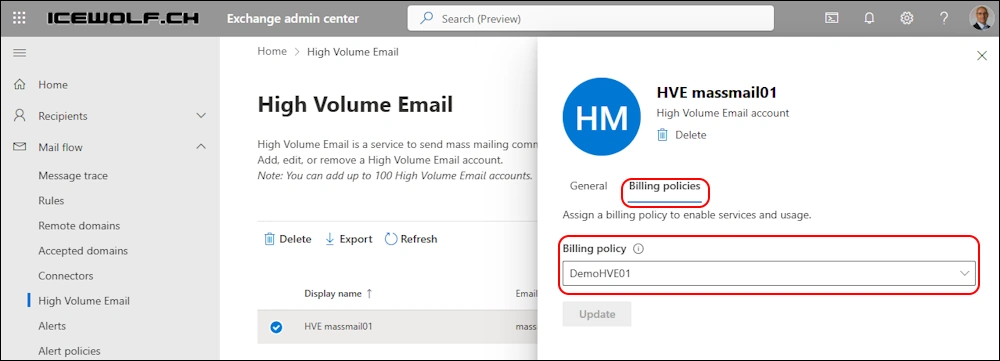
In Exchange Online Admin Center > Mail Flow > High Volume Email we can see the HVE Account
General
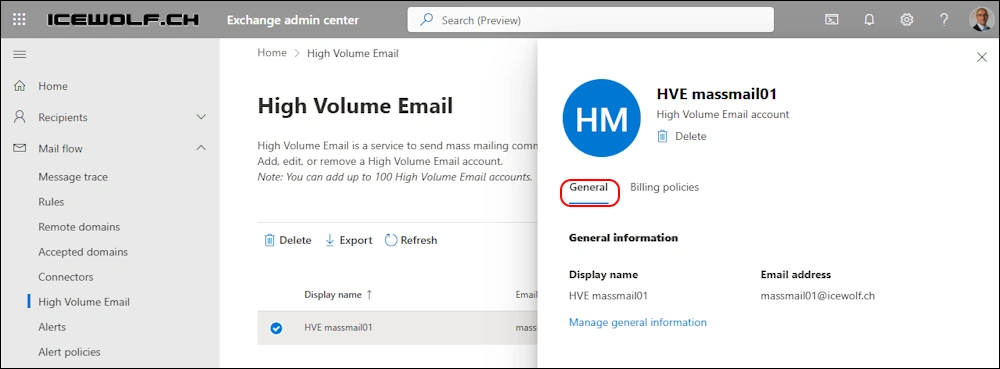
Billing Policy is assigned
Send Mail with SMTP Basic Authentication
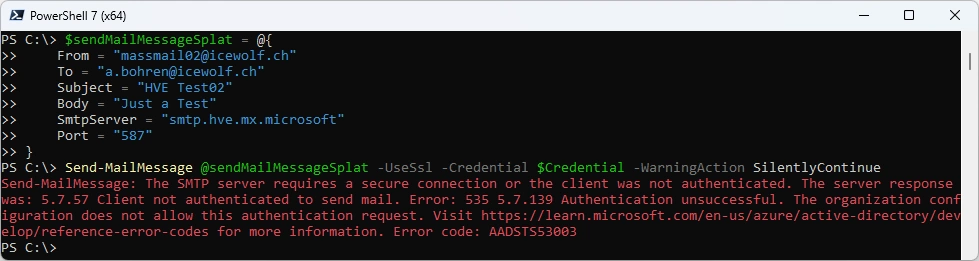
Now let’s try to send an Mail with SMTP Authentication on Port 587
$Credential = Get-Credential "massmail02@icewolf.ch"

$sendMailMessageSplat = @{
    From = "massmail02@icewolf.ch"
    To = "m.muster@icewolf.ch"
    Subject = "HVE Test01"
    Body = "Just a Test"
    SmtpServer = "smtp.hve.mx.microsoft"
    Port = "587"
}
Send-MailMessage @sendMailMessageSplat -UseSsl -Credential $Credential -WarningAction SilentlyContinue
Authentication Policy
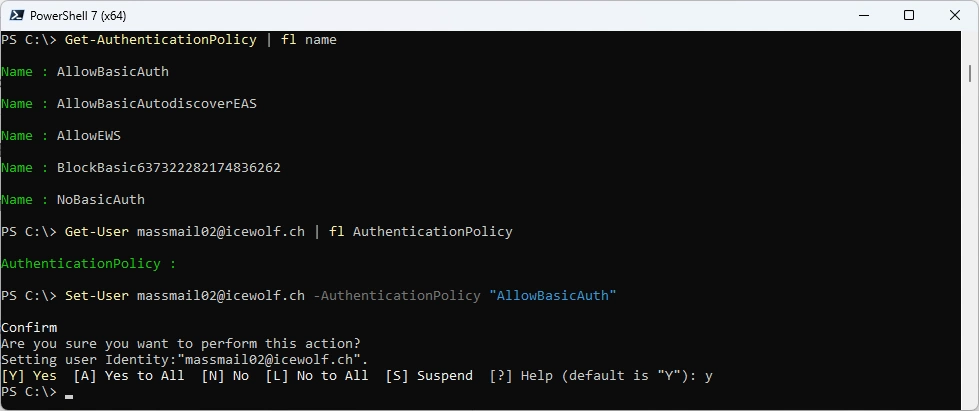
We need to set the Exchange Online Authentication Policy with a AllowBasicAuth Policy
Get-AuthenticationPolicy | fl name
Get-User massmail02@icewolf.ch | fl AuthenticationPolicy
Set-User massmail02@icewolf.ch -AuthenticationPolicy "AllowBasicAuth"
Conditional Access Policies
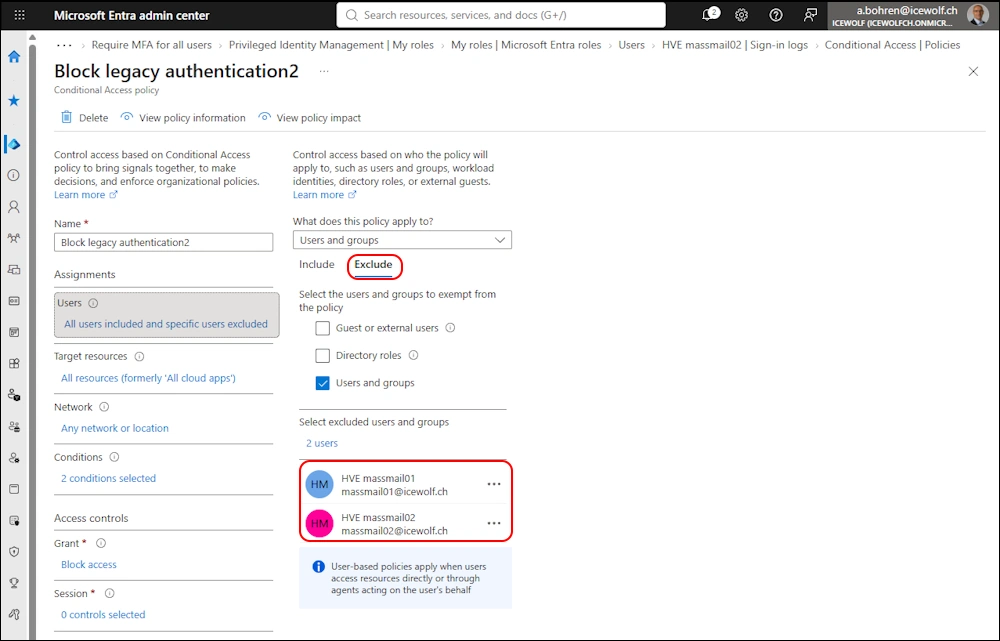
In addition i had to add exclusions to some of my Conditional Access Policies
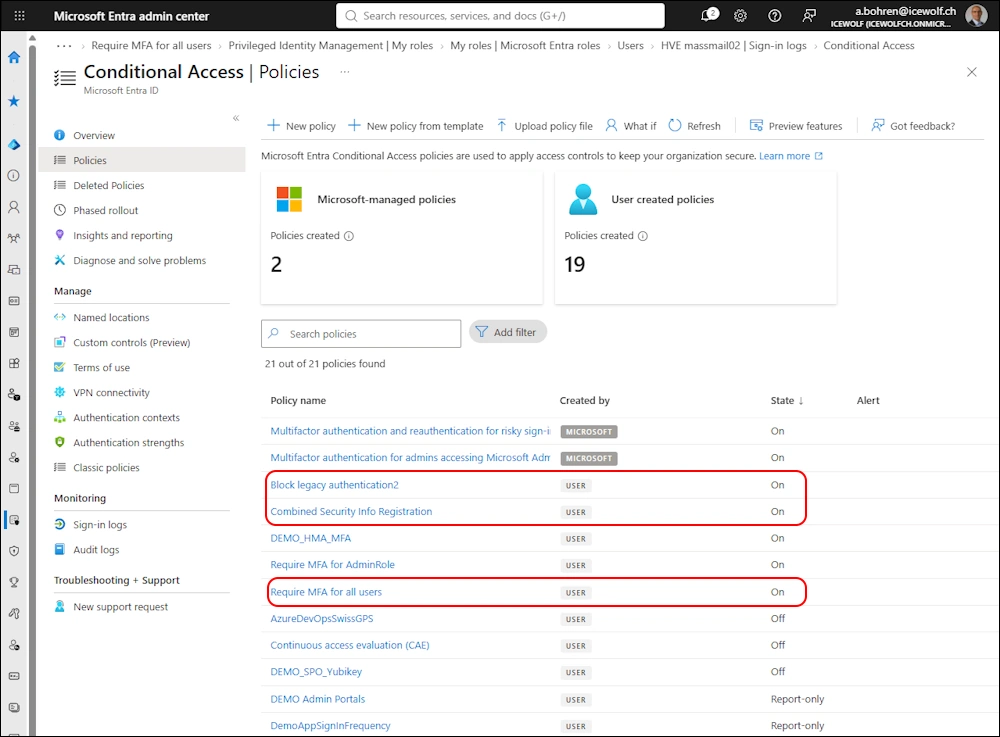
Add Exclusion with the HVE Accounts. Or even better a Group that contains the HVE Accounts.
SMTP Basic Auth Send
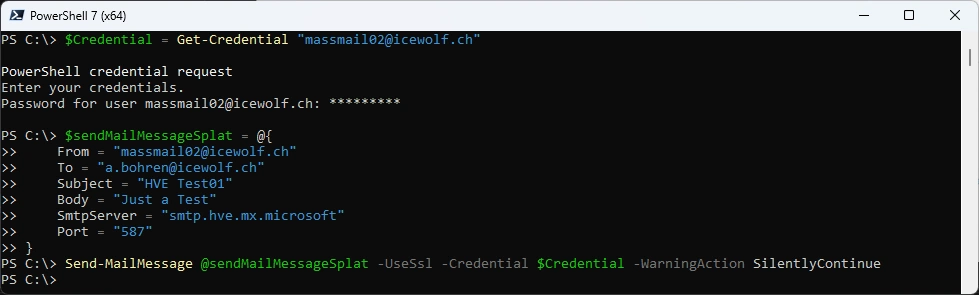
Let’s try again to send an Email with SMTP Authentication
$Credential = Get-Credential "massmail02@icewolf.ch"

$sendMailMessageSplat = @{
    From = "massmail02@icewolf.ch"
    To = "m.muster@icewolf.ch"
    Subject = "HVE Test01"
    Body = "Just a Test"
    SmtpServer = "smtp.hve.mx.microsoft"
    Port = "587"
}
Send-MailMessage @sendMailMessageSplat -UseSsl -Credential $Credential -WarningAction SilentlyContinue
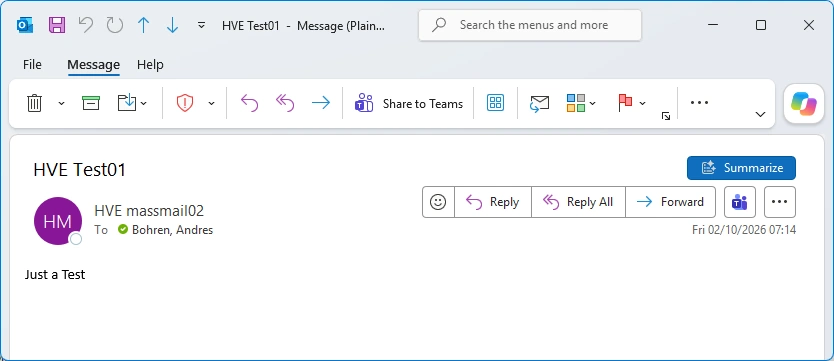
This time the Mail has arrived in Outlook
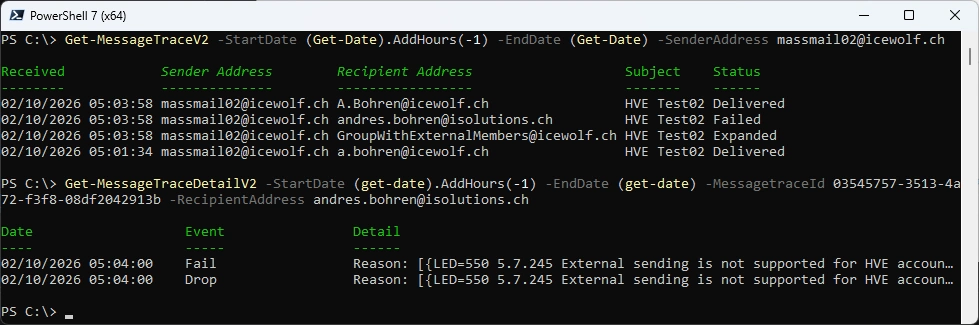
I’ve tried to send to a Distribution Group with internal and external Recipients. The Mail has only be delivered to the internal Recipeint
Get-MessageTraceV2 -StartDate (Get-Date).AddHours(-1) -EndDate (Get-Date) -SenderAddress massmail02@icewolf.ch
Get-MessageTraceDetailV2  -StartDate (Get-Date).AddHours(-1) -EndDate (Get-Date) -MessageTraceId 03545757-3513-4a72-f3f8-ø8df2ø42913b -RecipientAddress andres.bohren@isolutions.ch
SMTP with OAUTH
OAuth Authentication is the preferred Authentication for Microsoft for Sending Emails with HVE
Requirements
- Entra Application
- Permission: Office 365 Exchange Online > Mail.Send
- Certificate (or ClientSecret)
- Add ServicePrincipal to HVEAccountSettings
Entra Application
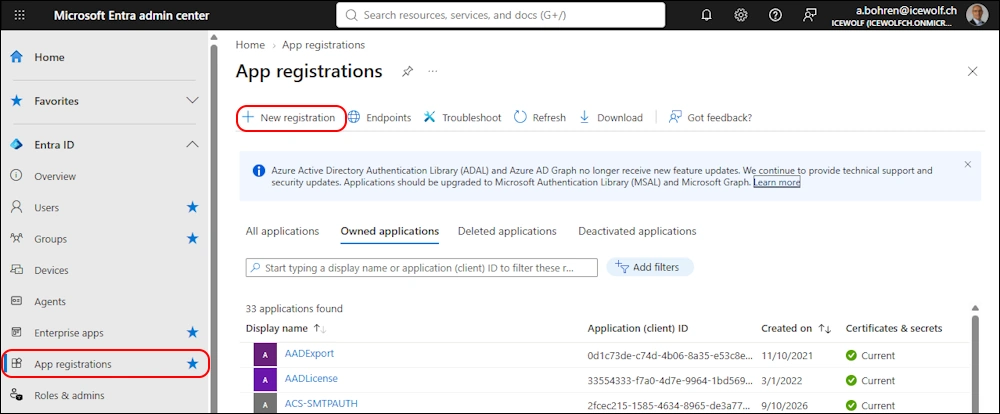
Go to Entra Admin Center > App registrations > New registration
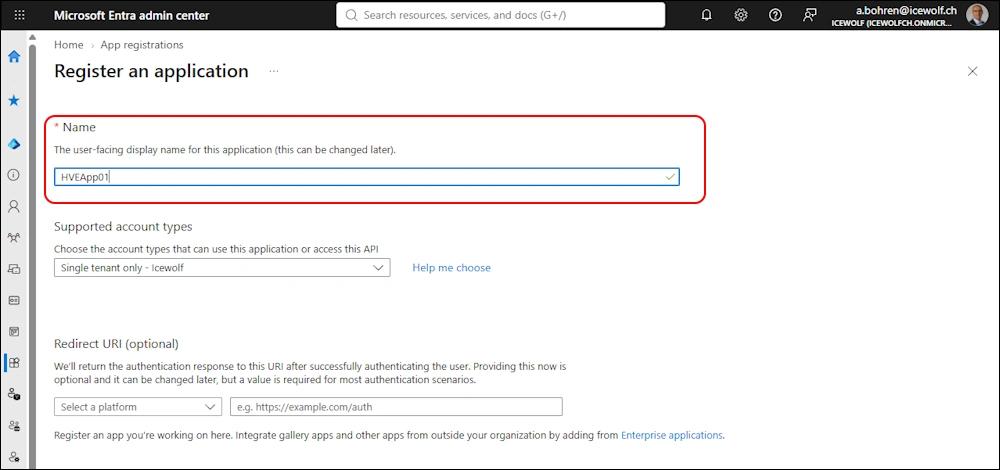
Enter an App Name
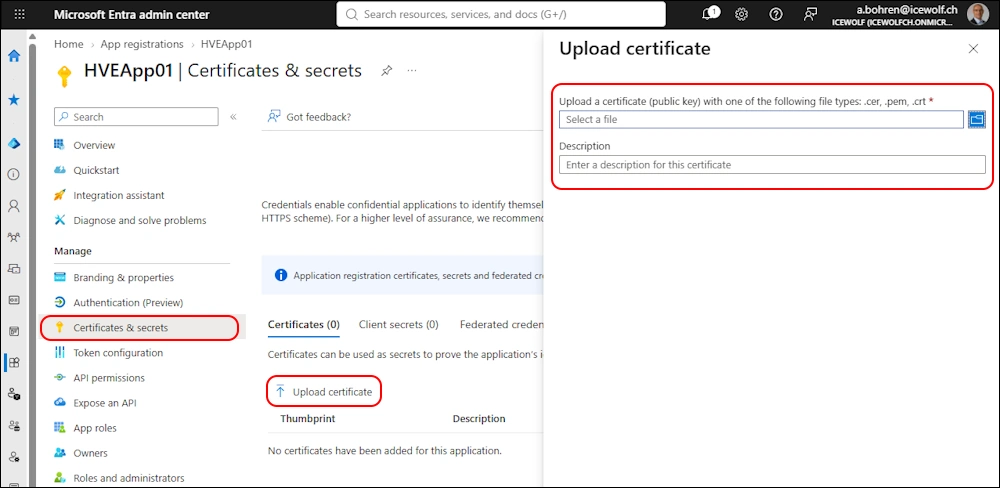
Go to “Certificates & Secrets” > Upload Certificate > Select your Certificate
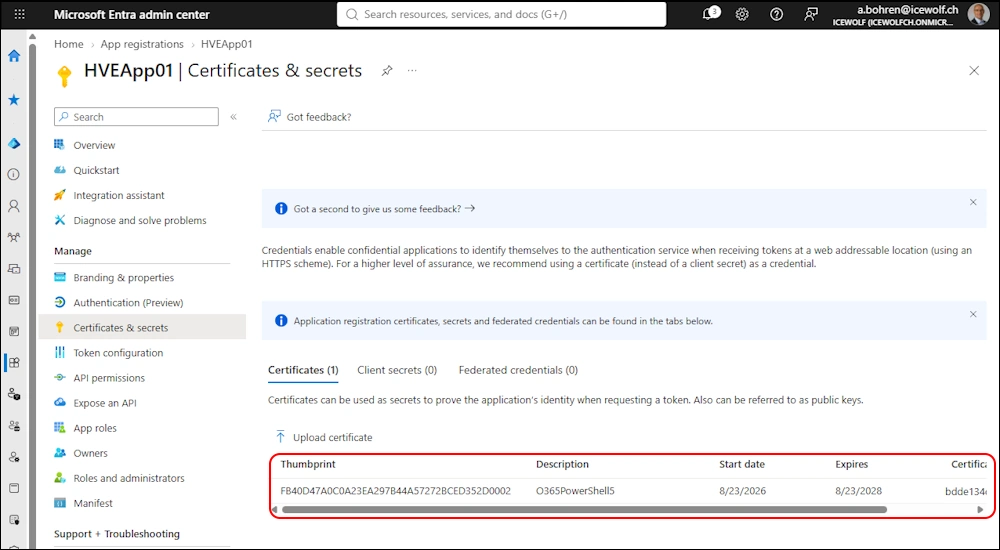
The Certificate has been addet
Got to “API Permission” > Add a Permission
Note: I’ve removed the default Permission - it’s not needed
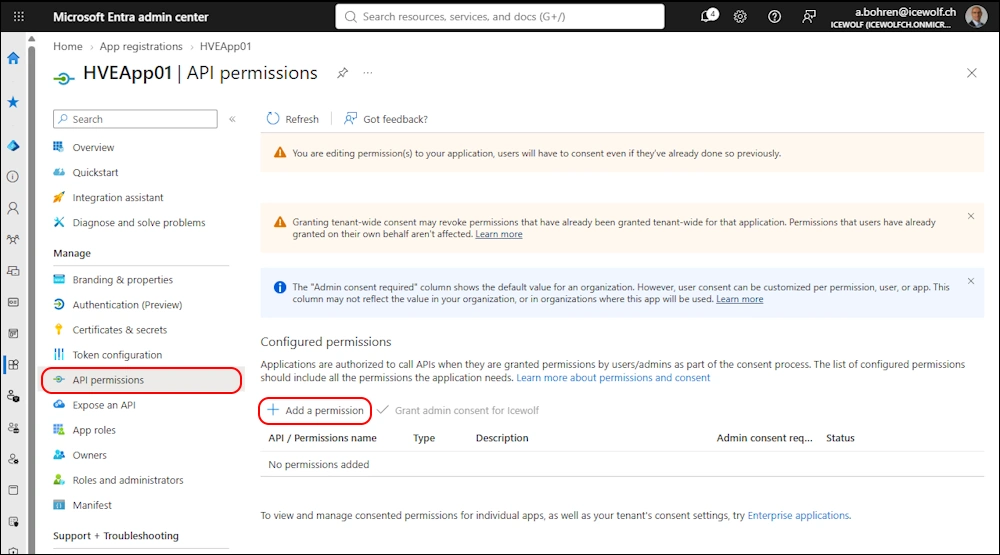
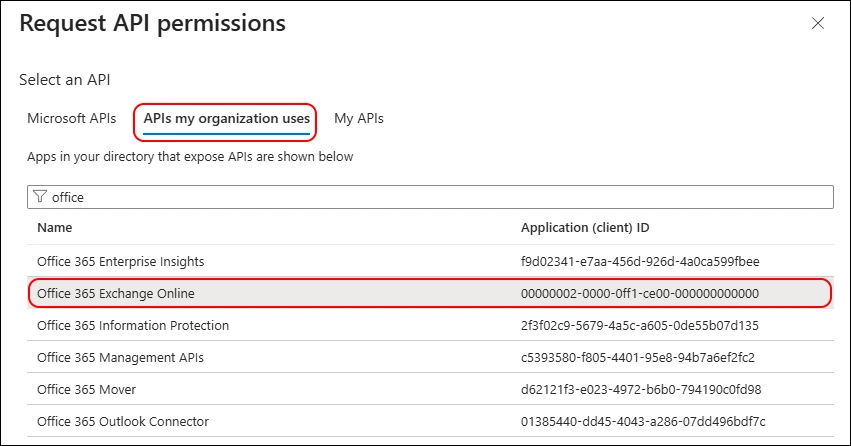
Select “APIs my organization uses” and search for “Office 365 Exchange Online”
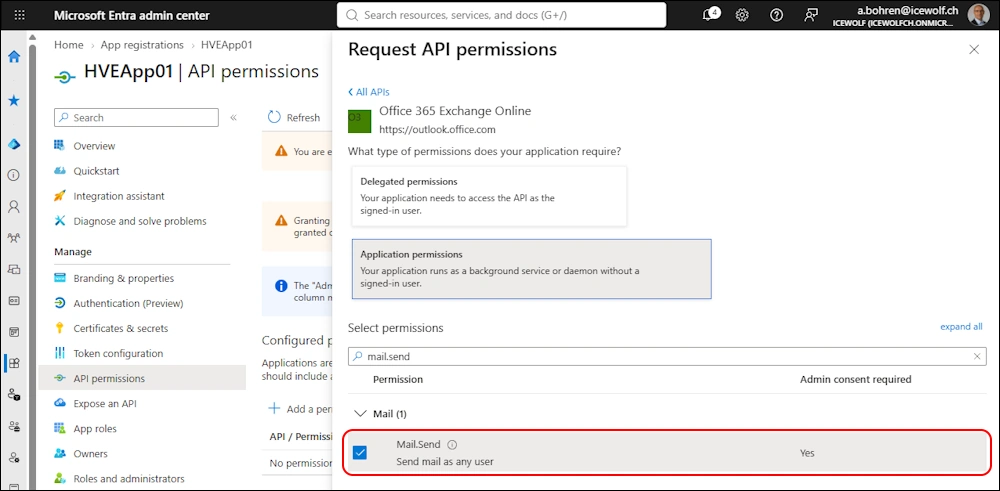
Select the “Mail.Send” permission for Delegated or Appliaction permission
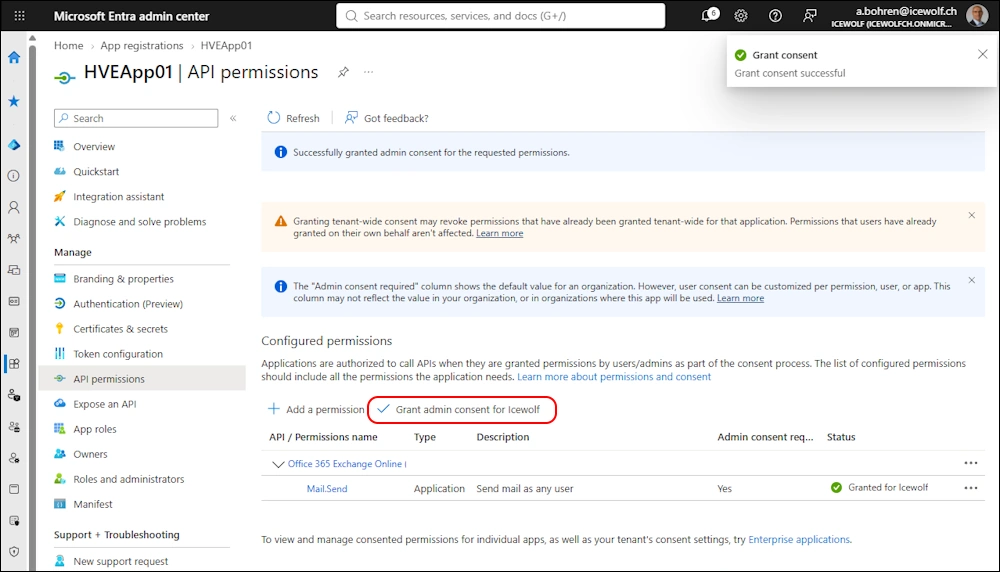
Grant admin consent
Add Serviceprincipal to HVEAccountSettings
Let’s get the ServicePrincipal ID
Connect-MgGraph -Scopes "Application.Read.All" -NoWelcome
Get-MgServicePrincipalByAppId -AppId "bfd204d7-c994-4a02-9f99-6a3d2ace4dfc"
Get-MgServicePrincipal -Filter "displayName eq 'HVEApp01'"
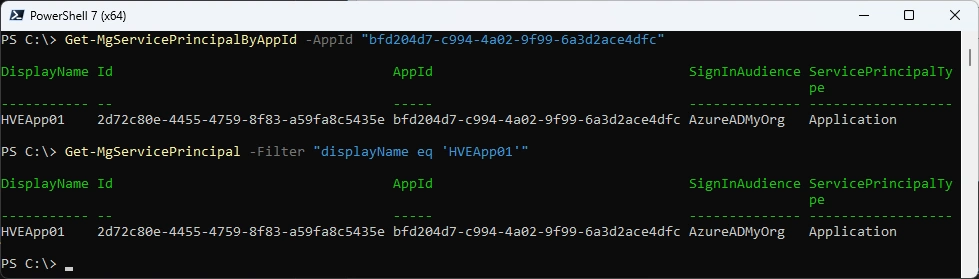
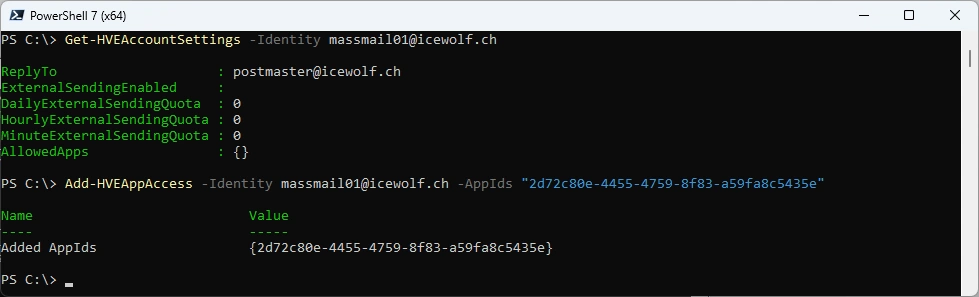
Add the “Id” from the step avoe to the AppIds of HVEAccountSettings in the Exchange Online PowerShell
Get-HVEAccountSettings -Identity massmail01@icewolf.ch | Format-List *AllowedApps*
Add-HVEAppAccess -Identity massmail01@icewolf.ch -AppIds "2d72c80e-4455-4759-8f83-a59fa8c5435e"
Remove-HVEAppAccess -Identity massmail01@icewolf.ch -AppIds <service-principal-id-1>,<service-principal-id-2>
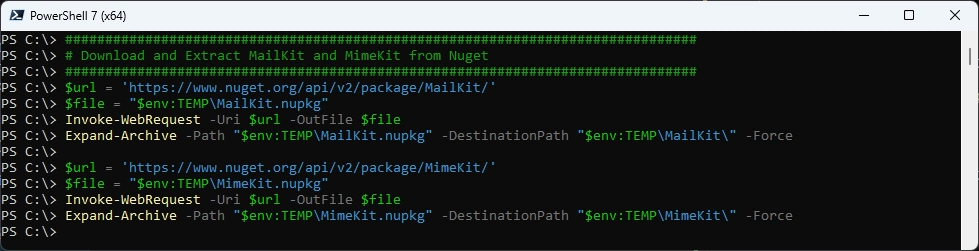
Download and Extract MailKit and MimeKit from Nuget
To use OAuth we need to Download and Extract MailKit and MimeKit from Nuget
###############################################################################
# Download and Extract MailKit and MimeKit from Nuget
###############################################################################
$url = 'https://www.nuget.org/api/v2/package/MailKit/'
$file = "$env:TEMP\MailKit.nupkg"
Invoke-WebRequest -Uri $url -OutFile $file
Expand-Archive -Path "$env:TEMP\MailKit.nupkg" -DestinationPath "$env:TEMP\MailKit\" -Force

$url = 'https://www.nuget.org/api/v2/package/MimeKit/'
$file = "$env:TEMP\MimeKit.nupkg"
Invoke-WebRequest -Uri $url -OutFile $file
Expand-Archive -Path "$env:TEMP\MimeKit.nupkg" -DestinationPath "$env:TEMP\MimeKit\" -Force
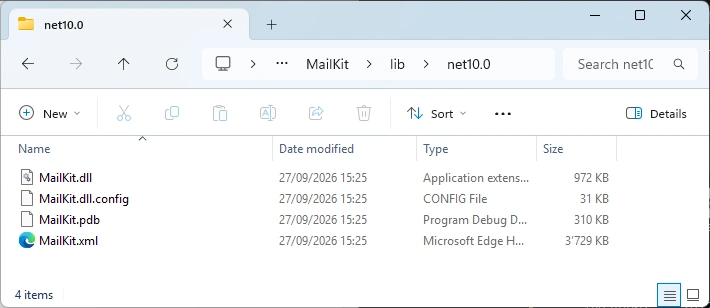
In the Extracted Folder there is a lib Folder for diffrent .NET Frameworks
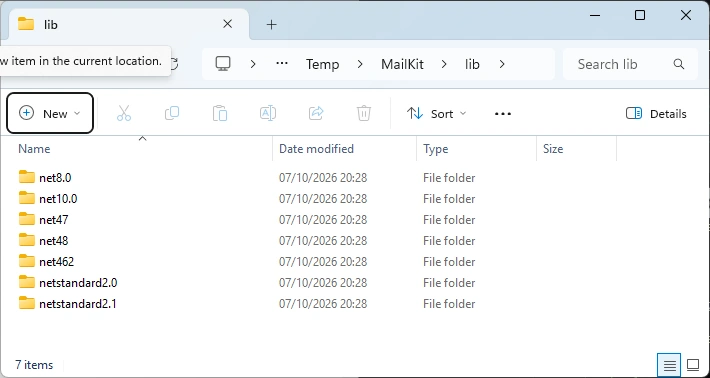
And here is the MailKit.dll
Send Mail with OAuth Script
I’ve written the following Script to send an Email with OAuth. You need to have the MailKit.dll and MimeKit.dll so use OAuth in SMTP
###############################################################################
# Native Login with Certificate (Application Permission)
# https://learn.microsoft.com/en-us/answers/questions/346048/how-to-get-access-token-from-client-certificate-ca
###############################################################################
function Get-AuthTokenWithoutModule {
    PARAM (
        [Parameter(Mandatory = $true)][string]$TenantName,
        [Parameter(Mandatory = $true)][string]$AppId,
        [Parameter(Mandatory = $true)][string]$Thumbprint,
        [Parameter(Mandatory = $true)][ValidateSet('CurrentUser', 'LocalMachine')][string]$CertStore,
        [Parameter(Mandatory = $true)][string]$Scope
    )

    $Certificate = Get-Item "Cert:\$CertStore\My\$Thumbprint"

    # Create base64 hash of certificate
    $CertificateBase64Hash = [System.Convert]::ToBase64String($Certificate.GetCertHash())

    #DEBUG
    #Write-Log -LogMessage "DEBUG: Certificate Base64 Hash: $CertificateBase64Hash"
    #Write-Host "DEBUG: Certificate Base64 Hash: $CertificateBase64Hash" -ForegroundColor Yellow

    # Create JWT timestamp for expiration
    $StartDate = (Get-Date "1970-01-01T00:00:00Z" ).ToUniversalTime()
    $JWTExpirationTimeSpan = (New-TimeSpan -Start $StartDate -End (Get-Date).ToUniversalTime().AddMinutes(2)).TotalSeconds
    $JWTExpiration = [math]::Round($JWTExpirationTimeSpan,0)

    # Create JWT validity start timestamp
    $NotBeforeExpirationTimeSpan = (New-TimeSpan -Start $StartDate -End ((Get-Date).ToUniversalTime())).TotalSeconds
    $NotBefore = [math]::Round($NotBeforeExpirationTimeSpan,0)

    # Create JWT header
    $JWTHeader = @{
        alg = "RS256"
        typ = "JWT"
        # Use the CertificateBase64Hash and replace/strip to match web encoding of base64
        x5t = $CertificateBase64Hash -replace '\+','-' -replace '/','_' -replace '='
    }

    # Create JWT payload
    $JWTPayLoad = @{
        # What endpoint is allowed to use this JWT
        aud = "https://login.microsoftonline.com/$TenantName/oauth2/token"

        # Expiration timestamp
        exp = $JWTExpiration

        # Issuer = your application
        iss = $AppId

        # JWT ID: random guid
        jti = [guid]::NewGuid()

        # Not to be used before
        nbf = $NotBefore

        # JWT Subject
        sub = $AppId
    }

    # Convert header and payload to base64
    $JWTHeaderToByte = [System.Text.Encoding]::UTF8.GetBytes(($JWTHeader | ConvertTo-Json))
    $EncodedHeader = [System.Convert]::ToBase64String($JWTHeaderToByte)

    $JWTPayLoadToByte =  [System.Text.Encoding]::UTF8.GetBytes(($JWTPayload | ConvertTo-Json))
    $EncodedPayload = [System.Convert]::ToBase64String($JWTPayLoadToByte)

    # Join header and Payload with "." to create a valid (unsigned) JWT
    $JWT = $EncodedHeader + "." + $EncodedPayload

    # Get the private key object of your certificate
    $PrivateKey = ([System.Security.Cryptography.X509Certificates.RSACertificateExtensions]::GetRSAPrivateKey($Certificate))

    # Define RSA signature and hashing algorithm
    $RSAPadding = [Security.Cryptography.RSASignaturePadding]::Pkcs1
    $HashAlgorithm = [Security.Cryptography.HashAlgorithmName]::SHA256

    # Create a signature of the JWT
    $Signature = [Convert]::ToBase64String(
        $PrivateKey.SignData([System.Text.Encoding]::UTF8.GetBytes($JWT),$HashAlgorithm,$RSAPadding)
    ) -replace '\+','-' -replace '/','_' -replace '='

    # Join the signature to the JWT with "."
    $JWT = $JWT + "." + $Signature

    # Create a hash with body parameters
    $Body = @{
        client_id = $AppId
        client_assertion = $JWT
        client_assertion_type = "urn:ietf:params:oauth:client-assertion-type:jwt-bearer"
        scope = $Scope
        grant_type = "client_credentials"
    }

    $Url = "https://login.microsoftonline.com/$TenantName/oauth2/v2.0/token"

    # Use the self-generated JWT as Authorization
    $Header = @{
        Authorization = "Bearer $JWT"
    }

    # Splat the parameters for Invoke-Restmethod for cleaner code
    $PostSplat = @{
        ContentType = 'application/x-www-form-urlencoded'
        Method = 'POST'
        Body = $Body
        Uri = $Url
        Headers = $Header
    }

    $Token = Invoke-RestMethod @PostSplat
    $AccessToken = $Token.access_token

    If ($Null -ne $AccessToken) {
        #Write-Log -LogMessage "Access Token obtained"
        #Write-Host "Access Token obtained" -ForegroundColor Cyan
    }

    return $AccessToken
}

###############################################################################
# Send HVE Mail with OAuth
###############################################################################
# Variables
$AppID = "bfd204d7-c994-4a02-9f99-6a3d2ace4dfc"
$TenantId = "46bbad84-29f0-4e03-8d34-f6841a5071ad" #icewolfch.onmicrosoft.com
$CertificateThumbprint = "FB40D47A0C0A23EA297B44A57272BCED352D0002" #O365PowerShell5

# Get Access Token
$AccessToken = Get-AuthTokenWithoutModule -TenantName $TenantId -AppId $AppID -Thumbprint $CertificateThumbprint -CertStore CurrentUser -Scope "https://outlook.office.com/.default"

# MailKit DLLs
Add-Type -Path "C:\Users\a.bohren\AppData\Local\Temp\MailKit\lib\net10.0\MailKit.dll"
Add-Type -Path "C:\Users\a.bohren\AppData\Local\Temp\MimeKit\lib\net10.0\MimeKit.dll"

# Create Message
$MailMessage = [System.Net.Mail.MailMessage]::new()
$MailMessage.From =  "massmail01@icewolf.ch"
$mailMessage.To.Add("a.bohren@icewolf.ch")
$mailMessage.Subject = "HVE OAuth Test"
$mailMessage.Body = "Test message from HVE using OAuth."
$mailMessage.IsBodyHtml = $false

# Connect SMTP
$SMTP = [MailKit.Net.Smtp.SmtpClient]::new()
$SMTP.Connect("smtp.hve.mx.microsoft",587,[MailKit.Security.SecureSocketOptions]::StartTls)
$OAuth2 = [MailKit.Security.SaslMechanismOAuth2]::new(
    "massmail01@icewolf.ch",
    $AccessToken
)

$SMTP.Authenticate($OAuth2)
$SMTP.Send($MailMessage)
$SMTP.Disconnect($true)
$SMTP.Dispose()
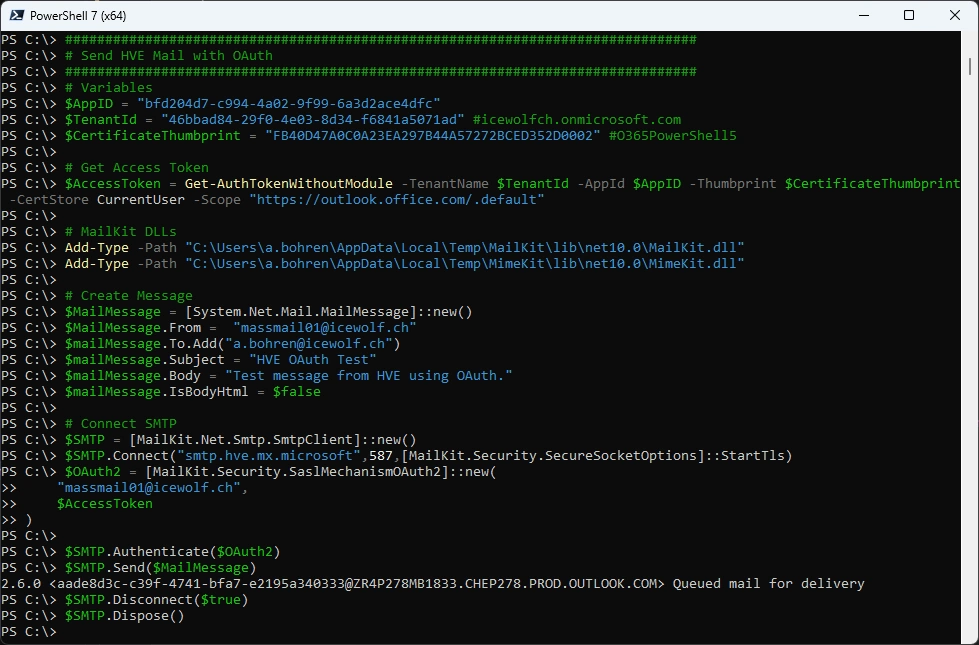
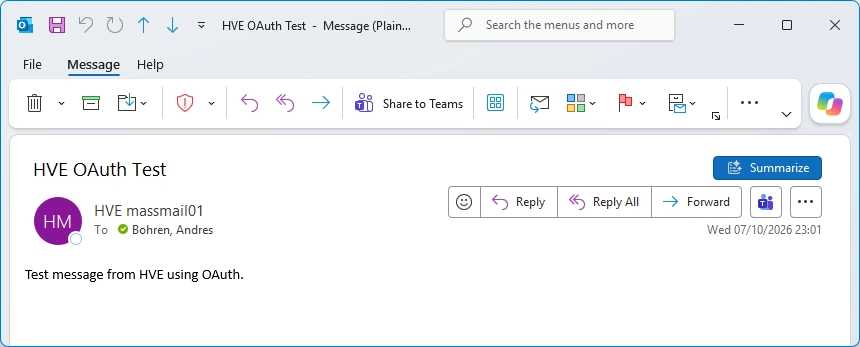
Here is the Mail in Outlook
Regards
Andres Bohren
Exchange Logo PowerShell Logo
