
Microsoft Teams Engineering Tools

Hi All,
This is your normal Microsoft Teams Task Tray context menu.
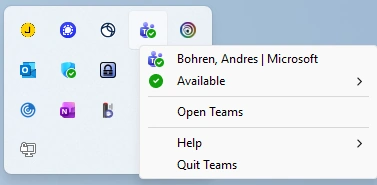
Thanks to my fellow collegue Markus Gabriel who showed me the Teams Engineering Tools.
All you need is to create a configuration.json in the Teams Folder.
#%LOCALAPPDATA%\Packages\MSTeams_8wekyb3d8bbwe\LocalCache\Microsoft\MSTeams\configuration.json
{"core/devMenuEnabled": true}
Or use this neat PowerShell Script
###############################################################################
# Enable Microsoft Teams Engineering Tools
# 31.07.2026 - V1.0 - Initial Version - Andres Bohren https://blog.icewolf.ch
###############################################################################
$Path = "$env:LOCALAPPDATA\Packages\MSTeams_8wekyb3d8bbwe\LocalCache\Microsoft\MSTeams\"
If (Test-Path -Path $Path)
{
    Set-Content -Path "$Path\configuration.json" -Value '{"core/devMenuEnabled": true}'
}
Write-Host "Restart Teams to activate Engineering Tools"
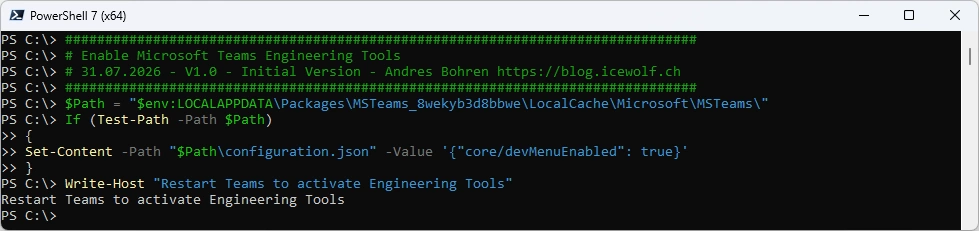
After restarting Teams you have the Microsoft Teams Engineering Tools in the context menu
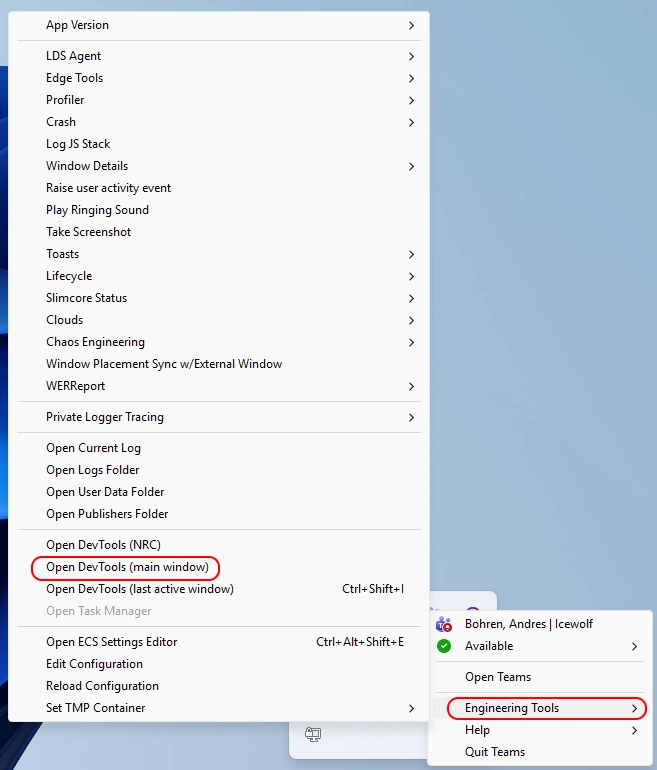
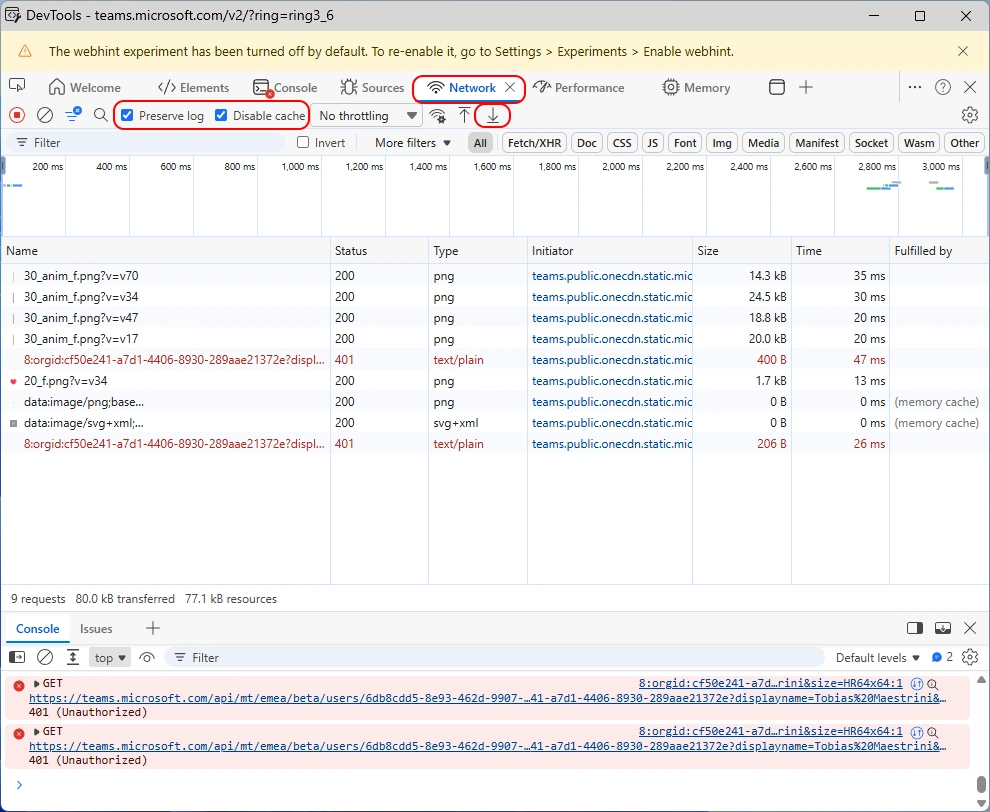
You can use the DevTools to view the Network Traffic that is generated in the main window and even download the File afterwards
Found this Tip also here:
Regards
Andres Bohren
PowerShell Logo Teams Logo
