
PS.MTA-STS 1.4.1 has been released

Hi All,
If you are a professional working in the Messaging Field, you should be familiar with DANE - DNS based Authentification of Named Entities and Mail Transfer Agent Strict Transport Security (MTA-STS)
Mail Transfer Agent Strict Transport Security (MTA-STS) has been defined in 2018 in the following RFC
MTA-STS benefits:
- Emails are transfered over a secure TLS connection
- Must use TLS-Version 1.2 or higher
- For the TLS Certificates they need to:
- Certificate Subject needs to match the MX-Entry
- They need to be signed and issued by a public trusthworthy CA
- They need to be valid (valid from / valid until)
MTA-STS protects against:
- Downgrade-Attacks to lower TLS Versions
- Man-In-The-Middle (MITM) Attacks
- Solves multiple SMTP-Security Issues, including expired TLS certificates and lack of support for secure protocols.
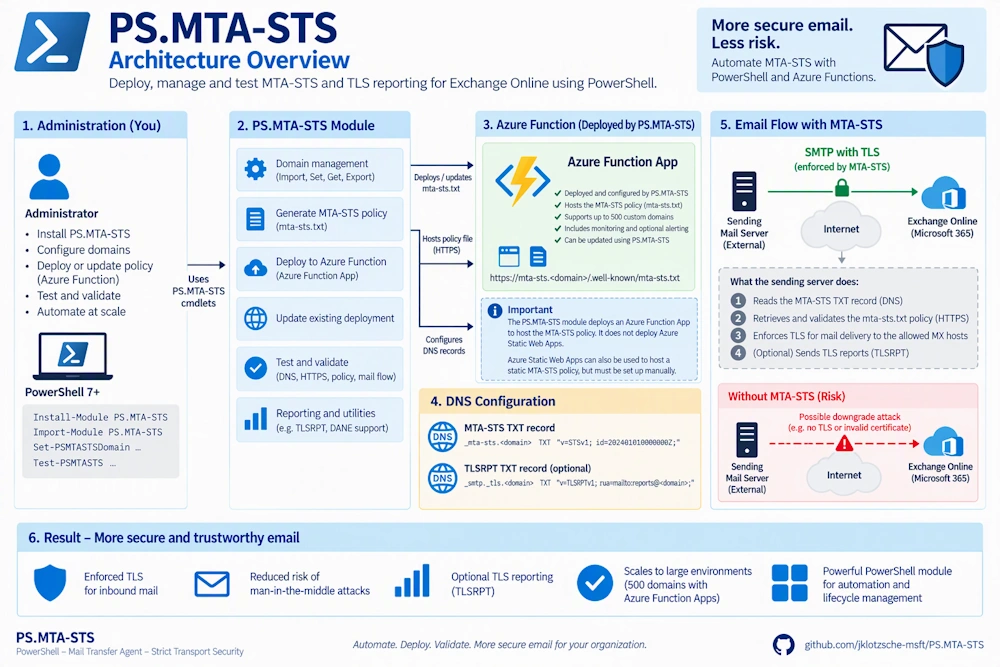
MTA-STS consists of:
- MTA STS DNS TXT Record (_mta-sts.domain.tld)
- MTA-STS Policy (https://mta-sts.domain.tld/.well-known/mta-sts.txt)
- SMTP TLS Reporting DNS TXT Record (_smtp._tls.domain.tld)
PS.MTA-STS PowerShell Module
Jamy Klotzsche has written a PowerShell Module for deploying MTA-STS with a PowerShell Module and Azure Function App.
- GitHub PS.MTA-STS
I’ve joined Jamy in early 2024 and helped him to improve the PowerShell Module.
Here is the Architecture overview
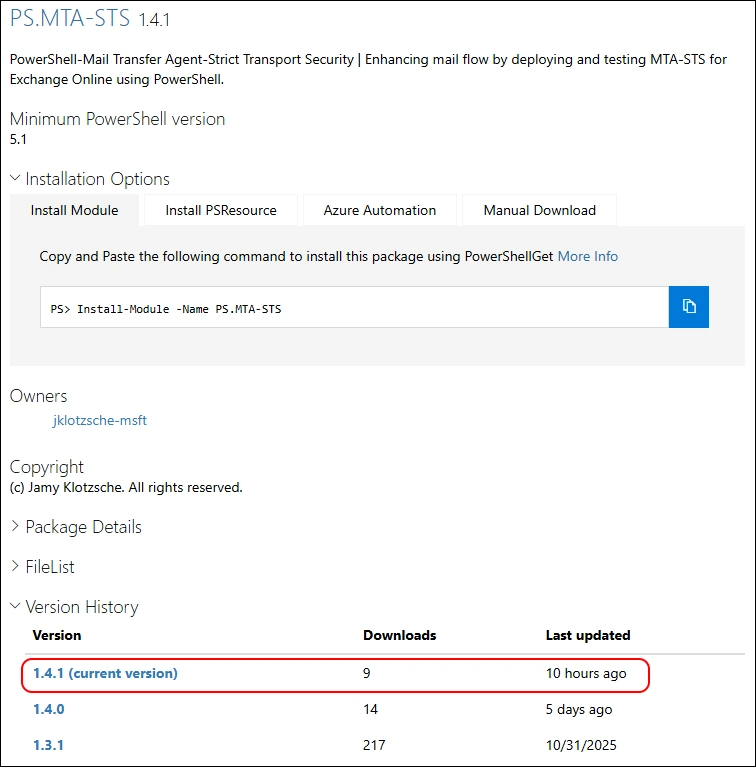
Today a new Version of PS.MTA-STS has been released
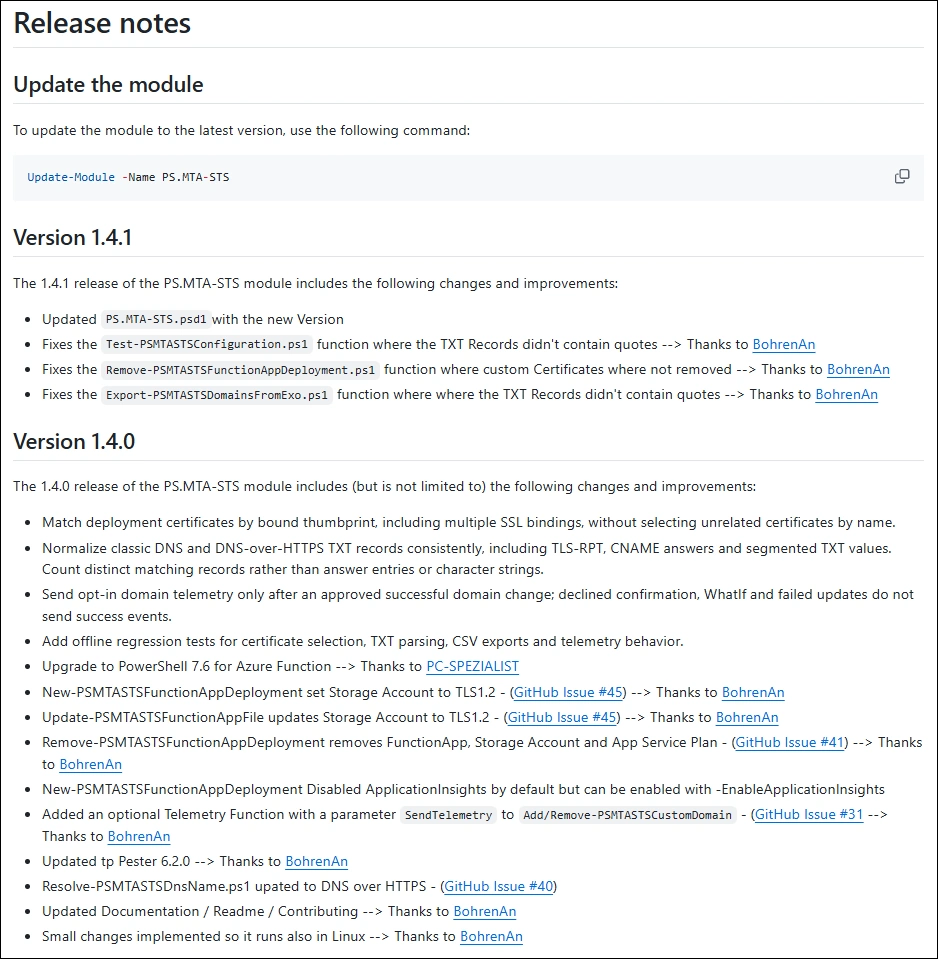
Over the last couple of Weeks i’ve been busy to update the Module to cover some of the Issues and some Items from the Backlog.
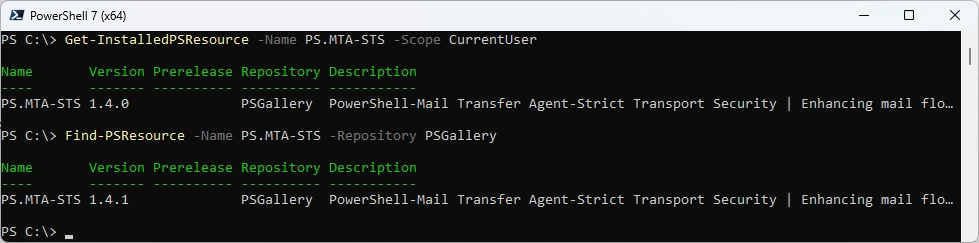
Check the installed Module and what’s available from the PowerShell Gallery
Get-InstalledPSResource -Name PS.MTA-STS -Scope CurrentUser
Find-PSResource -Name PS.MTA-STS -Repository PSGallery
Uninstall the old version and install the current PowerShell Module
Uninstall-PSResource -Name PS.MTA-STS -Scope CurrentUser -SkipDependencyCheck
Install-PSResource -Name PS.MTA-STS -Scope CurrentUser -Repository PSGallery
Get-InstalledPSResource -Name PS.MTA-STS -Scope CurrentUser

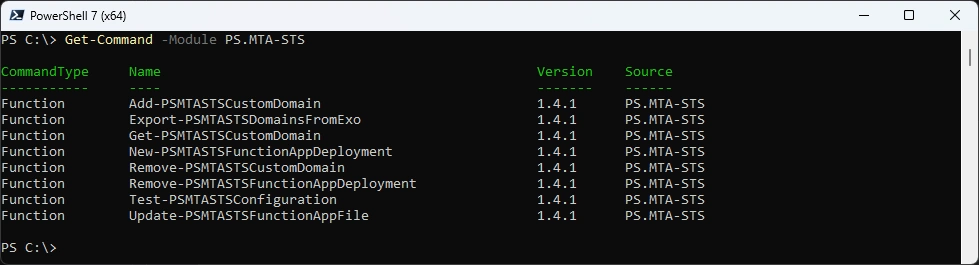
List the commands of the PowerShell Module
Get-Command -Module PS.MTA-STS
If you are Exchange Online Administrator, you can Export your Domains directly from Exchange Online. If you’re not connected, the Authentication Dialog will ask you to Sign-In.
Export-PSMTASTSDomainsFromExo -CsvPath C:\Temp\EXODomains.csv
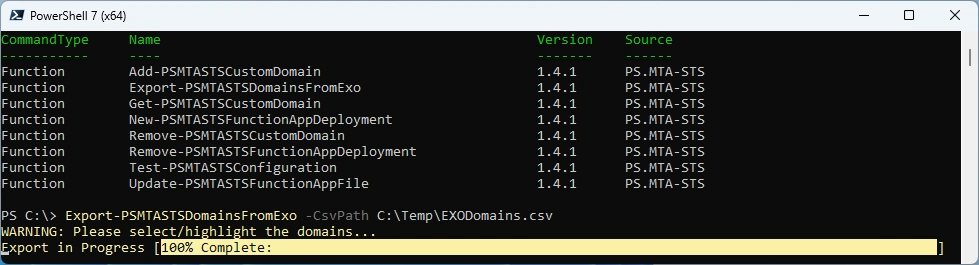
Select the Domains you want to Export
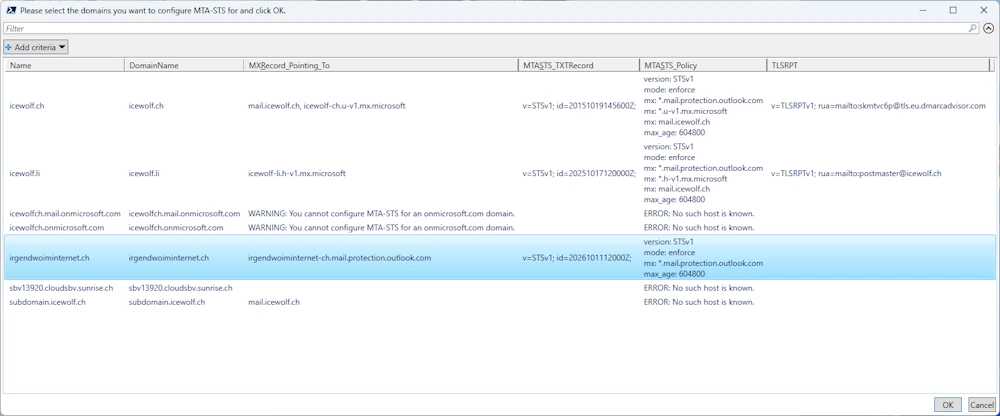
The Domains are Exported to the CSV File

Azure
Let’s connect to Azure with the AZ PowerShell
Connect-AzAccount -Tenant icewolfch.onmicrosoft.com
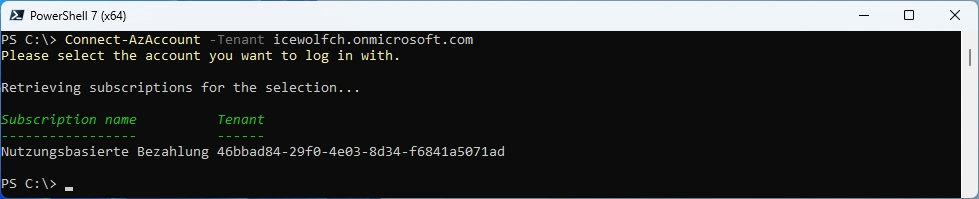
We start with an empty Resource Group
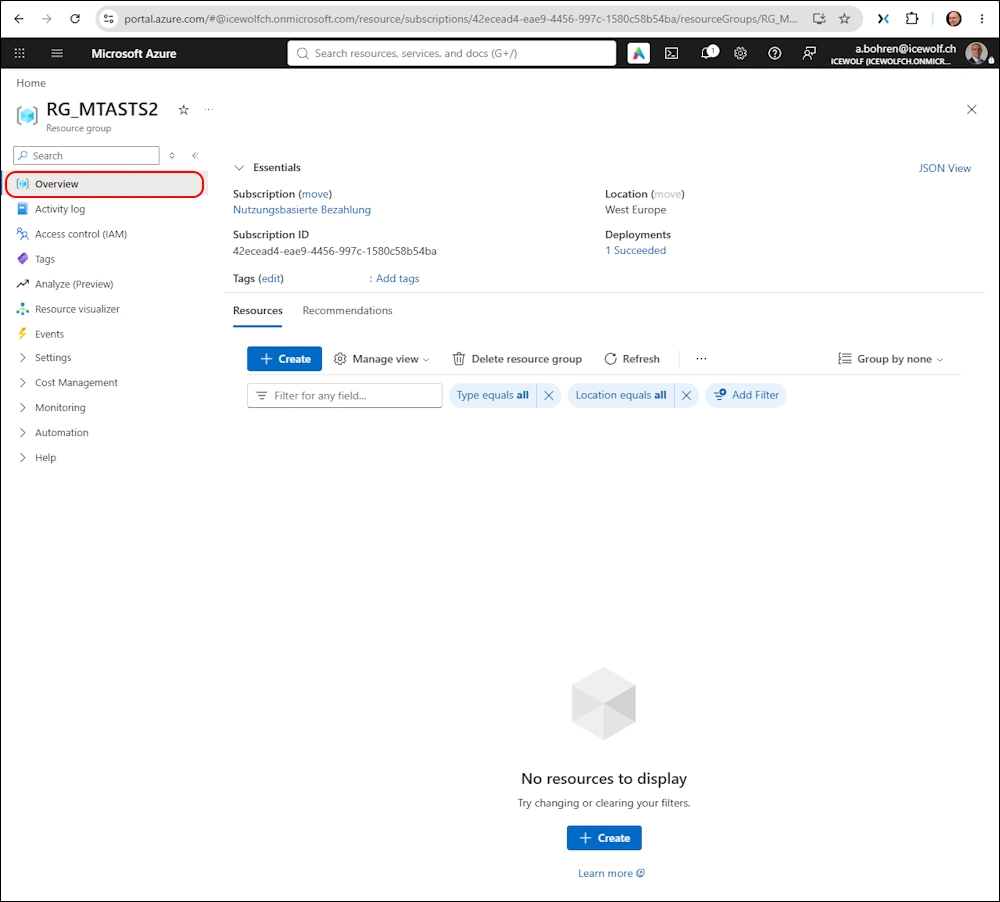
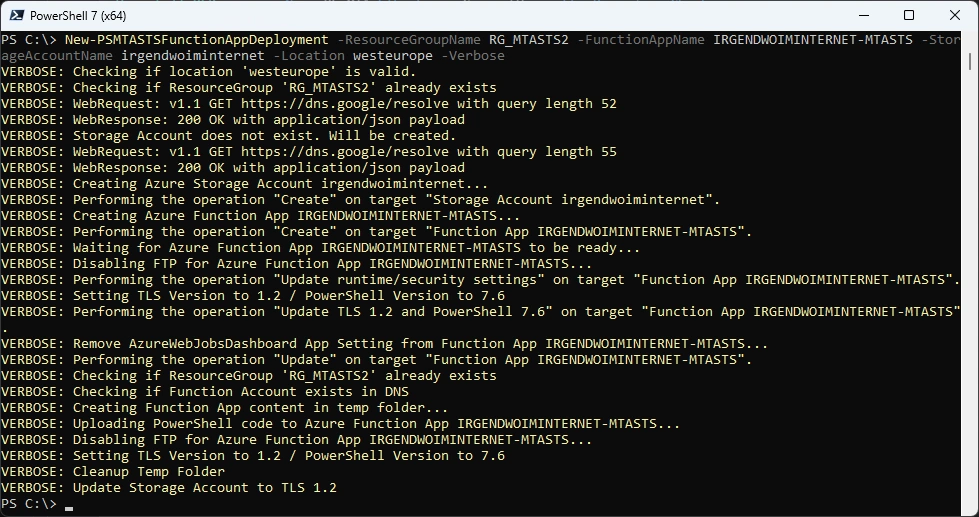
Let’s deploy the Azure Function App
New-PSMTASTSFunctionAppDeployment -ResourceGroupName RG_MTASTS2 -FunctionAppName IRGENDWOIMINTERNET-MTASTS -StorageAccountName irgendwoiminternet -Location westeurope -Verbose
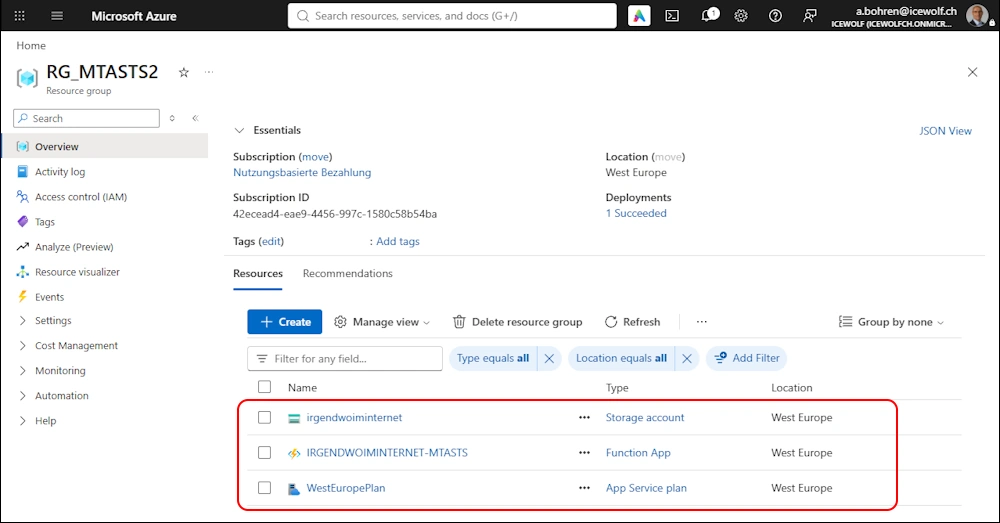
Now the App Service Plan, the Azure Function App and the Storage Account has been deployed
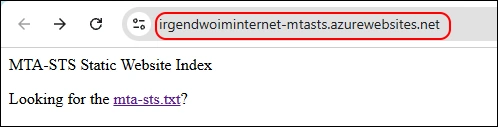
We can now check the Function App with the default domain
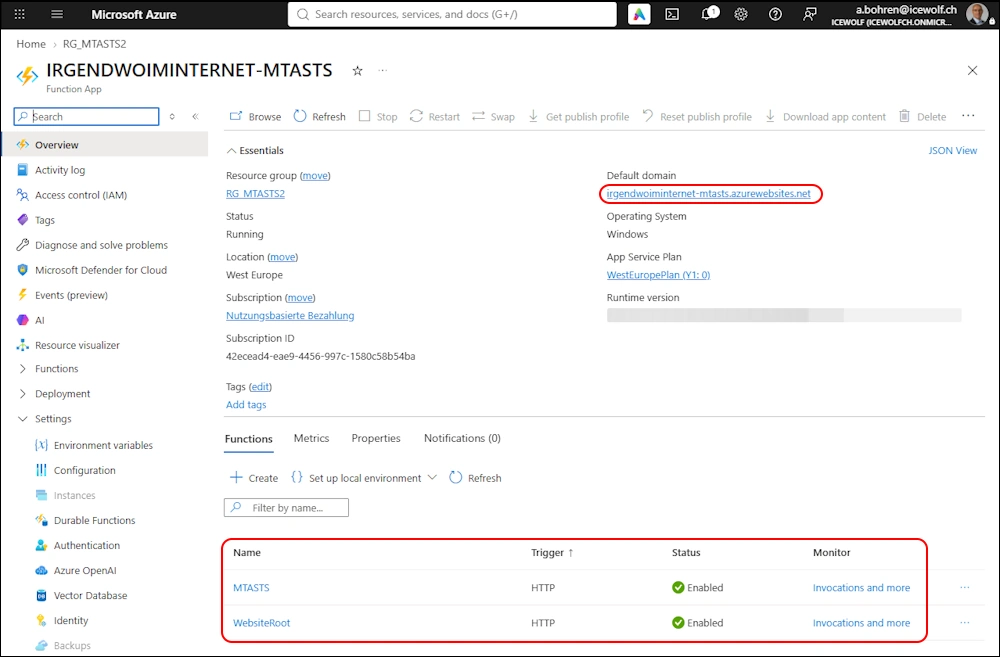
In the root Directory is just a simple html File that has the link to the mta-sts.txt
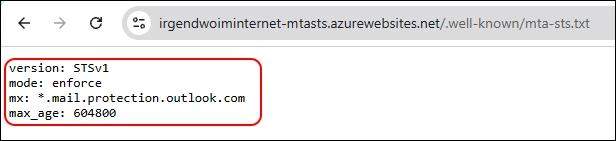
the ./well-known/mta-sts.txt contains the default policy with *.mail.protection.outlook.com
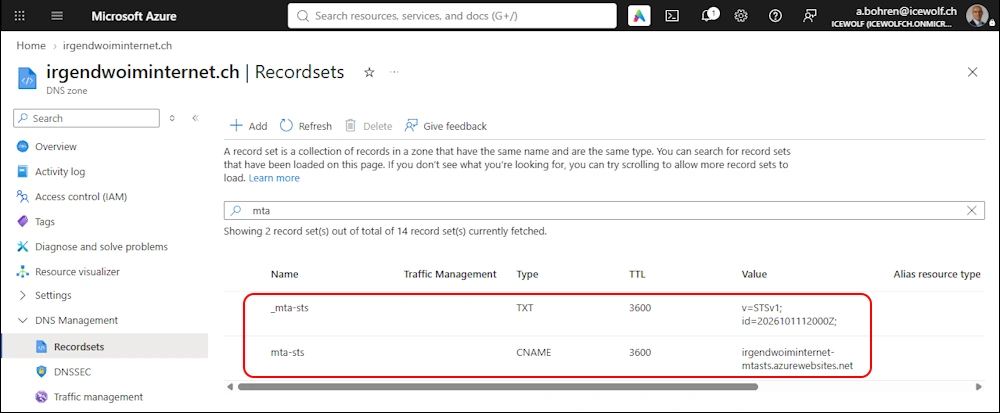
Now you need to add the DNS Records
mta-sts.domain.tld > CNAME > Azure Function App _mta-sts.domain.tld > TXT > “v=STSv1; id=YYYYMMDDhhmmssZ;” (can be done after the Certificate has been added)
Now we can add the Custom Domain from the CSV Export from Exchange Online
Add-PSMTASTSCustomDomain -ResourceGroupName RG_MTASTS2 -FunctionAppName IRGENDWOIMINTERNET-MTASTS -CsvPath C:\Temp\EXODomains.csv -SendTelemetry -Verbose
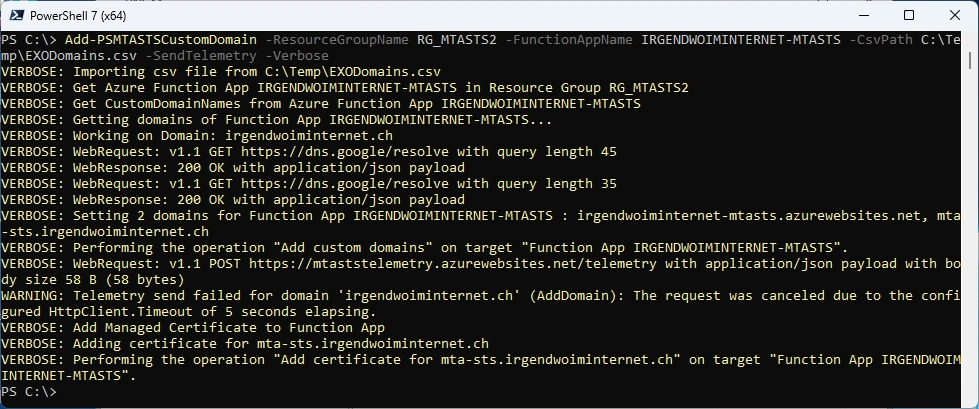
The Custom Domain has been added
Get-PSMTASTSCustomDomain -ResourceGroupName RG_MTASTS2 -FunctionAppName IRGENDWOIMINTERNET-MTASTS | fl
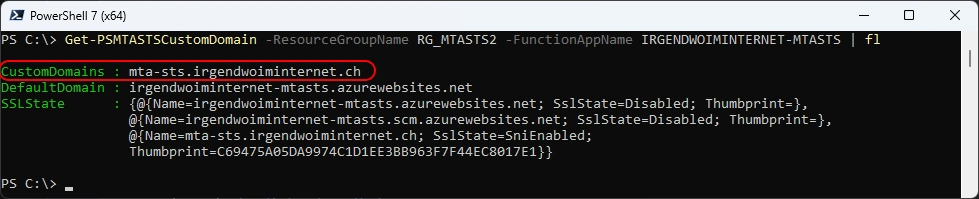
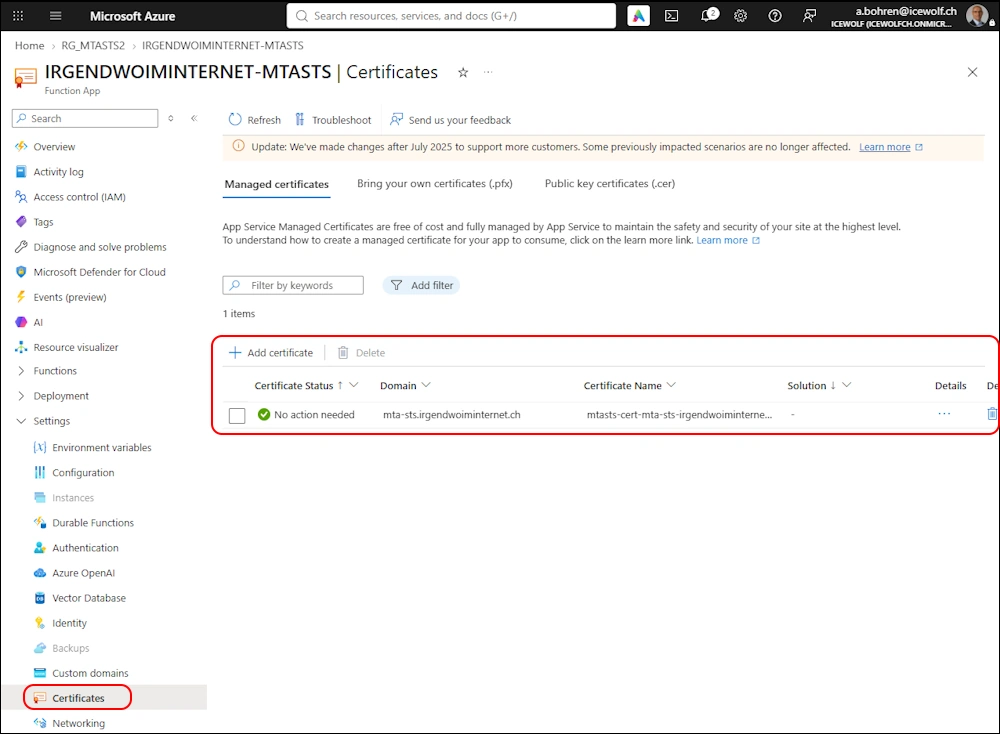
Managed Certificate has been added to the Function App
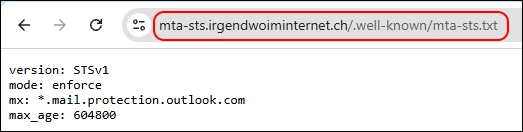
The Azure Function App can now be accessed with https://domain.tld/.well-known/mta-sts.txt
Let’s test our configuration > Everything shows okay
Test-PSMTASTSConfiguration -DomainName irgendwoiminternet.ch
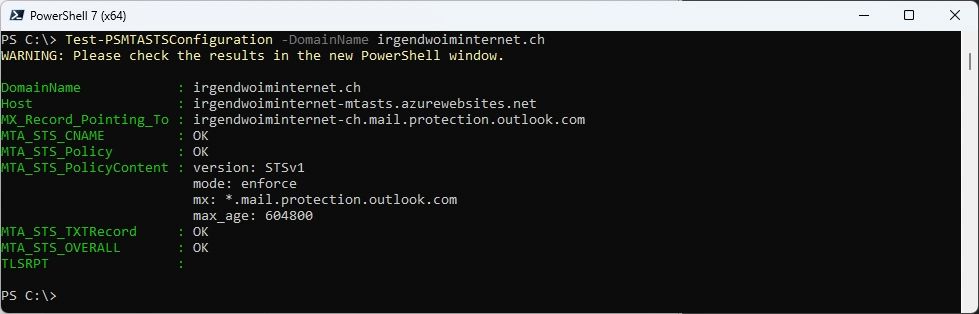
The result is also shown in a GridView

Add another Domain
The MX Servers of serveralive.ch points to:
- ex01-serveralive.westeurope.cloudapp.azure.com
- serveralive-ch.w-v1.mx.microsoft
Test-PSMTASTSConfiguration -DomainName serveralive.ch
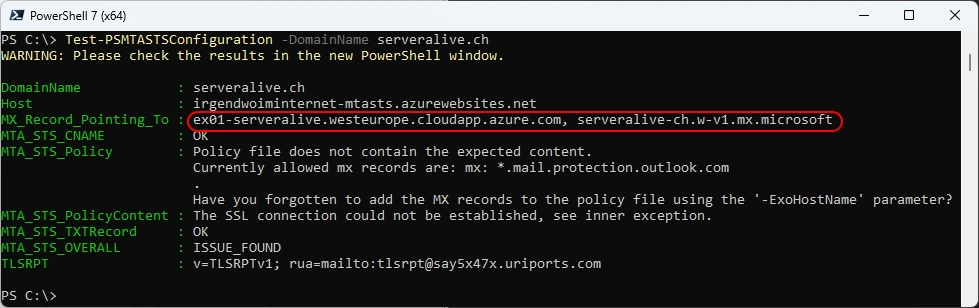
We can update the MTA-STS Policy with the -ExoHostName Parameter
Update-PSMTASTSFunctionAppFile -ResourceGroupName RG_MTASTS2 -FunctionAppName IRGENDWOIMINTERNET-MTASTS -PolicyMode Enforce -Verbose -ExoHostName *.w-v1.mx.microsoft, ex01-serveralive.westeurope.cloudapp.azure.com
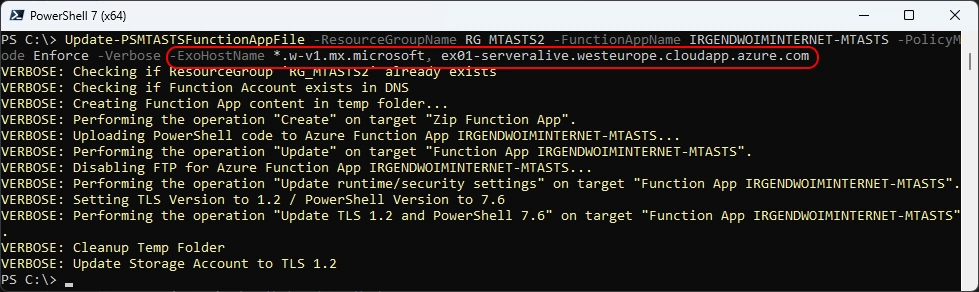
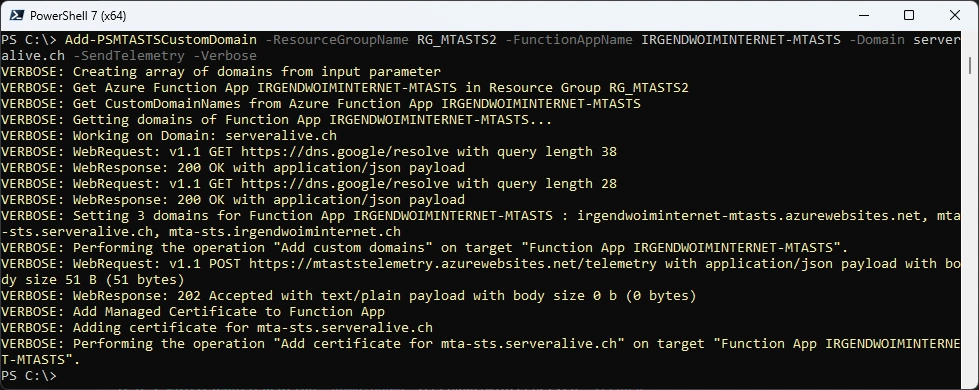
Add the Custom Domain with thee -DomainName Parameter
Add-PSMTASTSCustomDomain -ResourceGroupName RG_MTASTS2 -FunctionAppName IRGENDWOIMINTERNET-MTASTS -DomainName serveralive.ch -SendTelemetry -Verbose
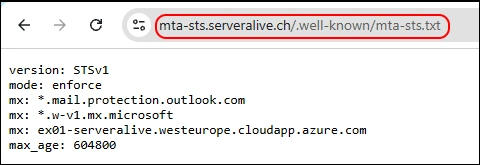
Now the MTA-STS Policy is also accessible via the serveralive.ch domain and the Policy has been updated with the additional MX Records
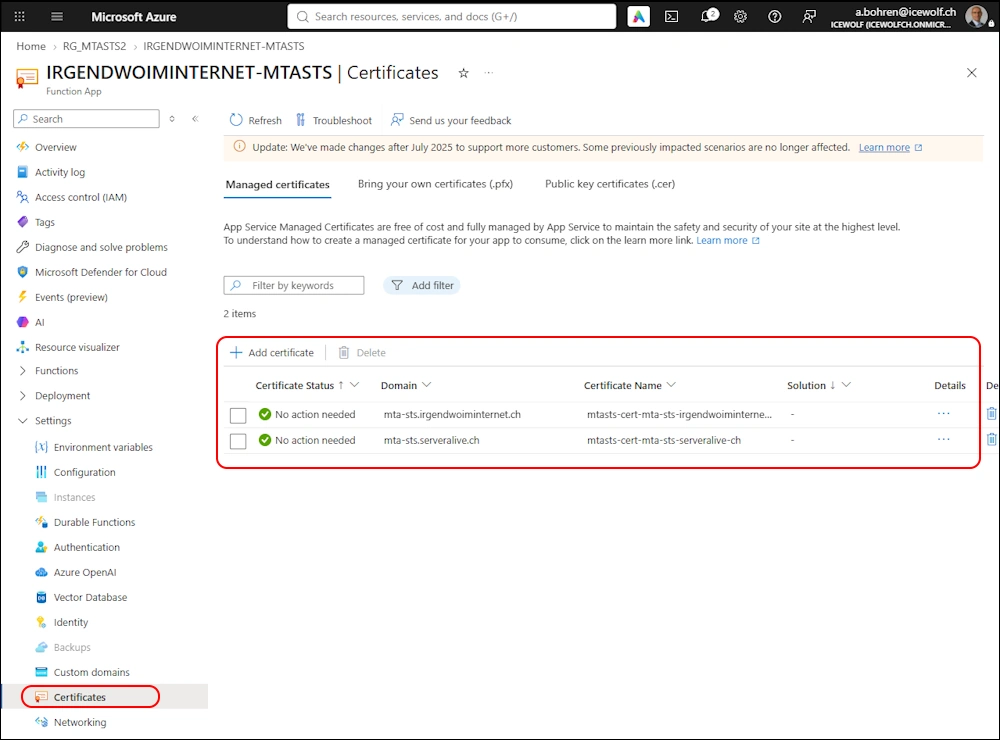
Now we have two Managed Certificates
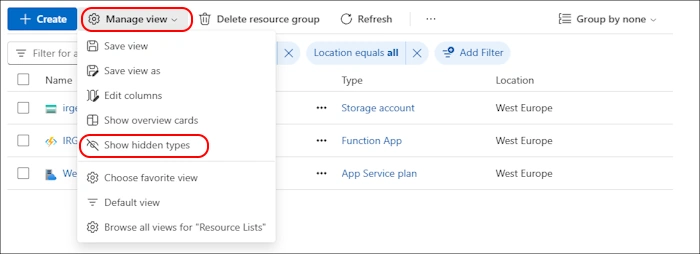
If you want to see the Certificates in Azure Portal you have to select the view Show hidden types
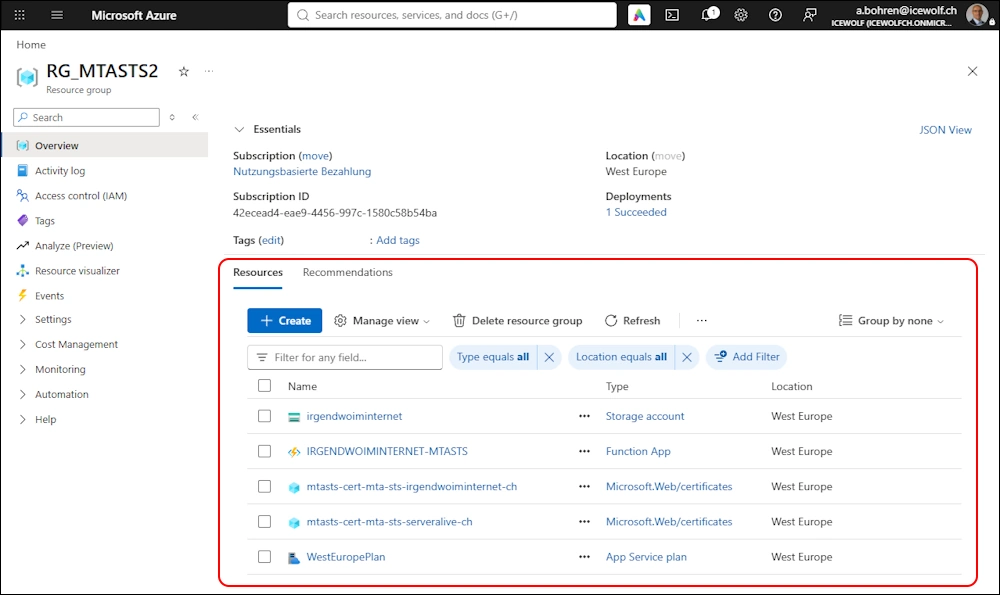
These are all the resources in the Azure Resource Group
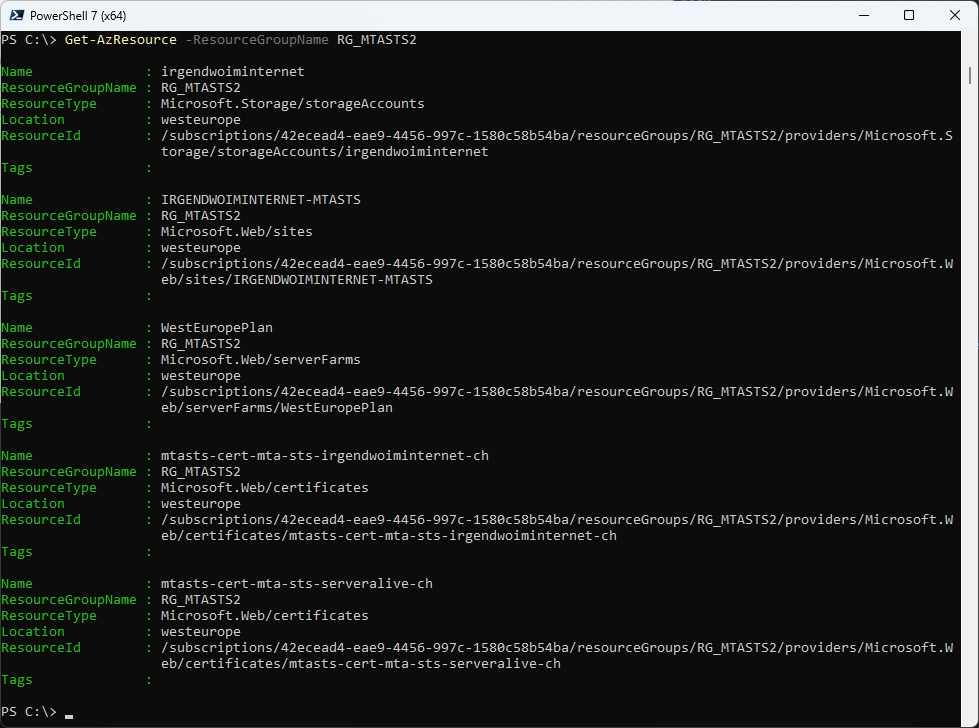
List the Resources with AZ Powershell
Get-AzResource -ResourceGroupName RG_MTASTS2
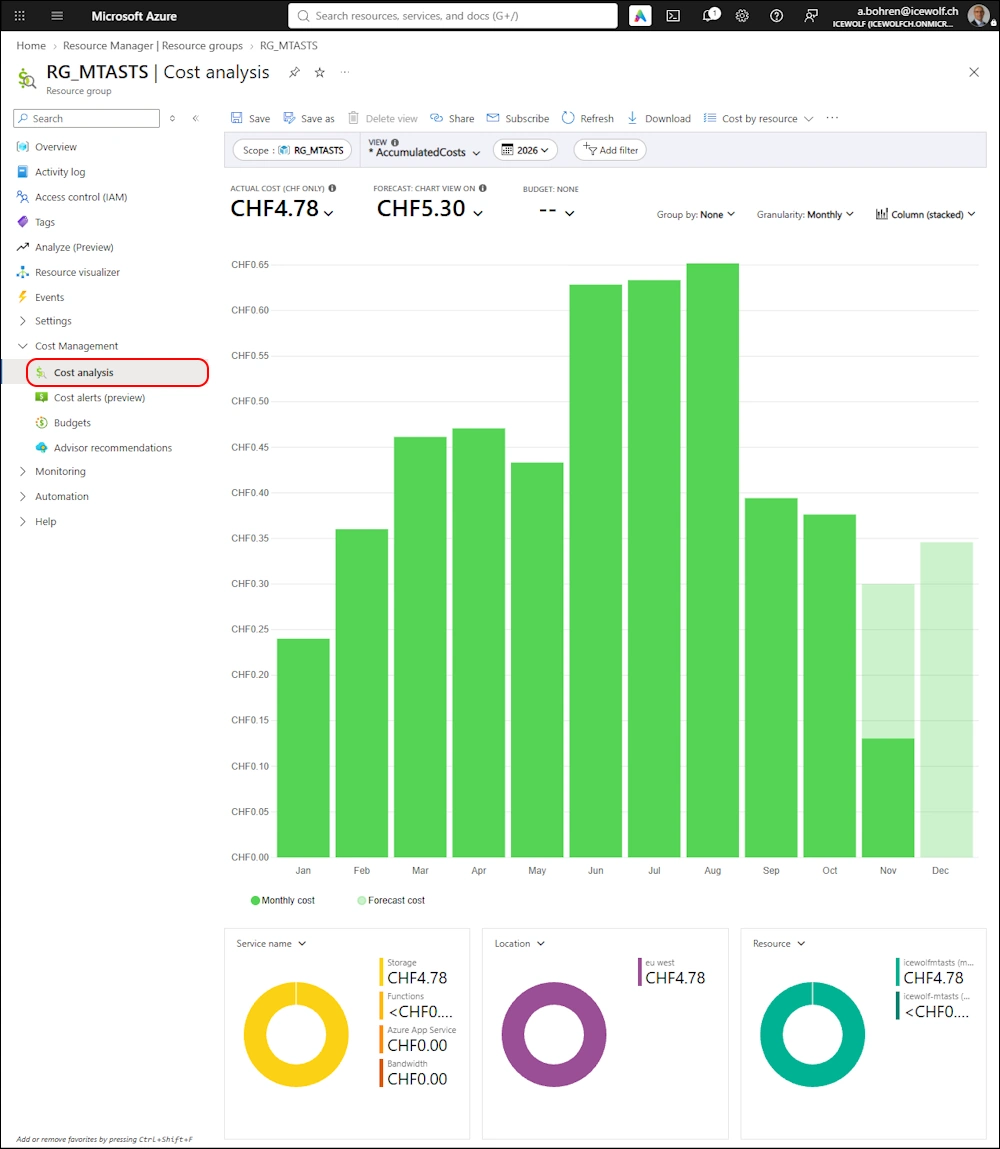
Costs
This are the costs for my icewolf.ch MTA-STS configuration. I only have a small volume of Emails - so the usage is pretty low. Anyway it shows that the costs are minimal and the security improvement is worth the cost. At least as long your DNS don’t support DNSSEC - so you can use DANE.
If you want to remove the Function App you can use the command below.
Caution: This will delete all the accociated Resources like Storage Account, App Service Plan, Insight Analytics, Certificates etc.
Remove-PSMTASTSFunctionAppDeployment -ResourceGroupName RG_MTASTS2 -FunctionAppName IRGENDWOIMINTERNET-MTASTS -StorageAccountName irgendwoiminternet -Verbose
Summary
I’ve showed you an easy way how to improve your Messaging Security with MTA-STS and some Azure Services. Hope this helps anyone who wants to deploy MTA-STS with an easy way for multiple domains.
If you have questions, don’t hesitate to comment or contact me.
Regards
Andres Bohren
Exchange Logo PowerShell Logo Security Logo

